
How to Upload a Video on Youtube: A Step-by-step Guide
Are you tired of keeping your favorite memories hidden away? Do you want to share them with the world, but don’t know where to start? Uploading a video on YouTube is easier than you think! In this article, we will guide you through the process of uploading a video on YouTube, from selecting the right equipment to making it visible to the public.
Why Upload a Video on Youtube?
Uploading a video on YouTube has numerous benefits. Not only can you share your memories with friends and family, but you can also connect with others who share similar interests. With over 2 billion monthly active users, YouTube is an ideal platform for sharing videos. Whether it’s a birthday party, a vacation, or a tutorial, uploading a video on YouTube allows you to showcase your creativity and personality.
Equipment Needed
Before we dive into the steps, let’s talk about the equipment needed to upload a video on YouTube. You will need:
- A smartphone or camera with good video quality
- A computer or laptop with internet access
- A YouTube account (if you don’t have one, create it now!)
Step 1: Selecting The Right Video
The first step is to select the right video to upload. Choose a video that showcases your personality and creativity. Make sure it’s high-quality and not too long.
Step 2: Preparing The Video
Once you’ve selected the video, prepare it for uploading by:
- Trimming any unnecessary parts
- Adding music or sound effects (optional)
- Saving the video in a format compatible with YouTube
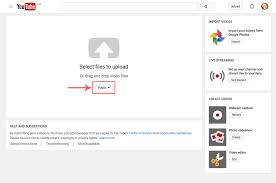
Step 3: Uploading The Video
Now that your video is ready, it’s time to upload it on YouTube. Follow these steps:
- Sign in to your YouTube account
- Click on the “Upload” button
- Select the video you want to upload
- Add title, description, and tags (optional)
- Choose the visibility settings
Step 4: Visibility Settings
When choosing the visibility settings, consider the following options:
- Public: Make the video visible to everyone
- Private: Share the video with specific people only
- Unlisted: Share the video with anyone who has the link (but not publicly)
Step 5: Publishing The Video
Once you’ve uploaded and set the visibility settings, it’s time to publish the video. Click on the “Publish” button, and your video will be live!
Additional Tips And Tricks
Here are some additional tips and tricks to help you make the most out of uploading a video on YouTube:
- Use Keywords: Add relevant keywords to your title, description, and tags for better search visibility.
- Engage With Comments: Respond to comments and engage with viewers to build a community around your content.
- Promote Your Video: Share your video on social media platforms and embed it on your website or blog.
Common Questions
Q: What is the maximum file size allowed on YouTube?
A: The maximum file size allowed on YouTube is 256 GB or 12 hours, whichever comes first.
Q: How do I upload a video from my phone?
A: You can upload a video directly from your phone using the YouTube app.
Q: Can I upload a video with music copyrighted by others?
A: No, you cannot upload a video with copyrighted music without permission. Use royalty-free music or purchase a license to use copyrighted music.
Conclusion
Uploading a video on YouTube is an exciting way to share your creativity and personality with the world. With these step-by-step instructions and additional tips and tricks, you’re ready to start uploading! Don’t forget to engage with comments and promote your video to build a community around your content.
Faqs
Q: How long does it take for a video to process on YouTube?
A: The processing time may vary depending on the quality of the video. It can take anywhere from a few minutes to several hours or even days.
Q: Can I upload a 4K video on YouTube?
A: Yes, you can upload a 4K video on YouTube, but it may take longer to process due to its high-quality resolution.
Q: How do I monetize my YouTube videos?
A: You can monetize your YouTube videos through ads, sponsorships, and merchandise sales. Make sure you meet the requirements for monetization, such as having at least 1,000 subscribers and 4,000 watch hours in the past 12 months.
Q: Can I upload a video from my tablet or computer?
A: Yes, you can upload a video from your tablet or computer using the YouTube app or website.
Q: How do I edit my video on YouTube?
A: You can edit your video directly within the YouTube app or website. Use the built-in editing tools to trim, add music, and adjust settings.
Q: Can I upload a video with subtitles?
A: Yes, you can upload a video with subtitles on YouTube. Add them during the uploading process or later using the YouTube editor.


