
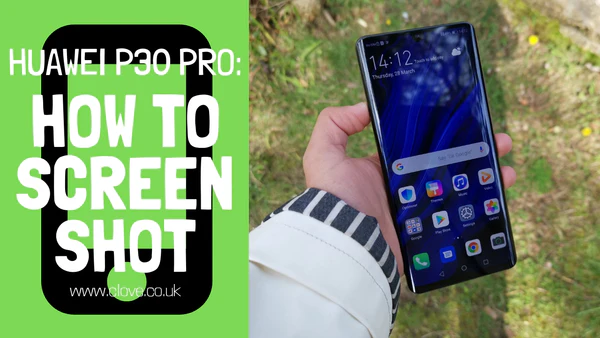
How to Record Your Huawei Smartphone’s Screen
Are you tired of trying to troubleshoot issues on your Huawei smartphone, but struggling to take a screenshot or record a video of the problem? Look no further! In this article, we’ll show you how to easily record your Huawei smartphone’s screen using various methods.
Why Record Your Smartphone’s Screen?
Recording your smartphone’s screen can be incredibly useful in troubleshooting issues, creating tutorials, and even sharing fun moments with friends. Whether you’re experiencing technical difficulties or want to showcase a cool feature on your device, recording the screen is a simple yet effective way to capture what’s happening.
Method 1: Using The Native Functionality
One of the most straightforward ways to record your Huawei smartphone’s screen is by using the native functionality built into EMUI. To access this feature:
- Swipe down from the top-right corner of the screen to open the Control Panel.
- Tap on the “Screen” option.
- Select the “Record monitor” function.
You’ll be prompted to accept a brief message explaining that your device will start recording. Simply tap on “Accept” and then “OK.” The recording will begin automatically, and you can find it saved in your Gallery app.
Method 2: Using Airdroid
Another method for recording your Huawei smartphone’s screen is by using the software AirDroid. This service allows you to connect your device to a computer wirelessly, making it easy to record the screen:
- Download and install the AirDroid client on your Windows or macOS computer.
- Create an AirDroid account on the web platform and link it to your smartphone’s app.
- Open the AirDroid app on your smartphone and grant permission for remote control access.
- On your computer, launch the AirDroid client and select the “Remote Control” option. Select your Huawei device from the list.
- You’ll be prompted to confirm access; tap “Initiate now.”
- Click on the three dots in the top-right corner of the window and select the camera icon to start recording.
Method 3: Using Airdroid’s Remote Control Feature
AirDroid also offers a feature called remote control, which allows you to take control of your smartphone from your computer. To use this feature:
- Follow the same steps as above to set up AirDroid on both devices.
- On your computer, launch the AirDroid client and select the “Remote Control” option.
- Select your Huawei device from the list.
- You’ll be prompted to confirm access; tap “Initiate now.”
- Click on the three dots in the top-right corner of the window and select the camera icon to start recording.
Method 4: Using Screen Recorder
For Windows users, there’s a dedicated app called Screen Recorder that can record your smartphone’s screen directly onto your computer:
- Download and install Screen Recorder from GitHub.
- Select the version compatible with your operating system (32-bit or 64-bit).
- Extract the ZIP file to a folder on your computer.
- Ensure you have the ADB drivers installed on your computer; follow the instructions in our tutorial if needed.
Open the Settings app on your smartphone and select the “Developer options” section. Enable the “Debug USB” option by tapping the toggle button next to it. Then, connect your smartphone to your computer via a USB cable.
On your computer, open the Screen Recorder folder you created earlier and right-click on the .Exe file while holding the Alt key. Select “Open in Terminal or Open Powershell here.” Type the command: “.\Scrcpy.Exe -r [filename].Mp4” (replacing [filename] with your desired file name).
Press Enter to start recording; when you’re finished, click on the X icon in the top-right corner of the window. The recorded video will be saved in the Screen Recorder folder.
Method 5: Using Huawei Share
If you own a Huawei laptop or notebook (such as the MateBook 16s), you can use the built-in feature called Huawei Share to record your smartphone’s screen directly onto your computer:
- Open the Huawei PC Manager app on your laptop.
- Access the “My devices” section and select “My phone.”
- Tap on the “Connect” button to link your smartphone to the app.
On your smartphone, you’ll receive a prompt; tap “Connect” to confirm access. Now, open the Huawei Share window on your laptop and click on the “Fine-screen Collaboration” option.
A new window will appear displaying your smartphone’s screen; this is where you can record your screen:
- To start recording, click on the camera icon in the top-right corner of the window.
- When finished, tap the same icon to stop recording. The video will be saved automatically.
Conclusion
Recording your Huawei smartphone’s screen has never been easier! Using one of the five methods outlined above, you can capture what’s happening on your device with just a few taps. Whether you’re troubleshooting issues or creating tutorials, these methods will help you achieve your goals quickly and efficiently.


