
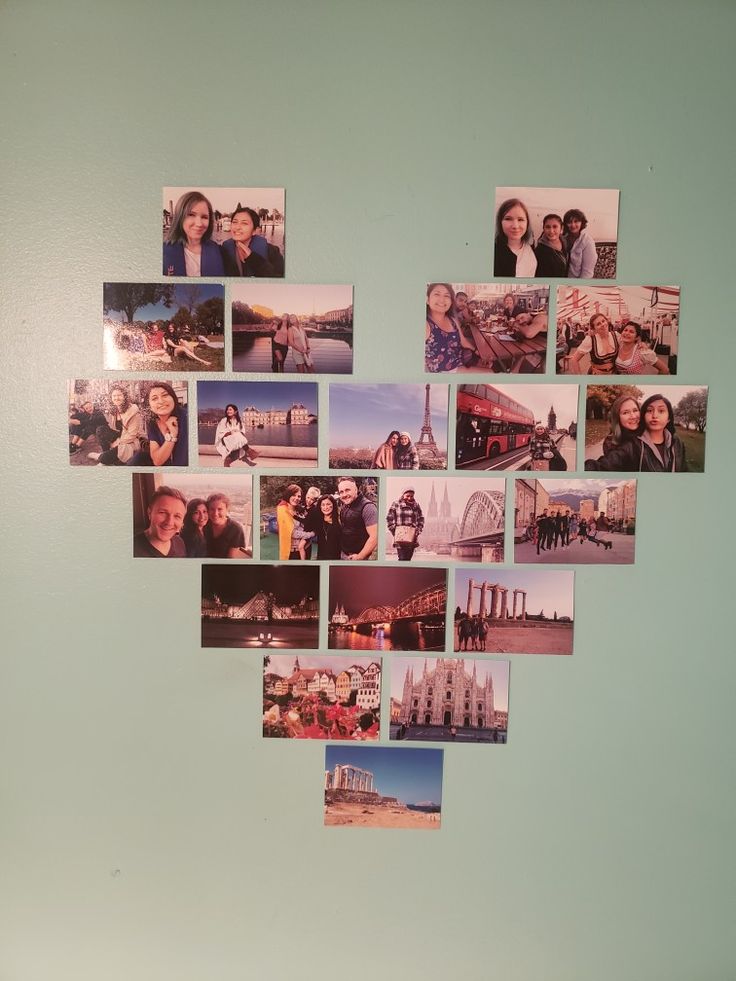
Creating a Romantic Heart-shaped Collage: A Step-by-step Guide
Are you looking for a unique and romantic way to celebrate your anniversary or express your love? Creating a heart-shaped collage with photos is a thoughtful gesture that will surely be appreciated by your loved one. In this article, we will guide you through the process of creating a beautiful heart-shaped collage using various software and online services.
Choosing The Right Tool
Before we dive into the tutorial, let’s explore some of the best tools to create a heart-shaped collage on PC or mobile devices.
PC Options
- Shapex: A free software that allows you to create collages in various shapes, including hearts.
- Canva: An online service that offers a range of templates and design tools to create stunning collages.
- Shapecollage: Another free software that supports creating collages with various shapes, including hearts.
Mobile Options
- Canva (Android/iOS/iPadOS): A mobile app version of the popular online service, offering a range of templates and design tools.
- Collage Of Form (Android): A free app for Android devices that allows you to create collages in various shapes, including hearts.
- Phinsh Collage Maker (Android): Another free app for Android devices that supports creating collages with various shapes, including hearts.
Step 1: Prepare Your Photos
Before creating your collage, gather all the photos you want to use and place them in a folder on your PC or mobile device.
Step 2: Choose Your Tool
Select the tool of your choice (ShapeX, Canva, ShapeCollage, or any other service/app mentioned above) and follow the instructions for each platform:
PC Instructions
- Download and install ShapeX if you haven’t already.
- Open ShapeX and click on the heart icon in the menu to create a new collage.
- Select the photos you want to use from your folder and arrange them within the heart shape.
For Canva, follow these steps:
- Create an account or log in if you have one already.
- Click on the “Collage” option and select the “Heart” template.
- Upload your photos and arrange them within the heart shape.
Mobile Instructions
If using Canva on mobile:
- Download and install Canva from the Play Store (Android) or App Store (iOS/iPadOS).
- Open Canva, log in if necessary, and click on the “Collage” option.
- Select the photos you want to use and arrange them within the heart shape.
Step 3: Customize Your Collage
Customize your collage by adding text, shapes, or other design elements to make it more personal and special.
Adding Text
Add a message or caption to your collage using the text tool in Canva or ShapeX.
Adding Shapes
Use the shape tool to add additional shapes or illustrations to enhance your collage.
Step 4: Save Your Collage
Once you’re satisfied with your collage, save it as an image file (JPG, PNG, or PDF) and share it with your loved one.
The final outcome is a beautiful heart-shaped collage that represents the love and memories shared between you and your partner.
Conclusion
Creating a heart-shaped collage with photos is a thoughtful gesture that will surely be appreciated by your loved one. By following these steps and choosing the right tool for your needs, you can create a stunning visual representation of your love story.
Frequently Asked Questions (FAQs)
- What Software do I Need to Create a Heart-shaped Collage?
You can use ShapeX, Canva, or any other service/app mentioned above, depending on your platform and preferences.
- How Many Photos Can I Add to my Collage?
The number of photos you can add varies depending on the tool you choose (e.G., Up to 17 photos with Pixiz).
- Can I Use This Method For a Mobile Device?
Yes, Canva offers a mobile app version that allows you to create heart-shaped collages using your smartphone or tablet.
- What is The Best Way to Share my Collage?
You can save your collage as an image file and share it via email, social media, or messaging apps.
- Are There Any Other Tools I Can Use to Create a Heart-shaped Collage?
Yes, you can explore other services/apps like ShapeCollage, Phinsh Collage Maker, or PhotoArt Collage Maker for Android/iOS devices.
- Can I Customize The Shape of my Collage?
Yes, some tools allow you to customize the shape and size of your collage to fit your preferences.
- What File Format Should I Save my Collage In?
Save your collage as a JPG, PNG, or PDF file for optimal results.
- How do I Get Started With Creating a Heart-shaped Collage?
Simply follow the step-by-step guide provided in this article, and you’ll be on your way to creating a beautiful heart-shaped collage!


