
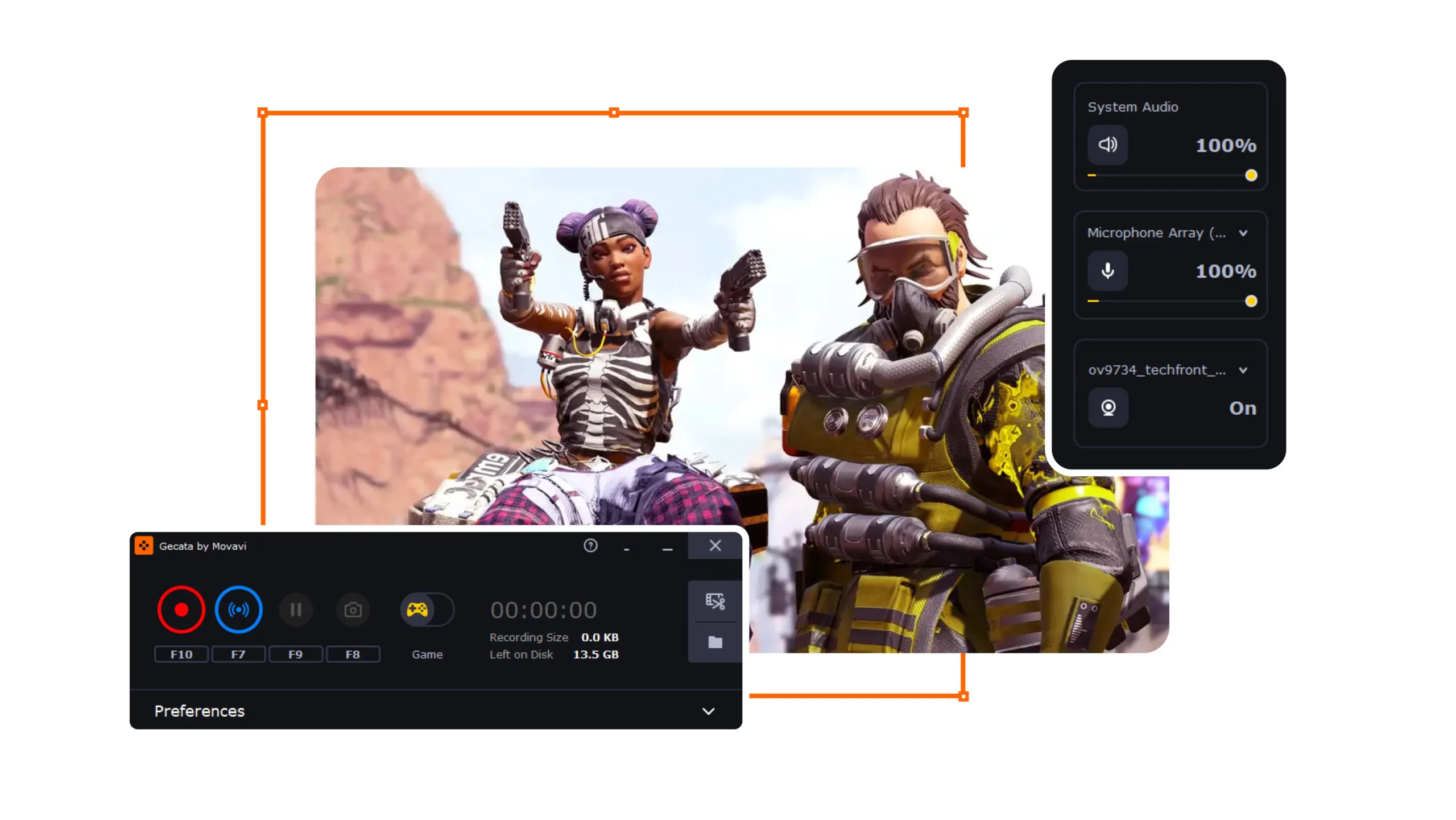
Recording With Your Pc: A Comprehensive Guide
As a tech enthusiast, have you ever wanted to record your voice or video using your computer? Perhaps you’re interested in capturing a phone call, recording a tutorial, or even creating a video podcast. Whatever the reason, this article will guide you through the process of recording with your PC.
Why Record With Your Pc?
Before we dive into the nitty-gritty details, let’s explore why recording with your PC is a great idea. For one, it’s incredibly convenient. You can use your computer to record your voice or video without having to purchase any additional equipment. Additionally, recording with your PC allows you to edit and enhance your recordings using various software tools.
Choosing The Right Software
To get started, you’ll need to choose a software that suits your needs. There are several options available, including Audacity, OBS Studio, and Windows Movie Maker. Each of these programs has its own strengths and weaknesses, so we’ll explore them in more detail below.
- Audacity: This free, open-source audio editor is a great choice for recording voiceovers or podcasts. With Audacity, you can edit and enhance your recordings using various effects and filters.
- Obs Studio: This popular video recording software is perfect for capturing live streams or video tutorials. OBS Studio allows you to customize your recordings with overlays, transitions, and other visual effects.
Recording With a Microphone
To record your voice or audio using a microphone, follow these steps:
- Connect your microphone to your computer using a USB cable or analog jack.
- Open the software of your choice (Audacity, OBS Studio, etc.) And select the correct input device (your microphone).
- Click the “Record” button to start capturing audio.
- When you’re finished recording, click the “Stop” button to save the file.
Recording a Phone Call
To record a phone call using your PC, follow these steps:
- Open OBS Studio and select the correct input device (your microphone).
- Split the call by clicking on the “Split” button.
- Select the “Capture” tab and choose the correct audio input device (your microphone).
- Click the “Record” button to start capturing audio.
- When you’re finished recording, click the “Stop” button to save the file.
Recording a Video With Your Webcam
To record a video using your webcam, follow these steps:
- Open a video recording software (Windows Movie Maker, OBS Studio, etc.) And select the correct input device (your webcam).
- Click the “Record” button to start capturing video.
- When you’re finished recording, click the “Stop” button to save the file.
Recording a Video From Your Monitor
To record a video from your monitor, follow these steps:
- Connect an external capture card (Papeaso, Fulfalic, etc.) To your computer and TV.
- Open OBS Studio and select the correct input device (the capture card).
- Click the “Record” button to start capturing video.
- When you’re finished recording, click the “Stop” button to save the file.
Conclusion
Recording with your PC is a simple yet powerful way to capture audio or video content. With this guide, you should now have a good understanding of the different software options available and how to use them to record your voice, phone calls, videos, and even TV shows. Whether you’re a tech enthusiast or just looking for a convenient way to create content, recording with your PC is definitely worth considering.
Frequently Asked Questions (FAQs)
Q: Which software should I choose for recording audio?
A: Audacity is a great choice for recording voiceovers or podcasts.
Q: How do I record a phone call using my PC?
A: You can use OBS Studio to capture live streams or video tutorials.
Q: Can I record a video from my monitor?
A: Yes, you can use an external capture card (Papeaso, Fulfalic, etc.) And OBS Studio to record video content.
Q: Which microphone should I choose for recording audio?
A: The Logitech H111 Bonnets Cablate for Computer, Stereo with Microphone, Cance is a good option.
Q: How do I edit my recorded audio or video files?
A: You can use software like Audacity, OBS Studio, or Windows Movie Maker to edit and enhance your recordings.
References
- “Recording Audio with Your PC”. WikiHow. Retrieved 2023-02-20.
- “Recording Video with Your PC”. Techopedia. Retrieved 2023-02-20.
- “OBS Studio: A Free and Open-Source Video Recording Software”. OBS Project. Retrieved 2023-02-20.
- “Audacity: A Free, Open-Source Audio Editor”. Audacity Team. Retrieved 2023-02-20.
Note: This article is for informational purposes only and should not be considered as professional advice. The author is not responsible for any damages or losses caused by the use of this information.


