
How to Connect a Hard Disk Inner to Your PC Via Usb: A Step-by-step Guide
Are you tired of dealing with outdated hard drives? Do you want to breathe new life into your old computer by connecting an external hard drive via USB? Look no further! In this comprehensive guide, we’ll walk you through the process of connecting a hard disk inner to your PC using a USB enclosure.
What You Need to Know Before Starting
Before diving into the nitty-gritty details, it’s essential to understand the difference between fixed and portable hard drives. Fixed hard drives are designed for desktop computers and have a 3.5-Inch form factor, while portable hard drives are designed for laptops and have a 2.5-Inch form factor. This distinction is crucial when choosing a USB enclosure.
Choosing The Right Usb Enclosure
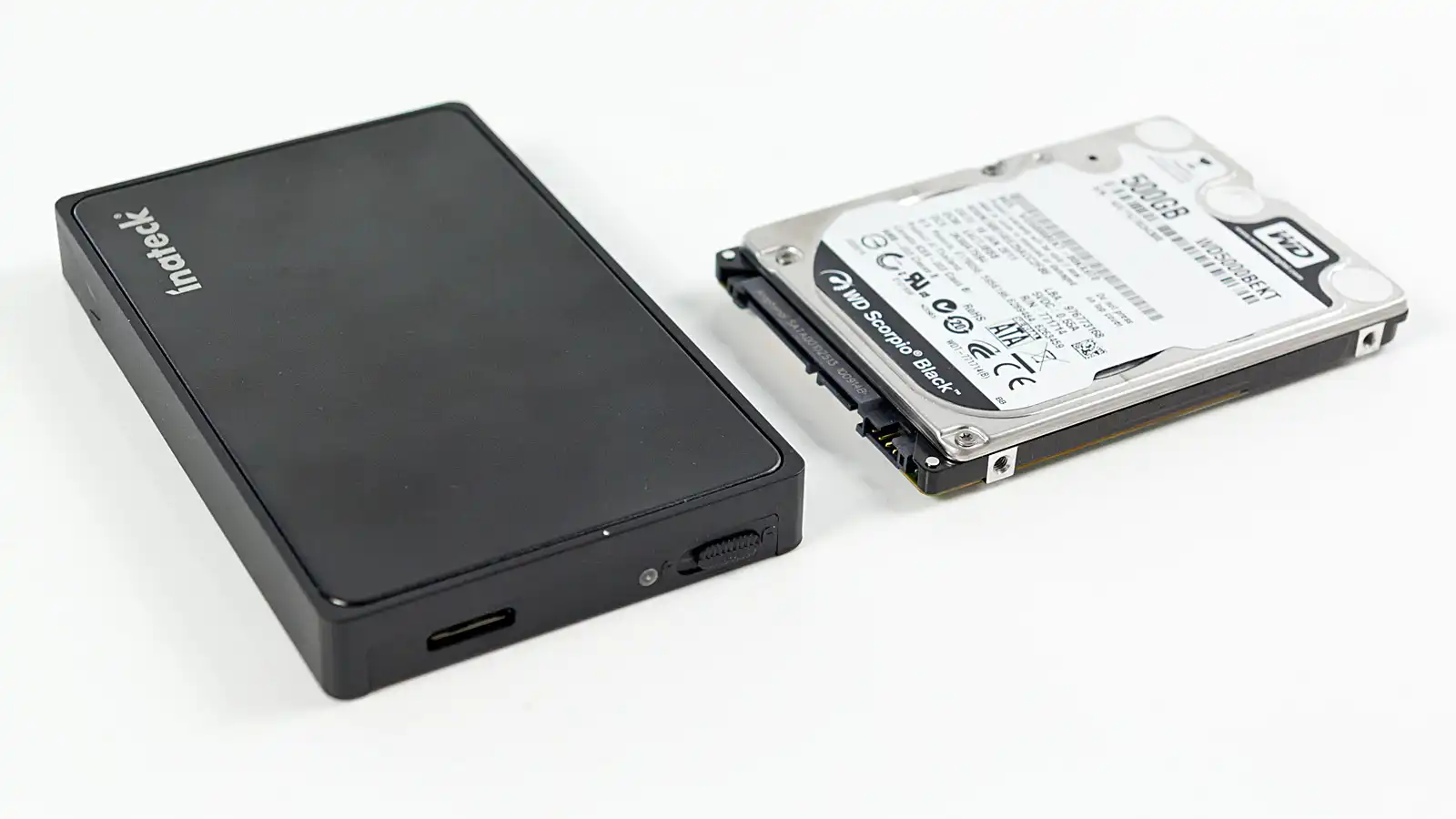
A USB enclosure is an external housing that connects to your computer via USB. It’s essential to choose an enclosure that matches your hard drive’s form factor (3.5 Inches or 2.5 Inches). If you’re using a portable hard drive, make sure the enclosure supports the correct form factor.
Types of Usb Enclosures
There are two primary types of USB enclosures:
- External Houses: These enclosures connect to your computer via USB and provide power to the connected hard drive.
- Adapters: Adapters allow you to connect a fixed or portable hard drive directly to your computer’s USB port without an external enclosure.
Selecting The Right Adapter
If you prefer using adapters, look for one that matches your hard drive’s form factor (3.5 Inches or 2.5 Inches). Ensure the adapter is compatible with your computer’s USB port type (USB-To or USB-C).
Step-by-step Instructions: Connecting a Hard Disk Inner to Your PC Via Usb
Step 1: Prepare Your Hard Drive
Carefully remove the old hard drive from your computer and prepare it for connection.
Step 2: Choose an Enclosure or Adapter
Select either an external enclosure or adapter that matches your hard drive’s form factor. If using an adapter, ensure it’s compatible with your computer’s USB port type.
Step 3: Connect The Hard Drive to The Enclosure or Adapter
Insert the hard drive into the enclosure or attach it to the adapter according to the manufacturer’s instructions.
Step 4: Power On And Connect Via Usb
Power on both the enclosure and your computer. Connect the enclosure or adapter to your PC using a USB cable.
Types of Usb Ports
It’s essential to note that modern computers often feature different types of USB ports:
- Usb-to: The most common type, suitable for fixed hard drives.
- Usb-c: Faster and more versatile, ideal for portable devices like laptops and smartphones.
Understanding Usb Standards
The speed of data transfer depends on the USB standard used by your device. Familiarize yourself with the following standards:
- Usb 2.0: Maximum speed: 480 Mbps
- Usb 3.0/3.1 Gen 1: Maximum speed: 5 Gbps
- Usb 3.1/3.1 Gen 2: Maximum speed: 10 Gbps
- Usb 3.2/3.2 Gen 2×2: Maximum speed: 20 Gbps
Top Recommendations For Usb Enclosures And Adapters
Here are some top-rated options to consider:
- Salcar Usb 3.0 Enclosure For External Rigid Disk (3.5 Inches)
- Ugreen External Houses Hard Disk Sata 3.5″ 20TB
- Techly Docking Station Dual-bay Ssd M.2 Nvme Pcie Sata
Additional Tips And Tricks
To ensure a smooth experience, remember to:
- Choose an enclosure or adapter that matches your hard drive’s form factor.
- Select the correct type of USB port (USB-To or USB-C) for optimal compatibility.
- Use high-quality cables and avoid overloading USB ports.
Conclusion:
Converting a hard disk inner into an external device using a USB connection can breathe new life into your old computer. Remember to select the right enclosure or adapter, consider the type of USB port, and choose the correct form factor for seamless compatibility.
Frequently Asked Questions (FAQs)
Q: What is The Maximum Speed of Data Transfer Via Usb?
A: The maximum speed depends on the USB standard used by your device. Familiarize yourself with the standards mentioned above.
Q: Can I Connect a Fixed Hard Drive to my Laptop Using an Adapter?
A: Yes, but ensure you choose an adapter compatible with your laptop’s USB port type (USB-To or USB-C).
Q: How do I Prevent Data Loss When Transferring Files Between Devices?
A: Use high-quality cables and avoid overloading USB ports. Also, consider investing in a reliable external drive enclosure for added protection.
How to Connect a Hard Disk Inner to Your PC Via Usb
Converting an old hard disk into an external device can breathe new life into your computer. To do so effectively:
1. Choose the right enclosure or adapter to ensure compatibility with your hard drive’s form factor (3.5 Inches or 2.5 Inches) and USB port type.
2. Select an external house, adattore, or docking station that fits your needs and matches your device’s specifications.
3. Connect the enclosure or adapter to your computer using a high-quality cable.
Important Notes
Before starting this process:
- Ensure you choose an enclosure or adapter compatible with your hard drive’s form factor (3.5 Inches or 2.5 Inches).
- Consider the type of USB port on your device (USB-To or USB-C) for optimal compatibility.
- High-quality cables are essential to prevent data loss and ensure a smooth experience.
Conclusion
By following these steps and choosing the right enclosure or adapter, you can breathe new life into an old hard disk and enjoy seamless connectivity with your computer.


