
The Ultimate Guide to Cloning Dvds: Top Programs For Windows And Macos
Are you looking for ways to clone your favorite DVD movies without losing their quality? Do you want to create backup copies of your precious diskettes? Look no further! In this article, we will explore the best programs to clone DVDs on both Windows and macOS operating systems.
Why Clone Dvds?
Cloning DVDs is a great way to protect your valuable movie collection from damage or loss. With a cloned copy, you can ensure that your favorite movies are always safe and easily accessible. Plus, cloning DVDs can also help you share them with friends and family members who don’t have access to the original diskette.
Top Programs For Cloning Dvds on Windows
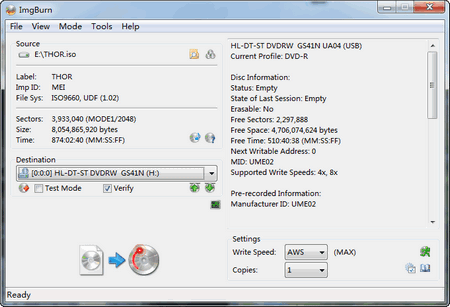
- Imgburn: This free program is one of the best DVD cloners available for Windows. It allows you to create perfect clones of your favorite DVD movies, as well as copy them to empty disc drives.
- Cdburnerxp: Another excellent option for Windows users, CDBurnerXP is a free program that can burn CDs and DVDs, including creating backups of your favorite movie collection.
- Handbrake: This powerful program is not only a great DVD cloner but also a video converter, allowing you to convert your DVD movies to various formats, including MP4 and MKV.
Top Programs For Cloning Dvds on Macos
- Burn: This free application is specifically designed for Apple devices and allows you to create perfect clones of your favorite DVD movies.
- Simplyburns: Another excellent option for macOS users, SimplyBurns is a free program that can burn CDs and DVDs, including creating backups of your favorite movie collection.
Other Helpful Programs
- Vlc: This popular media player not only plays various video formats but also allows you to clone DVD movies on both Windows and macOS.
- Dvdshrink: A free program specifically designed for Windows users, DVDShrink allows you to create backup copies of your favorite DVD movies.
- Macx Dvd Ripper Pro: This powerful program is specifically designed for Apple devices and allows you to rip and convert DVD movies to various formats.
Cloning Dvds: What You Need to Know
Before cloning your DVDs, make sure you have the following:
- A computer with a compatible operating system (Windows or macOS)
- A blank disc drive
- The desired program installed on your computer
Step-by-step Guide to Cloning Dvds With Imgburn And Burn
Here are brief step-by-step guides for using ImgBurn on Windows and Burn on macOS:
Using Imgburn on Windows:
- Download and install ImgBurn on your Windows device.
- Insert the DVD you want to clone into the disc drive.
- Launch ImgBurn and select “Create image file from disk” from the main menu.
- Choose the destination folder for the cloned copy.
- Start the cloning process.
Using Burn on Macos:
- Download and install Burn on your Apple device.
- Insert the DVD you want to clone into the disc drive.
- Launch Burn and select “Copy” from the main menu.
- Choose the destination folder for the cloned copy.
- Start the cloning process.
Conclusion
Cloning DVDs is a simple yet effective way to protect your favorite movie collection from damage or loss. With these top programs, you can ensure that your valuable movies are always safe and easily accessible. Remember to follow the step-by-step guides provided to get started with cloning your DVDs today!
Frequently Asked Questions (FAQs)
- Q: What is The Best Program For Cloning Dvds on Windows?
A: ImgBurn is an excellent option for Windows users, offering a range of features and flexibility. - Q: Can I Clone Dvds on my Apple Device?
A: Yes, Burn is specifically designed for macOS devices and allows you to create perfect clones of your favorite DVD movies. - Q: Are There Any Free Programs Available For Cloning Dvds?
A: Yes, many of the programs mentioned above offer free versions or trials, allowing you to test their functionality before committing to a purchase. - Q: Can I Convert my Dvd Movies to Digital Formats Using These Programs?
A: Yes, some of the programs mentioned, such as HandBrake and MacX DVD Ripper Pro, allow you to convert your DVD movies to various digital formats. - Q: How Long Does The Cloning Process Take?
A: The length of time required for the cloning process depends on the size of the movie and the speed of your computer’s disc drive. - Q: Can I Clone Dvds With Copy Protection?
A: Yes, some programs mentioned above can handle copy-protected DVDs, but be aware that this may require additional software or settings to bypass the protections. - Q: Are These Programs Compatible With my Operating System?
A: Please check the compatibility of each program with your specific operating system before proceeding.
Bonus Tips
- Make sure you have enough storage space on your computer for the cloned copy.
- Use a high-quality blank disc drive to ensure accurate cloning.
- Be patient and allow the cloning process to complete without interruptions.


