
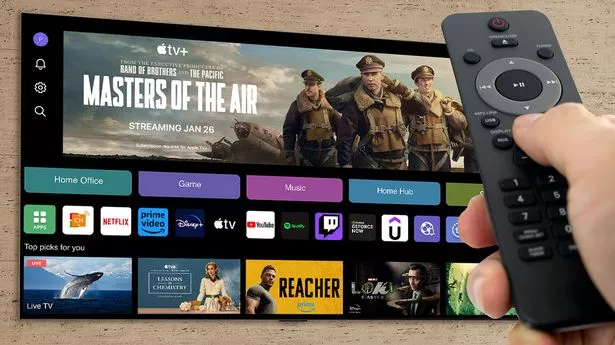
How to Update Your LG Tv: A Step-by-step Guide
Are you tired of using an outdated version of your LG TV’s operating system? Do you want to enjoy the latest features and improvements without having to visit a repair shop? Look no further! This guide will walk you through the process of updating your LG TV, from connecting it to the internet to installing new software.
Why Update Your LG Tv?
Before we dive into the steps, let’s talk about why updating your LG TV is important. Updating your TV ensures that you have the latest security patches and bug fixes, which can improve its performance and stability. Additionally, updates often bring new features and improvements that can enhance your viewing experience.
Step 1: Connect Your LG TV to The Internet
To update your LG TV, you need to connect it to the internet. You can do this using a cable Ethernet or Wi-Fi. Here’s how:
- Ethernet Connection: If you have a cable Ethernet connection available, use it. This is usually the fastest and most reliable way to connect your TV to the internet.
- Wi-fi Connection: If you prefer to use Wi-Fi, make sure your router is close to your TV and that your TV is set to the correct channel.
Step 2: Access Your LG Tv’s Settings
Once your TV is connected to the internet, access its settings menu. Here’s how:
- Using The Remote: Press the “Settings” button on your remote control.
- Using The Menu: Navigate to the “Menu” option and select it.
Step 3: Check For Updates
Now that you’re in the settings menu, check for updates. Here’s how:
- Go to System Update: Select the “System Update” option from the menu.
- Check For Updates: Let your TV check for any available updates.
Step 4: Install Updates
If an update is available, install it. Here’s how:
- Select The Update: Choose the update you want to install.
- Follow The Instructions: Follow the on-screen instructions to complete the installation process.
Step 5: Wait For The Update to Complete
Once you’ve installed the update, wait for your TV to finish processing it. This may take a few minutes, depending on the size of the update and the speed of your internet connection.
Tips And Variations
Here are some tips and variations to keep in mind:
- Check For Updates Regularly: Make sure you check for updates regularly to ensure that you have the latest software installed.
- Use a Reliable Internet Connection: A reliable internet connection is essential for updating your TV. If you experience any issues with your connection, try restarting your router or modem.
- Consider Professional Help: If you’re not comfortable updating your TV yourself, consider seeking help from a professional.
Conclusion
Updating your LG TV is an easy and straightforward process that can improve its performance and stability. By following the steps outlined in this guide, you should be able to update your TV without any issues. Remember to check for updates regularly and use a reliable internet connection to ensure that you have the latest software installed.
Frequently Asked Questions (FAQs)
Here are some frequently asked questions about updating your LG TV:
- Q: How Often Should I Update my LG Tv?
A: You should check for updates regularly to ensure that you have the latest software installed. - Q: What Happens if I Encounter Any Issues During The Update Process?
A: If you experience any issues during the update process, try restarting your router or modem. If the issue persists, consider seeking help from a professional. - Q: Can I Update my LG TV Myself?
A: Yes, you can update your LG TV yourself by following the steps outlined in this guide. - Q: What Are The Benefits of Updating my LG Tv?
A: Updating your TV ensures that you have the latest security patches and bug fixes, which can improve its performance and stability. Additionally, updates often bring new features and improvements that can enhance your viewing experience.
Additional Resources
If you need additional resources to help with updating your LG TV, here are some options:
- LG Support Website: Visit the LG support website for more information on updating your TV.
- LG Customer Service: Contact LG customer service if you have any questions or concerns about updating your TV.
- Professional Help: Consider seeking help from a professional if you’re not comfortable updating your TV yourself.


