
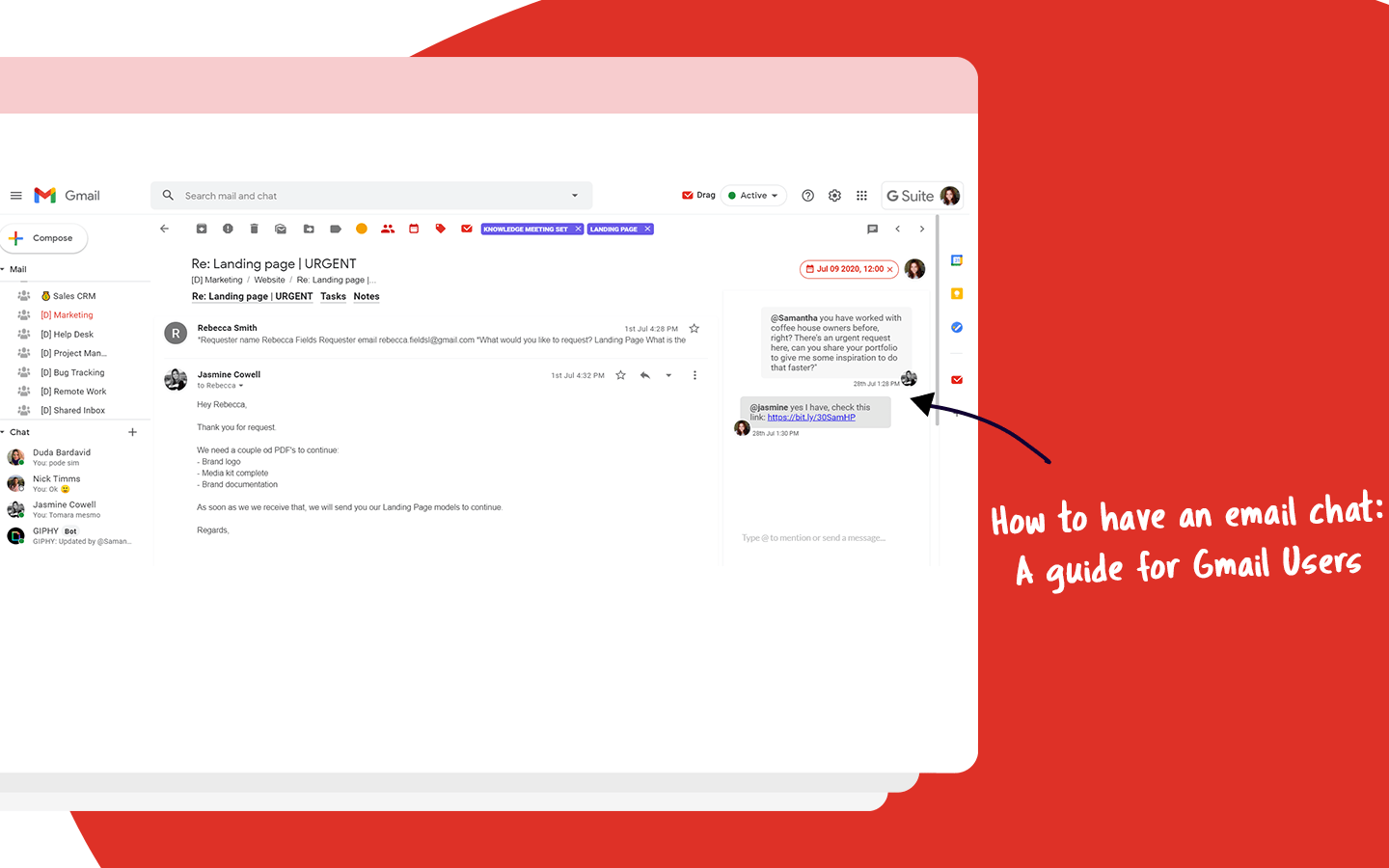
How to Chat With Gmail: A Step-by-step Guide
Are you looking for a way to communicate with your contacts on Gmail without forwarding an email? Look no further! Google has a dedicated service for instant messaging, known as Google Chat, which is free and integrated with other Google services. In this guide, we’ll show you how to chat with Gmail using Google Chat.
Google Chat: What You Need to Know
Before we dive into the step-by-step instructions, let’s cover some basics about Google Chat. This service allows you to send instant messages, make video calls, and even hold meetings directly from your Gmail account. To use Google Chat, you need a Google account, which is free to sign up for.
How to Use Google Chat Online
The easiest way to start chatting with Gmail is by using the online version of Google Chat. Here’s how:
- Login to Your Gmail Account: First, log in to your Gmail account on any browser.
- Click on The Chat Icon: Next, click on the chat icon (a square icon) located at the top right corner of the screen, near your profile picture or initials.
- Choose Google Chat From The Menu: From the dropdown menu that appears, select Google Chat.
Google Chat: How to Initiate a Conversation
Now that you’re in the Google Chat interface, let’s initiate a conversation:
- Click on New Chat: Click on the “New chat” button at the top left corner of the screen.
- Add an Address or Name: Type in the name or address of the person you want to chat with in the search bar.
- Initiate Chat: Once you’ve added the contact, click on the “Initiate chat” button.
Google Chat: Additional Features
In addition to chatting with individual contacts, Google Chat also allows you to create groups and hold meetings. Here’s how:
- Create a Group: Click on the “Create a blank” button in the top left corner of the screen to create a new group.
- Add Participants: Add participants to your group by typing their names or addresses in the search bar.
- Meetings And Video Calls: Use Google Meet for video calls and meetings.
Google Chat: How to Download And Install
If you prefer to use Google Chat on your mobile device, you can download and install the app:
- Download From Play Store (Android): Search for “Google Chat” in the Play Store and install it.
- Download From App Store (iPhone/iPad): Search for “Google Chat” in the App Store and install it.
Google Chat Web App
If you prefer to use Google Chat on your desktop, you can also download a web app:
- Google Chrome: Install the Google Chat web app by going to the Google Chat website, logging in with your Gmail account, and clicking on the “Install” button.
- Microsoft Edge: Follow similar steps as above.
Troubleshooting
If you encounter any issues while using Google Chat, don’t worry! You can visit the Google Chat support page for troubleshooting tips or contact their team directly.
Conclusion
Google Chat is a powerful tool that allows you to communicate with your contacts on Gmail without forwarding emails. With this guide, you now know how to use Google Chat online, initiate conversations, and even download the app on your mobile device. Happy chatting!
Faqs:
- Q: Do I Need a Google Account to Use Google Chat?
A: Yes, you need a Google account to use Google Chat. - Q: Can I Use Google Chat on my Desktop?
A: Yes, you can download the web app for Google Chat on your desktop using Google Chrome or Microsoft Edge. - Q: How do I Initiate a Conversation in Google Chat?
A: To initiate a conversation, click on the “New chat” button and add the name or address of the person you want to chat with. - Q: Can I Create Groups And Hold Meetings Using Google Chat?
A: Yes, you can create groups and hold meetings using Google Meet within Google Chat. - Q: What if I Encounter Issues While Using Google Chat?
A: Visit the Google Chat support page for troubleshooting tips or contact their team directly. - Q: Is Google Chat Free to Use?
A: Yes, Google Chat is completely free to use with your Gmail account. - Q: Can I Download The App on my Mobile Device?
A: Yes, you can download the app from the Play Store (Android) or App Store (iPhone/iPad). - Q: What if I Have Multiple Devices Logged in to Google Chat?
A: You can use multiple devices simultaneously with your Gmail account without any issues.


