
Actuating Windows Defender: A Step-by-step Guide
Are you wondering how to reactivate Windows Defender on your computer? Look no further! In this article, we’ll walk you through the simple steps to get Windows Defender up and running again.
Why is Windows Defender Important?
Windows Defender is a built-in security software that helps protect your PC from viruses, malware, and other online threats. It’s an essential tool for keeping your computer safe and secure.
How to Actuate Windows Defender
Actuating Windows Defender is a straightforward process that can be completed in just a few minutes. Here’s how:
Actuating Windows Defender in Windows 11
- Open the Settings menu by clicking on the Start button and selecting the gear icon.
- Click on Privacy & security, then select Safety & security.
- In the new window, click on Virus protection and threats.
- Scroll down to the section titled “Protection settings” and click on Manage settings.
- Look for the toggle switch labeled “Virus & threat protection” and move it to the right (turned on).
- If the toggle switch is already turned on, try moving it back and forth a few times to reset the setting.
Actuating Windows Defender in Windows 10
- Click on the Start button and select Settings.
- In the Settings window, click on Update & security.
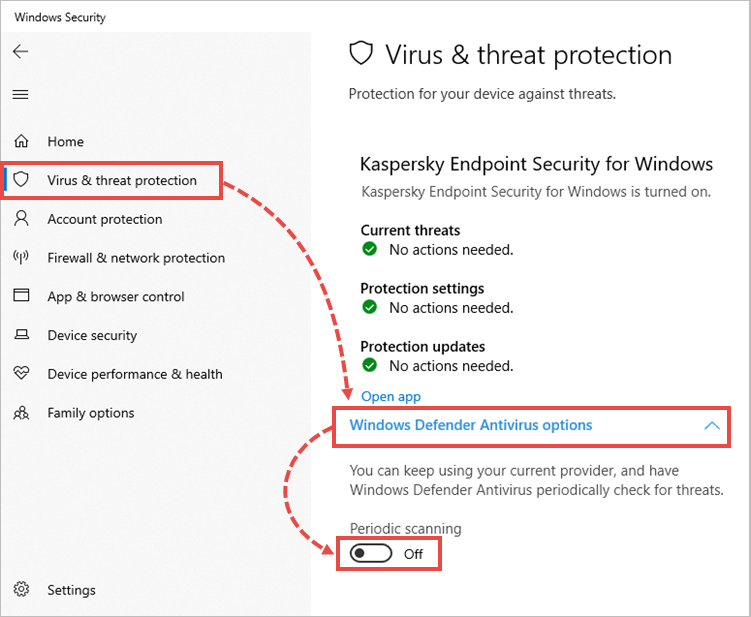
- Select Virus protection and threats from the menu.
- If necessary, toggle on the switch labeled “Virus & threat protection”.
- Go to Protection settings > Manage settings and make sure the toggle switch is turned on.
Actuating Windows Defender in Windows 8.x
- Open the Start screen by pressing the Windows key or clicking on the Start button.
- Search for “Windows Defender” and click on the result.
- In the new window, select Settings from the menu.
- Click on Administrator in the left-hand side bar and toggle on the switch beside “Active”.
- Click Save changes to apply the setting.
Actuating Windows Defender in Windows 7
- Click on the Start button and search for “Windows Defender” in the search bar.
- Select Windows Defender from the results.
- In the new window, click on Tools > Options.
- Select Administration from the menu.
- Toggle on the switch beside “Use this program”.
- Click Save to apply the setting.
What if Windows Defender Won’t Actuate?
Don’t worry! If Windows Defender won’t actuate, don’t throw in the towel just yet. Try some of these troubleshooting steps:
Solution to Common Problems
If you’re having trouble getting Windows Defender up and running, try some of these common solutions:
- Run a system file check using the command
sfc /scannowin Command Prompt. - Check if any third-party antivirus software is interfering with Windows Defender. If so, disable it temporarily.
Editor Criteria For Local Clusters
If you’re running Windows Pro or higher, try editing the local group policy to modify settings related to Windows Defender:
- Press the Windows key + R on your keyboard to open the Run dialog box.
- Type
gpedit.Mscand press Enter. - In the Group Policy Editor, navigate to Computer Configuration > Administrative Templates > Windows Components > Windows Defender.
- Disable or configure Windows Defender as desired.
Modifications in System Records
If none of the above solutions work, try editing the system registry to modify settings related to Windows Defender:
- Press the Windows key + R on your keyboard to open the Run dialog box.
- Type
regeditand press Enter. - In the Registry Editor, navigate to HKEY_LOCAL_MACHINE\Software\Microsoft\Windows NT\CurrentVersion\Image Rows Execution Options.
- If you find any references to MSASCui.Exe, MpCmdRun.Exe, or MsMpEng.Exe, delete them.
Activation of Windows Defender Services
If you’re still having trouble getting Windows Defender up and running, try activating the Windows Defender services:
- Press the Windows key + R on your keyboard to open the Run dialog box.
- Type
services.Mscand press Enter. - In the Services window, find the “Centre Safety PC” service and set it to Automatic (Delayed Start).
- Find the “Microsoft Defender Antivirus” service and set it to Automatic.
Repair of System Files
If you’re still experiencing issues with Windows Defender, try repairing system files using the command sfc /scannow in Command Prompt:
- Open Command Prompt as administrator.
- Type
sfc /scannowand press Enter.
Actuating Windows Defender From Command Prompt
If you want to actuate Windows Defender from the Command Prompt, here’s how:
Windows Defender Scans
To run a scan using Windows Defender from the Command Prompt, type the following commands:
MpCmdRun -Scan -ScanType 1for a quick scanMpCmdRun -Scan -ScanType 2for a deep scanMpCmdRun -Scan -ScanType 3 -Files "C:\Path\To\Folder"for a scan of a specific folderMpCmdRun -Scan -ScanType BootSectorScanfor a boot sector scan
Remember to replace "C:\Path\To\Folder" with the actual path to the folder you want to scan.
Actuating Windows Defender Smartscreen
If you’re running Windows Pro, Enterprise, or Education, you can actuate Windows Defender SmartScreen by:
- Opening the Settings app.
- Going to Privacy, inquiry and services.
- Selecting Services from the menu.
- Deciding whether to enable or disable Microsoft Defender SmartScreen.
Note that Windows Defender SmartScreen is not available for Windows Home editions.
Conclusion
Actuating Windows Defender is a simple process that can be completed in just a few minutes. By following these step-by-step instructions, you should be able to get your security software up and running again.


