
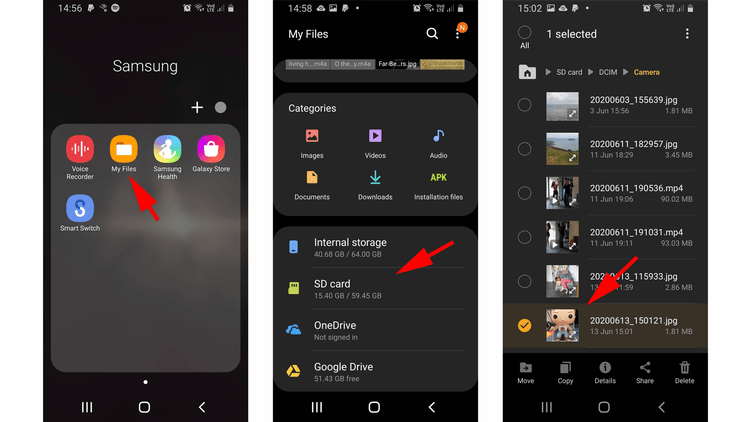
How to Conceal Photos on Android: A Step-by-step Guide
Are you tired of prying eyes accessing your private photos on your Android device? Look no further! In this article, we’ll show you how to conceal photos on Android using various methods and apps.
Why Conceal Photos on Android?
In today’s digital age, it’s essential to protect our personal data, including photos. Whether you want to keep your memories private or avoid embarrassing moments being shared with others, concealing photos on Android is a must.
Method 1: Using Google Photos
One of the easiest ways to conceal photos on Android is by using Google Photos. This app allows you to create a folder blocked, protected by a password that you set for your device’s lock screen. To do this:
- Open Google Photos and create a new album.
- Tap the three dots (⋮) in the top-right corner and select “Settings.”
- Scroll down and tap on “Folder blocked.”
- Set up the folder with the password you want to use.
- Move your photos into this folder by selecting them and tapping the “+” icon.
Now, only you can access these photos. To view them, go back to the Google Photos app and select the folder blocked option.
Method 2: Using Lockmypix
Another popular app for concealing photos on Android is LockMyPix. This app offers a free version that allows you to conceal photos using a PIN code or password. To use this method:
- Download and install LockMyPix from the Google Play Store.
- Open the app and set up your PIN code or password.
- Create a new folder by tapping the “+” icon in the top-right corner.
- Move your photos into this folder by selecting them and tapping the “Move” button.
Now, only you can access these photos. To view them, go back to the LockMyPix app and select the folder you created.
Method 3: Using Calculator – Photo Vault
The Calculator – Photo Vault app is another popular option for concealing photos on Android. This app offers a free version that allows you to conceal photos using a PIN code or password. To use this method:
- Download and install the Calculator – Photo Vault app from the Google Play Store.
- Open the app and set up your PIN code or password.
- Create a new folder by tapping the “+” icon in the top-right corner.
- Move your photos into this folder by selecting them and tapping the “Move” button.
Now, only you can access these photos. To view them, go back to the Calculator – Photo Vault app and select the folder you created.
Other Apps For Concealing Photos on Android
There are many other apps available that allow you to conceal photos on Android. Some of these include:
- Keeksafe
- Privary
- Private Photo Vault
These apps offer various features, such as password protection, PIN codes, and encryption. Be sure to read reviews and check the app’s ratings before installing it.
Conclusion
Concealing photos on Android is a simple process that can be done using various methods and apps. Whether you want to protect your memories or avoid embarrassing moments being shared with others, concealing photos on Android is a must. By following the steps outlined in this article, you can ensure that your private photos remain safe from prying eyes.
Frequently Asked Questions
- Q: How do I Conceal Photos on Android?
A: There are several methods and apps available that allow you to conceal photos on Android. Some of these include using Google Photos, LockMyPix, Calculator – Photo Vault, Keeksafe, Privary, and Private Photo Vault. - Q: What are the benefits of concealing photos on Android?
A: Concealing photos on Android can help protect your memories from being shared with others, avoid embarrassing moments, and keep your personal data private. - Q: How do I Access my Concealed Photos?
A: To access your concealed photos, go back to the app you used to conceal them (e.G., Google Photos, LockMyPix, Calculator – Photo Vault) and select the folder or album containing those photos. - Q: What if someone guesses my PIN code or password?
A: If someone guesses your PIN code or password, they will be able to access your concealed photos. To avoid this, use a strong and unique PIN code or password. - Q: Can I Use Multiple Apps to Conceal my Photos?
A: Yes, you can use multiple apps to conceal your photos. This can provide an extra layer of security and protection for your private memories.
I hope this article has provided you with the information you need to keep your photos safe from prying eyes. If you have any further questions or concerns, feel free to ask!


