
How to Connect Your Phone to Your Tv: A Comprehensive Guide
Are you tired of dealing with tangled cables and complicated connections? Do you want to stream your favorite shows or videos from your phone to your TV without the hassle? Look no further! In this article, we’ll show you how to connect your phone to your TV in a variety of ways, using different technologies and devices.
Table 1: Comparison of Wireless Streaming Technologies
| Technology | Compatibility | Resolution |
|---|---|---|
| Google Cast (Android/iOS) | Most smart TVs with Android TV | Up to 4K |
| Apple AirPlay (iOS) | Compatible with AirPlay 2-enabled TVs | Up to 4K |
| Miracast (Android) | Many modern smart TVs and devices | Up to 4K |
Why You Need to Connect Your Phone to Your TV
In today’s digital age, it’s more convenient than ever to watch your favorite shows or videos on a larger screen. With the ability to stream content from your phone to your TV, you can enjoy:
- Convenience: No need to carry around multiple devices or find a suitable streaming device.
- Quality: Up to 4K resolution for an immersive viewing experience.
- Flexibility: Stream content from various sources, including YouTube, Netflix, and more.
How to Connect Your Phone to Your TV Using Wireless Streaming Technologies
Google Cast (Android/iOS)
Google Cast is a widely-used wireless streaming technology that allows you to send content from your phone or tablet to your TV. To use Google Cast:
- Make sure both devices are connected to the same Wi-Fi network.
- Launch the Google Home app on your Android device or iOS device.
- Tap on the “Cast” icon and select your TV from the list of available devices.
- Choose what you want to cast, such as a video or photo.
Apple Airplay (iOS)
Apple AirPlay is another popular wireless streaming technology that allows you to send content from your iPhone or iPad to your TV. To use Apple AirPlay:
- Ensure both devices are connected to the same Wi-Fi network.
- Open Control Center on your iOS device and tap the “Screen Mirroring” icon.
- Select your TV from the list of available devices.
Miracast (Android)
Miracast is a wireless streaming technology that allows you to send content from your Android device to your TV. To use Miracast:
- Make sure both devices are connected to the same Wi-Fi network.
- Launch Settings on your Android device and go to “Devices” > “Preferences of connection” > “Cast”.
- Select your TV from the list of available devices.
How to Connect Your Phone to Your TV Using Wired Connections
Chromecast
Chromecast is a popular streaming device that allows you to send content from your phone or tablet to your TV using a wired connection. To use Chromecast:
- Plug in the Chromecast device into an HDMI port on your TV.
- Download and install the Google Home app on your Android device or iOS device.
- Launch the Google Home app and select “Chromecast” from the menu.
Apple TV
Apple TV is a streaming device that allows you to send content from your iPhone or iPad to your TV using a wired connection. To use Apple TV:
- Plug in the Apple TV device into an HDMI port on your TV.
- Open Control Center on your iOS device and tap the “AirPlay” icon.
- Select your Apple TV from the list of available devices.
Amazon Fire TV
Amazon Fire TV is a streaming device that allows you to send content from your phone or tablet to your TV using a wired connection. To use Amazon Fire TV:
- Plug in the Fire TV device into an HDMI port on your TV.
- Download and install the Amazon Fire TV app on your Android device or iOS device.
- Launch the Amazon Fire TV app and select “Connect” from the menu.
How to Connect Your Phone to Your TV Using Other Methods
Dlna Server
DLNA (Digital Living Network Alliance) is a technology that allows you to stream content from your phone or tablet to your TV using a wired connection. To use DLNA:
- Ensure both devices are connected to the same Wi-Fi network.
- Download and install the iMediaShare app on your Android device or iOS device.
- Launch the iMediaShare app and select “Connect” from the menu.
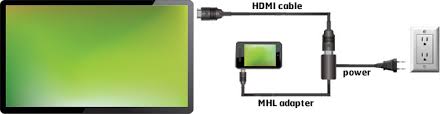
Hdmi Adapter
HDMI adapters allow you to connect your phone to your TV using a wired connection. To use an HDMI adapter:
- Choose an HDMI adapter that is compatible with your phone’s port (e.G., USB-C, microUSB).
- Plug in the adapter into the phone’s port and the other end into an HDMI port on your TV.
Conclusion
Connecting your phone to your TV has never been easier! With wireless streaming technologies like Google Cast, Apple AirPlay, and Miracast, you can enjoy a seamless viewing experience without the hassle of tangled cables. If you prefer to use wired connections, Chromecast, Apple TV, and Amazon Fire TV are excellent options. Remember to choose the right adapter or device for your needs, and don’t hesitate to reach out if you have any further questions.
Frequently Asked Questions (FAQs)
- Q: What is Wireless Streaming Technology?
A: Wireless streaming technology allows you to send content from one device to another without using a physical connection. - Q: Which Devices Support Wireless Streaming Technology?
A: Many modern smart TVs, smartphones, and tablets support wireless streaming technology, including Google Cast, Apple AirPlay, and Miracast. - Q: Can I Use Wired Connections For Streaming?
A: Yes, you can use wired connections like HDMI adapters or Chromecast to stream content from your phone to your TV. - Q: What is The Maximum Resolution For Wireless Streaming Technology?
A: The maximum resolution varies depending on the device and technology used, but it’s generally up to 4K. - Q: Can I Use Wireless Streaming Technology Without a Router or Wi-fi Network?
A: No, most wireless streaming technologies require a stable internet connection or a local network for optimal performance. - Q: What Are Some Common Issues With Wireless Streaming Technology?
A: Some common issues include dropped signals, lag, and compatibility problems, but these can usually be resolved by checking your device’s settings or restarting the app. - Q: Can I Use Other Devices to Connect my Phone to my Tv?
A: Yes, you can use various adapters and devices, like HDMI adapters or external streaming devices, to connect your phone to your TV.
We hope this comprehensive guide has helped you understand how to connect your phone to your TV using various technologies and devices.


