
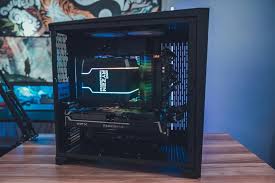
Optimizing Your PC For Gaming: A Comprehensive Guide
Are you tired of lagging frames and long loading times while gaming? Do you want to take your gaming experience to the next level without breaking the bank? Look no further! In this article, we’ll delve into the world of PC gaming optimization, providing you with a step-by-step guide on how to maximize your computer’s performance.
Understanding The Basics
Before we dive into the nitty-gritty, let’s cover some basic concepts. Your PC’s performance is influenced by several factors, including:
- Graphics Card (GPU): The GPU is responsible for rendering graphics and handling demanding tasks. A dedicated graphics card is essential for gaming.
- Cpu: The Central Processing Unit handles calculations and executes instructions. A fast CPU is crucial for smooth gameplay.
- Ram: Random Access Memory stores data temporarily, allowing your computer to access it quickly. Adequate RAM ensures seamless performance.
- Operating System: Your OS plays a significant role in managing resources and optimizing performance.
Updating Your Gpu Driver
The first step in optimizing your PC for gaming is to update your graphics card driver. This is crucial, as outdated drivers can lead to decreased performance.
- If you have an NVIDIA GPU, download and install the Nvidia Geforce Experience software.
- For AMD GPUs, use the Radeon Software: Adrenalin Edition program.
Follow these steps:
- Launch the respective software (GeForce Experience or Radeon Software).
- Log in with your existing profile (e.G., Google account).
- Navigate to the “Driver” tab and click on “Search Updates.”
- If an update is available, click on “Download” and follow the installation prompts.
Closing Background Programs
Unnecessary programs running in the background can consume resources, hindering your gaming experience. Close any unnecessary applications to free up memory and CPU power.
- Press Ctrl + Shift + Esc to open Task Manager.
- In the Processes tab, look for programs consuming significant resources (Memory or CPU).
- Right-click on these processes and select “End Activity” to close them.
Adjusting Game Settings
Optimizing game settings can significantly improve performance. Adjust your in-game settings to achieve a better balance between visual quality and frame rate.
- Lower the graphics quality to reduce load times.
- Reduce resolution or use a lower preset (e.G., Take Part or Reduced).
- Disable unnecessary features, such as anti-aliasing or motion blur.
Managing Internet Connection
A stable internet connection is vital for online gaming. Ensure your connection is strong and reliable.
- Check your internet speed using online tools like Speedtest.Net.
- Consider upgrading to a faster internet plan if necessary.
- Use Ethernet instead of Wi-Fi for a more stable connection.
Using Windows 11’s Gaming Mode
Windows 11 features a built-in gaming mode that can help optimize performance. To enable it:
- Go to Settings > Gaming > Game Mode.
- Toggle the switch to “On.”
This feature will automatically disable background programs and adjust system settings for optimal gaming performance.
Upgrading Hardware
If you’re still experiencing issues, consider upgrading your hardware. This can include:
- Increasing RAM or replacing the existing memory with faster modules.
- Replacing a traditional hard drive with a Solid-State Drive (SSD) for improved loading times.
- Upgrading to a more powerful CPU or GPU.
Cloud Gaming: An Alternative Option
If you’re unable to upgrade your hardware, consider exploring cloud gaming services like NVIDIA GeForce NOW or Xbox Game Pass. These platforms allow you to play demanding games on lower-end devices without the need for intense hardware upgrades.
Conclusion
Optimizing your PC for gaming requires a combination of software updates, setting adjustments, and hardware upgrades (if necessary). By following this guide, you’ll be able to unlock smoother gameplay, faster loading times, and an enhanced overall experience. Remember, the world of PC gaming is constantly evolving – stay informed, and always be prepared to adapt.
Frequently Asked Questions
- Q: What’s The Best Graphics Card For Gaming?
A: The best GPU for gaming depends on your budget and specific needs. NVIDIA GeForce GTX 1660 Super and AMD Radeon RX 5600 XT are popular options. - Q: How do I Upgrade my Ram?
A: To upgrade your RAM, purchase additional modules that match or exceed the existing specifications. Follow the manufacturer’s instructions for installation. - Q: What’s The Difference Between a Traditional Hard Drive And an Ssd?
A: SSDs store data on interconnected flash memory chips, providing faster loading times and improved performance compared to traditional hard drives. - Q: Can I Use Cloud Gaming Services Without Upgrading my Hardware?
A: Yes, cloud gaming services like NVIDIA GeForce NOW or Xbox Game Pass allow you to play demanding games on lower-end devices without the need for intense hardware upgrades.
Further Reading
For more in-depth guides and tutorials on PC gaming optimization, check out our recommended resources:
Disclaimer
This article is intended for informational purposes only. The author and publisher disclaim any responsibility for damage or losses incurred by readers attempting to implement the suggested optimizations without proper understanding or caution.


