
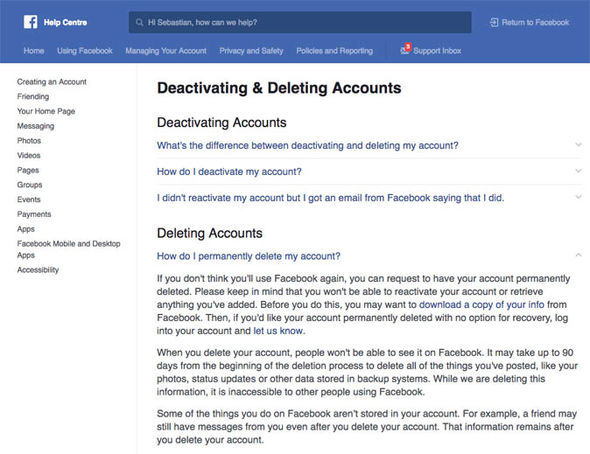
How to Delete a Facebook Account Without Password And Email
Are you tired of your old Facebook profile but can’t remember the password or email associated with it? You’re not alone! Many people face this problem, especially when trying to delete their account from a smartphone or tablet. In this article, we’ll guide you through the process of deleting a Facebook account without a password and email, using both smartphones and tablets, as well as computers.
Why Delete a Facebook Account?
Before we dive into the steps, let’s explore why someone might want to delete their Facebook account. Perhaps you’ve created multiple accounts over the years or have outgrown your old profile. Maybe you’re looking to start fresh with a new social media presence. Whatever your reason, we’ll walk you through the process of deleting your account, even if you can’t remember your password and email.
Recovering Access to Your Facebook Account
To delete your Facebook account without a password and email, you first need to recover access to it. Here’s how:
For Smartphones And Tablets
- Open the Facebook app on your device.
- Tap on “Password forgotten?”
- Enter your phone number in the provided text field.
- Tap on “Find your account.”
- Identify and tap on your name among the search results.
- Tap on “Continue.”
- Enter the code received via SMS.
- Create a new password and tap on “Continue” again.
For Computers
- Open a web browser (e.G., Google Chrome).
- Go to Facebook.Com.
- Click on “Forgot Account?”
- Enter your phone number in the provided field.
- Click on “Search.”
- Identify and click on your name among the search results.
- Click on “Continue.”
- Enter the code received via SMS.
- Create a new password and click on “Continue” again.
Deleting Your Facebook Account
Now that you have recovered access to your account, it’s time to delete it. Here are the steps:
For Smartphones And Tablets
- Open the Facebook app on your device.
- Tap on your profile picture in the top right corner.
- Select “Settings & Privacy” and then “Settings.”
- Scroll down to “Account Ownership and Control.”
- Choose “Deactivation or Deletion.”
- Confirm your account deletion by tapping on “Delete Account.”
For Computers
- Open a web browser (e.G., Google Chrome).
- Go to Facebook.Com.
- Click on your profile picture in the top right corner.
- Select “Settings & Privacy” and then “Settings.”
- Scroll down to “Account Ownership and Control.”
- Choose “Deactivation or Deletion.”
- Confirm your account deletion by clicking on “Delete Account.”
Deleting a Facebook Account Without Password And Email And Phone Number
If you can’t recover access to your Facebook account because you don’t remember your password, email, and phone number, there’s an alternative method:
- Open the Facebook app or website.
- Click on “Password Forgotten?”
- Enter the name and surname used for your profile.
- Select the option “Don’t have access to these information?”
- Follow the instructions to recover your account.
Faqs
- How Long do I Have to Cancel my Facebook Account Deletion?
You have 30 days to cancel the deletion of your account. - What Happens if I Try to Delete my Account But Can’t Remember my Password And Email?
Follow the alternative method provided above to recover access to your account. - Can I Delete Multiple Facebook Accounts at Once?
No, you must delete each account separately. - How do I Cancel a Pending Account Deletion?
Contact Facebook support for assistance. - What Happens to my Friends And Followers When I Delete my Account?
They will not be notified, but your profile and posts will be deleted. - Can I Recover my Facebook Account if It’s Been Deleted?
Unfortunately, no. Once an account is deleted, it cannot be recovered. - How do I Protect Myself From Identity Theft on Facebook?
Use strong passwords, enable two-factor authentication, and regularly review your account settings.
Conclusion
Deleting a Facebook account without a password and email requires patience and persistence. By following the steps outlined above, you can successfully delete your old profile and start fresh with a new one. Remember to take necessary precautions to protect yourself from identity theft on social media platforms like Facebook.


