
How to Block a Friend on Facebook Without Unfriending Them
Are you tired of seeing your friend’s constant updates on your news feed? Do you want to limit the visibility of their posts without unfriending them? Look no further! In this article, we’ll show you how to block a friend on Facebook without unfriending them.
Why Block a Friend on Facebook?
Before we dive into the steps, let’s discuss why someone might want to block a friend on Facebook. Maybe your friend is sharing too many updates, and it’s getting overwhelming. Perhaps they’re sharing content that you don’t agree with or find annoying. Whatever the reason, blocking them can be a good solution.
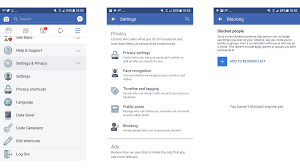
How to Block a Friend on Facebook Using a Smartphone
To block a friend on Facebook using a smartphone:
- Open the Facebook app.
- Tap on your profile picture in the top left corner.
- Select “Settings and Privacy” from the menu.
- Choose “Settings” and then select “Blocking.”
- Type the name of the person you want to block in the search bar.
- Select their name from the list.
- Confirm that you want to block them.
How to Block a Friend on Facebook Using a Tablet or PC
To block a friend on Facebook using a tablet or PC:
- Open the Facebook website.
- Click on your profile picture in the top right corner.
- Select “Settings” from the menu.
- Choose “Blocking” and then type the name of the person you want to block in the search bar.
- Select their name from the list.
- Confirm that you want to block them.
What Happens When You Block a Friend on Facebook?
When you block someone on Facebook, they won’t be able to:
- See your posts or updates
- Send you messages
- Tag you in photos or posts
- View your profile information
However, blocking someone doesn’t mean that you’ve unfriended them. They’ll still be listed as a friend on your friends list, and you can always add them back if needed.
How to Unblock Someone on Facebook
If you decide that you want to unblock someone, you can do so easily:
- Go to the “Blocking” section of your Facebook settings.
- Find the person’s name in the list.
- Select their name and confirm that you want to unblock them.
How to Limit a Friend’s Posts on Facebook
If blocking someone isn’t an option, you can limit their posts on Facebook by:
- Muting them: This will prevent their posts from showing up in your news feed.
- Unfollowing them: This will remove their posts from your news feed and won’t affect your friendship.
Tips For Blocking Someone on Facebook
- Be sure to read the instructions carefully before blocking someone.
- Consider muting or unfollowing them first if you’re not sure about blocking.
- If you’re experiencing harassment or abuse, report it to Facebook’s support team.
Conclusion
Blocking a friend on Facebook can be a good solution if you need some space from their updates. By following the steps outlined in this article, you can limit their visibility without unfriending them. Remember to unblock someone if needed and consider muting or unfollowing them first.
Faqs
- What Happens When I Block Someone on Facebook?
You won’t be able to see their posts or updates, and they won’t be able to send you messages. - Can I Still Add a Blocked Person Back as a Friend?
Yes, you can always unblock someone and add them back as a friend if needed. - How do I Unblock Someone on Facebook?
Go to the “Blocking” section of your Facebook settings, find the person’s name, and select their name to confirm that you want to unblock them. - Can I Limit a Friend’s Posts Without Blocking Them?
Yes, you can mute or unfollow them to remove their posts from your news feed. - What if I’m Experiencing Harassment or Abuse on Facebook?
Report it to Facebook’s support team for assistance. - Can I Block Someone Who Doesn’t Follow Me?
Yes, you can block anyone, regardless of whether they’re following you or not. - Will Blocking Someone Affect my Friendship With Them?
No, blocking someone won’t affect your friendship with them; it only limits their visibility on Facebook. - How do I Know if Someone Has Blocked me on Facebook?
If someone blocks you, their posts and updates won’t appear in your news feed, and they won’t be able to send you messages.


