
How to Actuate The Macro on Excel: A Comprehensive Guide
Are you fascinated by the potential of macros in Excel but unsure how to activate them? You’re not alone! Many people have been captivated by the power of macros, but haven’t understood how to unlock their full potential. Fortunately, you’ve landed in the right guide! In this comprehensive tutorial, we’ll walk you through the steps to actuate macros on Excel, covering all platforms, including Windows and Mac.
What Are Macros And Why Are They Helpful?
Before diving into the nitty-gritty of activating macros, let’s briefly explore what they are and why they’re useful. Macros in Excel are small programs that automate repetitive tasks. Written in Visual Basic for Applications (VBA), these sequences of commands can simplify your work, saving you time and reducing errors.
To illustrate their usefulness, consider this example: A macro can automatically compile data into a picture, execute complex calculations, or modify cell appearance based on specific conditions.
Safety Precautions When Using Macros
While macros can be incredibly helpful, it’s essential to exercise caution. As executable code, macros can potentially distribute malware. Excel, by default, disables automatic execution of macros, requiring user confirmation before running them.
To use macros safely:
- Avoid Qualifying Macros From Unknown Sources. If you receive an Excel file from an unreliable source and are asked to qualify the macro, it’s best to avoid doing so until you’re sure of its safety.
- Use Digital Signatures. A digitally signed macro validates its origin and ensures it hasn’t been modified since signing.
- Keep Your Antivirus Software Up-to-date, as a good antivirus can protect your system from malicious macros.
- Create Regular Backups of your Excel files, especially if you’re using macros.
- Learn The Basics of Vba to identify potentially damaging macros before running them.
Actuating Macros on Excel 365
Activating macros within Excel represents a crucial step in unlocking the full potential of this powerful software, particularly for automating repetitive and/or complex tasks.
To activate macros on Excel 365:
- Create a New Folder or Open an Existing File (.Xlsx).
- Click on The Visualize Tab in the top menu bar.
- Select Develop > Macro Security from the dropdown menu.
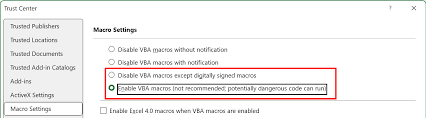
- Choose “Enable All Macros” or “Disable All Macros With Notification”, depending on your preference.
Actuating Macros on Windows
If you’re using a PC with the Microsoft operating system, follow these steps:
- Open Excel And Create a New Folder or Open an Existing File (.Xlsx).
- Click on The Visualize Tab in the top menu bar.
- Select Visualize > Macro from the dropdown menu.
- Choose “Visualize Macro” to list available macros or “Record macro” to create a new one.
If you want to access more advanced options, follow these additional steps:
- Go to Rows > Options (located in the lower left corner).
- Select Personalization > Multifunctional Bar.
- Choose “Development > Add.”
Now, you’ll have access to settings for creating and modifying macros using Visual Basic.
Actuating Macros on Mac
If you’re a Mac user:
- Open Excel And Create a New Folder or Open an Existing File (.Xlsx).
- Click on The Visualize Tab in the top menu bar.
- Select Visualize > Macro from the dropdown menu.
- Choose “Visualize Macro” to list available macros or “Record macro” to create a new one.
To access advanced options, follow these additional steps:
- Go to Excel > Preferences… (Or use the shortcut Command + ,).
- Select Bar Multifunctional And Bar of Fast Access.
- Choose Development > Choose Command Of:.
You’ll now have access to settings for creating and modifying macros using Visual Basic.
Actuating Macros Online
Unfortunately, Microsoft Excel Online does not support macro activation, either by opening a file with a macro or by creating one within the online application.
Actuating Macros on App Excel
As of now, it’s not possible to activate macros on the Excel app for smartphones and tablets. You’ll need to use the desktop version as described above.
Conclusion
In conclusion, unlocking the full potential of macros in Excel is easier than you might think! By following these steps, you can actuate macros on various platforms, including Windows, Mac, and even online versions (with limitations). Remember to exercise caution when using macros, and always keep your antivirus software up-to-date.
If you have any further questions or need help with specific scenarios, feel free to ask in the comments section below!


