
How to Save a Page Web: A Comprehensive Guide
Are you tired of losing important web pages due to connectivity issues? Do you want to save your favorite websites for offline access? Look no further! In this article, we will guide you through the process of saving a page web in various formats, including PDF, HTML, and image.
Why Save a Page Web?
Saving a page web is essential in today’s digital age. With an always-connected lifestyle, it’s easy to lose track of important information or favorite websites. Saving a page web allows you to access the content offline, making it perfect for situations where internet connectivity is limited.
Saving a Page Web in Pdf Format
Saving a page web in PDF format is a straightforward process. Here’s how to do it:
- Open your preferred browser and navigate to the webpage you want to save.
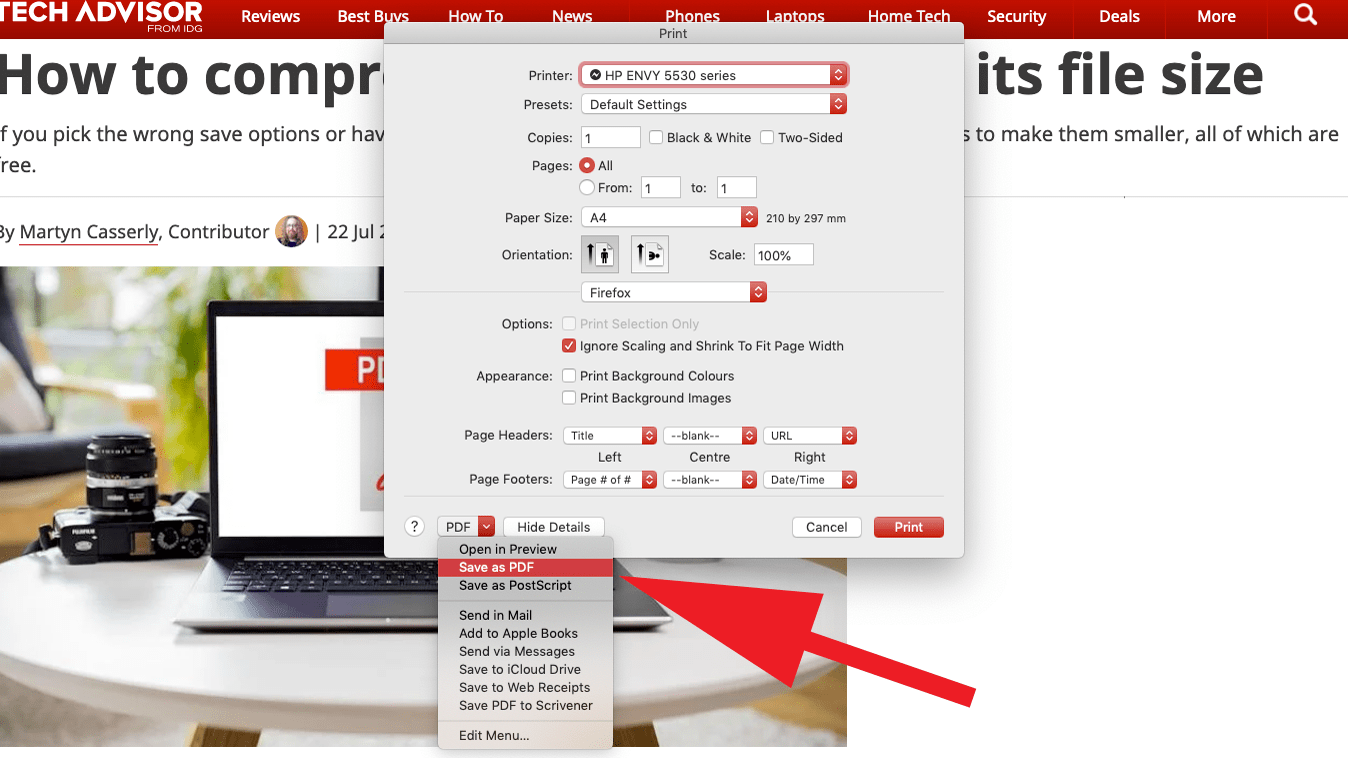
- Press the Ctrl+P keys on Windows or Command+P on Mac to access the print menu.
- Select the “Save as PDF” option from the dropdown menu.
- Choose a location to save the file and select the desired settings (e.G., Page layout, margins).
- Click Save to save the webpage as a PDF file.
Saving a Page Web on Windows
If you’re using Windows, saving a page web in PDF format is easy:
- Open your preferred browser (e.G., Google Chrome, Microsoft Edge) and navigate to the webpage.
- Press Ctrl+P to access the print menu.
- Select the “Microsoft Print to PDF” option from the dropdown menu.
- Choose a location to save the file and select the desired settings.
- Click Save to save the webpage as a PDF file.
Saving a Page Web on Mac
On Mac, saving a page web in PDF format is just as easy:
- Open your preferred browser (e.G., Safari) and navigate to the webpage.
- Press Command+P to access the print menu.
- Select the “Export as PDF” option from the dropdown menu.
- Choose a location to save the file and select the desired settings.
- Click Save to save the webpage as a PDF file.
Saving a Page Web on Android
If you’re using an Android device, saving a page web in PDF format is a bit more involved:
- Open your preferred browser (e.G., Google Chrome) and navigate to the webpage.
- Tap the menu button and select the “Share” option.
- Select the “Save as PDF” option from the dropdown menu.
- Choose a location to save the file and select the desired settings.
- Click Save to save the webpage as a PDF file.
Saving a Page Web on Iphone
On an iPhone, saving a page web in PDF format is similar to saving it on Android:
- Open your preferred browser (e.G., Safari) and navigate to the webpage.
- Tap the share icon and select the “Print” option.
- Select the “Save as PDF” option from the dropdown menu.
- Choose a location to save the file and select the desired settings.
- Click Save to save the webpage as a PDF file.
Saving a Page Web on Desktop
If you want to save a page web on your desktop, you can create a link or archive it in a folder:
- Open your preferred browser and navigate to the webpage.
- Drag the icon of the padlock (or globe) to the desktop to create a shortcut.
- Alternatively, you can select “Save as” from the file menu and choose a location to save the file.
Saving a Page Web in Html Format
If you want to save a page web in HTML format, follow these steps:
- Open your preferred browser and navigate to the webpage.
- Click right on an empty space on the page and select “Save with name” from the contextual menu.
- Choose a location to save the file and select the desired settings (e.G., Format, layout).
- Click Save to save the webpage as an HTML file.
Saving a Page Web Like Image
If you want to save a page web like an image, use a screenshot tool or service:
- Use a screenshot tool (e.G., Snagit, Skitch) to capture the entire webpage.
- Select the desired settings (e.G., Resolution, format).
- Save the screenshot as an image file.
Conclusion
Saving a page web is an essential skill in today’s digital age. With this guide, you can save a page web in various formats, including PDF, HTML, and image. Whether you want to access important information offline or save your favorite websites for future reference, saving a page web is easy and straightforward.
Frequently Asked Questions
- Q: Can I Save a Webpage as an Image?
A: Yes, you can use a screenshot tool or service to capture the entire webpage and save it as an image file. - Q: How do I Save a Webpage in Pdf Format on Mac?
A: Open Safari, navigate to the webpage, press Command+P, select “Export as PDF,” choose a location to save the file, and click Save. - Q: Can I Save Multiple Webpages at Once?
A: Yes, you can use a tool or service that allows you to batch-save multiple webpages at once. - Q: How do I Access Saved Webpages Offline?
A: Saved webpages can be accessed offline by opening the file in a browser or using a reader app. - Q: Can I Edit Saved Webpages?
A: Yes, you can edit saved webpages by opening them in a code editor or a word processor. - Q: Are Saved Webpages Secure?
A: Saved webpages are generally secure, but it’s essential to ensure that the file is not tampered with or shared without permission.
I hope this guide has been helpful! If you have any further questions or concerns, please don’t hesitate to ask.


