
The Ultimate Guide to Microsoft Access: Unlocking Its Power
Are you tired of feeling overwhelmed by data? Do you struggle to manage your information in a way that makes sense to you? Look no further than Microsoft Access, the powerful database management tool that’s been hiding in plain sight.
In this comprehensive guide, we’ll take you on a journey through the world of Access, from the basics of creating a database to advanced techniques for generating reports and executing queries. By the end of this article, you’ll be well on your way to unlocking the full potential of Access and taking control of your data like never before.
What is Microsoft Access?
Microsoft Access is a powerful database management tool that’s part of the Microsoft Office suite. It allows you to create, edit, and manage databases, as well as generate reports and execute queries. With Access, you can store, organize, and analyze large amounts of data in a way that’s easy to understand.
Getting Started With Access
Before we dive into the meat of this guide, let’s take a quick look at how to get started with Access.
- Installation: If you don’t already have Access installed on your computer, you can download it from the Microsoft website. Note that Access is only available as part of the Microsoft Office suite, so if you don’t have Office installed, you’ll need to purchase a subscription or buy a one-time license.
- Launch: Once installed, launch Access by searching for it in the Start menu (Windows) or Spotlight search (Mac).
Creating a Database in Access
Now that we’re up and running, let’s create our first database.
- Open Access: Double-click on the Access icon to launch the application.
- Click New Database: In the Access startup window, click the “New Database” button.
- Choose a Location: Select a location on your computer where you’d like to save the new database.
- Name Your Database: Enter a name for your database in the “Database Name” field.
Understanding Basic Concepts
Before we dive deeper into Access, let’s take a quick look at some basic concepts that’ll help us get started.
- Table: A table is like an Excel spreadsheet – it contains rows and columns where you can store data.
- Record: A record is like a row in a table. Each record represents a single entry of data, such as a customer or product.
- Field: A field is like a column in a table. It’s used to describe a specific piece of information about each record, such as the name or price.
Creating Tables And Fields
Now that we’ve got our basic concepts down, let’s create some tables and fields!
- Click Create Table: In the Access ribbon, click on the “Create Table” button.
- Add a Field: Click on the “Add Field” button to add a new field to your table.
- Choose a Data Type: Select the type of data that will be stored in this field (e.G., Text, number, date).
- Set a Name: Enter a name for your field.
Adding Records
Now that we’ve got our fields set up, let’s add some records!
- Click on a Record: Click on an empty row in the table to create a new record.
- Enter Data: Enter data into each field as needed.
- Save Your Changes: Don’t forget to save your changes!
Creating Accounts
An account is like a connection between two tables – it allows you to link related records together.
- Click on The Table: Select the table that contains the primary key (the unique identifier for each record).
- Click Add Account: Click on the “Add Account” button.
- Select a Related Field: Choose a field from another table that is related to this one.
- Create an Account Link: Access will create an account link between these two tables.
Executing Queries
A query is like a search – it allows you to retrieve specific data based on certain criteria.
- Click on The Query Button: Click on the “Query” button in the Access ribbon.
- Choose a Query Type: Select the type of query you want to run (e.G., Select, command).
- Add Criteria: Add criteria for your query as needed.
- Run Your Query: Click on the “Run” button to execute your query.
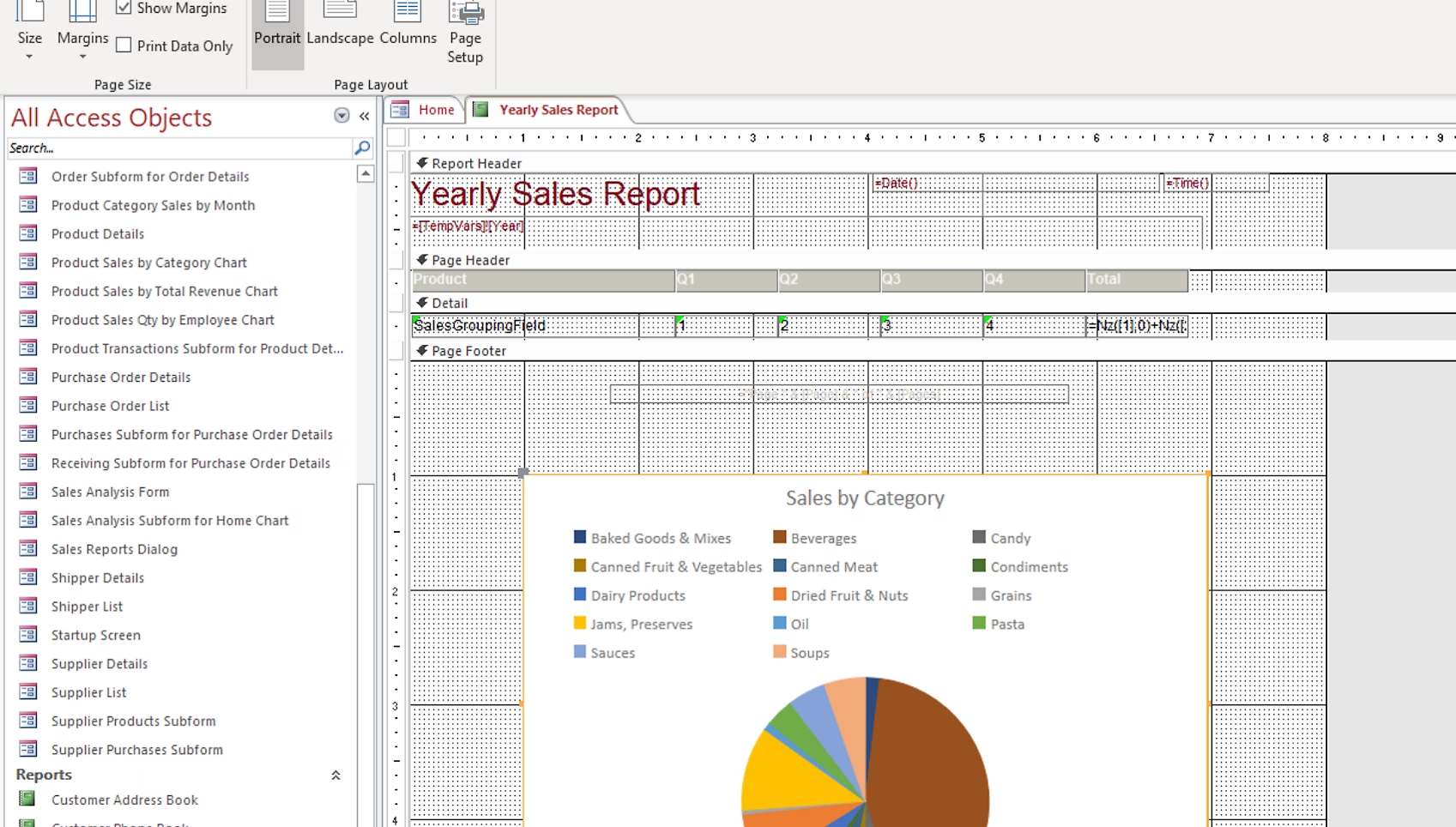
Generating Reports
A report is like a summary – it allows you to display data in an easy-to-read format.
- Click on The Report Button: Click on the “Report” button in the Access ribbon.
- Choose a Report Type: Select the type of report you want to generate (e.G., Table, chart).
- Add Fields: Add fields from your database as needed.
- Run Your Report: Click on the “Run” button to display your report.
Conclusion
Microsoft Access is a powerful tool that can help you take control of your data and unlock its full potential. With this guide, you’ve learned how to create databases, tables, fields, records, accounts, queries, and reports – all from within Access itself! By mastering these skills, you’ll be able to manage large amounts of data with ease and make informed decisions based on accurate information.
Faqs
Q: What is Microsoft Access?
A: Microsoft Access is a powerful database management tool that’s part of the Microsoft Office suite. It allows you to create, edit, and manage databases, as well as generate reports and execute queries.
Q: How do I get started with Access?
A: To get started with Access, simply launch the application and follow the on-screen instructions.
Q: What is a table in Access?
A: A table is like an Excel spreadsheet – it contains rows and columns where you can store data.
Q: What is a record in Access?
A: A record is like a row in a table. Each record represents a single entry of data, such as a customer or product.
Q: What is a field in Access?
A: A field is like a column in a table. It’s used to describe a specific piece of information about each record, such as the name or price.
Q: How do I add records to my database?
A: To add records to your database, click on an empty row in the table and enter data into each field as needed.
Q: What is an account in Access?
A: An account is like a connection between two tables – it allows you to link related records together.
Q: How do I execute queries in Access?
A: To execute queries in Access, click on the “Query” button and choose a query type (e.G., Select, command).
Q: How do I generate reports in Access?
A: To generate reports in Access, click on the “Report” button and choose a report type (e.G., Table, chart).


