
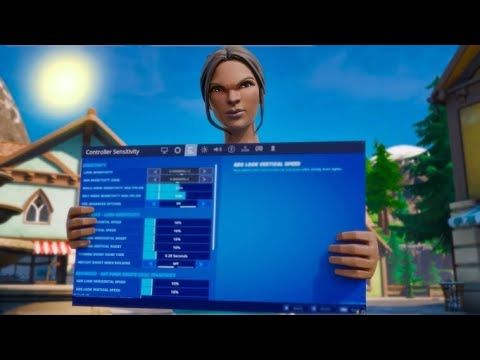
Better Settings For Fortnite on Ps4: A Guide to Improving Your Gameplay
Are you tired of being defeated in Fortnite? Do you want to become an expert player and dominate the competition? Look no further! In this article, we will provide you with a comprehensive guide on how to set up the best settings for Fortnite on PS4.
Why Personalization is Important
Before we dive into the settings, it’s essential to understand why personalization is crucial in Fortnite. The game allows players to customize their experience to suit their playstyle, and this is where the magic happens. By tweaking the settings, you can optimize your gameplay and become a formidable opponent.
Better Settings For Fortnite on Ps4: Controller
The controller settings are where most players spend their time customizing. Here’s what you need to know:
- Swift Builder: This preset is designed for fast-paced builders who want to create structures quickly.
- Professional Fighter: This preset is ideal for players who want to focus on combat and take out enemies swiftly.
- Old School: If you’re a fan of the original Fortnite gameplay, this preset will bring back nostalgic memories.
- Pro Builder: For those who want to excel in building and construction, this preset is perfect.
To access these presets, follow these steps:
- Start the game and go to the main menu.
- Select the “Battle Royale” option.
- Press the Options button on your controller.
- Select the “Settings” icon from the left menu.
- Scroll down to the “Controller” section.
- Choose the preset you prefer.
Better Settings For Fortnite on Ps4: Mouse And Keyboard
While most players use controllers, some prefer using mice and keyboards. Here’s what you need to know:
- Sensitivity: Set your sensitivity to around 9 or 10 for the X-axis and 8 for the Y-axis.
- Deadzone/dead Zone: Adjust this setting to around 5 to improve accuracy.
- Mouse Dpi: Set your mouse DPI to 800 for optimal performance.
To access these settings, follow these steps:
- Start the game and go to the main menu.
- Select the “Battle Royale” option.
- Press the Options button on your controller.
- Select the “Settings” icon from the left menu.
- Scroll down to the “Mouse and Keyboard” section.
Better Settings For Fortnite on Ps4: Graphics
While graphics settings might not be as crucial as other settings, they can still impact your gameplay experience:
- Motion Blur: Disable this setting to improve visuals.
- Display Fps: Enable this setting to monitor your frame rate.
To access these settings, follow these steps:
- Start the game and go to the main menu.
- Select the “Battle Royale” option.
- Press the Options button on your controller.
- Select the “Settings” icon from the left menu.
- Scroll down to the “Graphics” section.
Conclusion
In conclusion, customizing your settings is crucial in Fortnite. By tweaking the settings, you can optimize your gameplay and become a formidable opponent. Remember to follow these steps to access the various settings:
- Controller: Access presets like Swift Builder, Professional Fighter, Old School, or Pro Builder.
- Mouse And Keyboard: Adjust sensitivity, deadzone/dead zone, and mouse DPI for optimal performance.
- Graphics: Disable motion blur and enable display FPS.
By following these steps, you’ll be well on your way to becoming a top-notch Fortnite player. Happy gaming!


