
Contacting Your Playstation 5 Account: A Step-by-step Guide
Are you ready to dive into the world of entertainment on your PlayStation 5? With its advanced features and user-friendly interface, it’s no wonder why this console has become a favorite among gamers. However, as with any device, there are certain settings that need to be configured to ensure a seamless experience. In this article, we’ll guide you through the process of contacting your PlayStation 5 account and making it the primary console for your gaming needs.
Understanding Your Psn Profile
Before we dive into the step-by-step instructions, let’s take a moment to understand what a PSN profile is. A PSN (PlayStation Network) profile is essentially an online identity that allows you to access various features on your PlayStation 5, such as online multiplayer, game downloads, and more. Each profile can be associated with a single PlayStation 5 console, making it the primary device for accessing these services.
Benefits of Using Your Psn Profile
Having a dedicated PSN profile offers several benefits, including:
- Access to exclusive features like multiplayer online gaming
- Ability to download games directly onto your console
- Option to reproduce and share content offline
Step-by-step Instructions: Contacting Your Playstation 5 Account
Now that we’ve covered the basics, let’s move on to the step-by-step instructions for contacting your PlayStation 5 account.
Step 1: Accessing The Settings Menu
To start the process, navigate to the settings menu on your PlayStation 5. This can be done by pressing the PS button on your controller and selecting “Settings” from the menu.
Step 2: Selecting The Users And Account Option
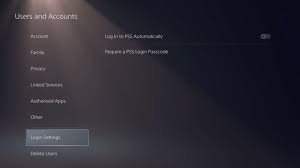
In the settings menu, select the “Users and Account” option. This will take you to a new page where you can manage various aspects of your account.
Step 3: Choosing The Sharing Console And Offline Procreation Options
From the Users and Account page, select the “Sharing console and offline procreation” option. This will allow you to configure the settings for sharing content between consoles.
Step 4: Selecting The Qualify Option
Once you’ve selected the sharing console and offline procreation options, choose the “Qualify” option. This will enable the feature that allows you to share content between consoles.
Disabling Your Playstation 5 Account
If you no longer want your PlayStation 5 account to be associated with a specific console, you can disable it by following these steps:
Step 1: Accessing The Settings Menu
Navigate to the settings menu on your PlayStation 5 and select the “Users and Account” option.
Step 2: Choosing The Sharing Console And Offline Procreation Options
From the Users and Account page, select the “Sharing console and offline procreation” option.
Step 3: Selecting The Disable Option
Choose the “Disable” option to disable your PlayStation 5 account.
Additional Tips And Resources
If you’re interested in learning more about managing your PlayStation 5 account or need additional guidance on using certain features, be sure to check out our other resources:
- How to Download Apps on Android: A step-by-step guide on how to download apps on Android devices.
- How to Share Your Playstation 5 Content: A comprehensive guide on how to share content between consoles and manage your account settings.
Frequently Asked Questions
Here are some frequently asked questions about contacting your PlayStation 5 account:
Q: What is a PSN profile?
A: A PSN (PlayStation Network) profile is an online identity that allows you to access various features on your PlayStation 5, such as online multiplayer and game downloads.
Q: Why do I need a dedicated PSN profile?
A: Having a dedicated PSN profile offers several benefits, including access to exclusive features like multiplayer online gaming and the ability to download games directly onto your console.
Q: How do I contact my PlayStation 5 account?
A: To contact your PlayStation 5 account, navigate to the settings menu on your console and select the “Users and Account” option. From there, choose the “Sharing console and offline procreation” option and select the “Qualify” option.
Q: How do I disable my PlayStation 5 account?
A: To disable your PlayStation 5 account, follow the steps outlined in this article or contact our support team for assistance.
We hope this guide has been helpful in understanding how to contact your PlayStation 5 account and manage your settings. If you have any further questions or need additional guidance, feel free to reach out to us!


