
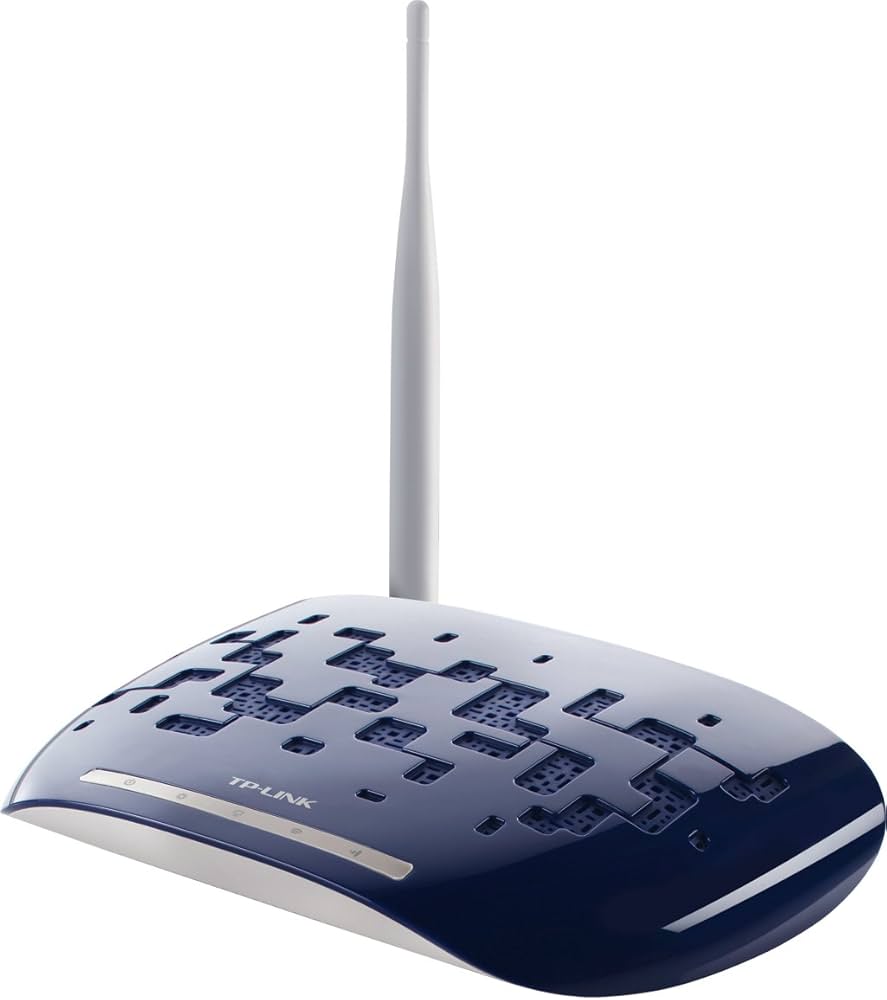
Configuring Your Router: A Step-by-step Guide
Are you struggling to configure your router? Do you want to learn how to set up your WINDTRE router with ease? Look no further! This comprehensive guide will walk you through the process of configuring your router, step by step.
Understanding Your Router’s Settings
Before we dive into the configuration process, it’s essential to understand the basics of your router’s settings. Your router has several settings that need to be configured correctly for optimal performance. These include:
- IP Address: This is a unique address assigned to your router, which allows devices connected to it to communicate with the internet.
- Password: This is a password required to access the router’s management panel.
- Ssid (Network Name): This is the name of your wireless network.
- Channel: This determines the frequency band used by your wireless network.
Step 1: Locate Your Router’s Settings
To configure your WINDTRE router, you need to locate its settings. Here’s how:
- Connect a Device: Connect a device (such as a computer or smartphone) to your router using an Ethernet cable.
- Open a Web Browser: Open a web browser on the connected device and navigate to the router’s management panel by typing the IP address in the address bar. The default IP address for most WINDTRE routers is 192.168.1.1 Or 192.168.0.1.
Step 2: Log In to Your Router
To access your router’s settings, you need to log in using the correct username and password. Here’s how:
- Enter The IP Address: Enter the IP address of your router in the browser’s address bar.
- Log-in Credentials: Enter the default login credentials (usually admin/admin) if prompted.
Step 3: Change Your Password
To secure your router, it’s essential to change the default password. Here’s how:
- Click on Maintenance: Click on the “Maintenance” tab in the router’s management panel.
- Change Password: Click on the “Change Password” button and enter a new password.
Step 4: Configure Your Wi-fi Settings
To set up your WINDTRE router’s Wi-Fi settings, follow these steps:
- Click on Wireless: Click on the “Wireless” tab in the router’s management panel.
- Configure Ssid And Channel: Configure your SSID (network name), channel, and other wireless settings as desired.
Step 5: Save Your Changes
Once you’ve completed configuring your WINDTRE router, save your changes by clicking on the “Save” button in the top right corner of the management panel.
Troubleshooting Tips
If you encounter any issues during the configuration process, here are some troubleshooting tips to help you resolve them:
- Restart Your Router: Restarting your router can often resolve connectivity issues.
- Check For Firmware Updates: Check if there are any firmware updates available for your WINDTRE router and update it accordingly.
Conclusion
Configuring your WINDTRE router is a straightforward process that requires patience and attention to detail. By following the steps outlined in this guide, you’ll be able to set up your router with ease and ensure optimal performance.
Frequently Asked Questions (FAQs)
Here are some frequently asked questions related to configuring your WINDTRE router:
- Q: What is The Default IP Address For my Windtre Router?
A: The default IP address for most WINDTRE routers is 192.168.1.1 Or 192.168.0.1. - Q: How do I Change The Password on my Windtre Router?
A: To change the password, click on the “Maintenance” tab in the router’s management panel and then click on “Change Password.” - Q: What is The Ssid (network Name) of my Windtre Router?
A: The SSID can be changed under the “Wireless” tab in the router’s management panel. -
Q: How do I Restart my Windtre Router?
A: To restart your router, simply unplug it from the power source and then plug it back in after a few seconds. -
Q: Can I Configure my Windtre Router to Use a Specific Channel?
A: Yes, you can configure your WINDTRE router to use a specific channel by going to the “Wireless” tab in the router’s management panel and selecting the desired channel. - Q: How do I Troubleshoot Connectivity Issues With my Windtre Router?
A: If you encounter connectivity issues, try restarting your router or checking for firmware updates. -
Q: Can I Configure Multiple Networks on my Windtre Router?
A: Yes, you can configure multiple networks on your WINDTRE router by going to the “Wireless” tab in the management panel and selecting the desired network settings. -
Q: How do I Update The Firmware on my Windtre Router?
A: To update the firmware, go to the WINDTRE website and download the latest firmware update for your router model.


