
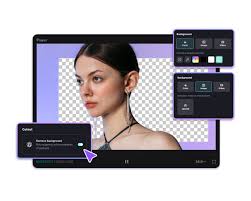
Unlocking The Power of Video Editing: A Comprehensive Guide to Capcut
Are you tired of boring videos that fail to captivate your audience? Do you want to add a touch of creativity and originality to your social media posts? Look no further than CapCut, the versatile video editing app that’s taking the world by storm.
What is Capcut?
CapCut is a free, all-in-one video editing platform that allows you to create stunning videos with ease. Whether you’re a seasoned pro or a beginner, CapCut’s intuitive interface and user-friendly features make it accessible to anyone who wants to edit their videos like a pro.
Key Features of Capcut
- Multi-platform Compatibility: CapCut is available on both Android and iOS devices, as well as desktop computers via the web version.
- Advanced Editing Tools: With CapCut, you can trim clips, add transitions, apply filters, and even edit audio tracks with ease.
- Customizable Templates: Choose from a variety of pre-designed templates to get started on your video editing project quickly.
- Social Media Integration: Share your edited videos directly to social media platforms like TikTok, Instagram, Facebook, and more.
- Collaboration Features: Invite friends or colleagues to collaborate on projects in real-time.
How to Use Capcut: A Step-by-step Guide
Editing on Smartphone And Tablet
- Download the CapCut app from the App Store (iOS) or Google Play Store (Android).
- Launch the app and accept the terms of service.
- Create a new project by selecting the type of video you want to edit (e.G., Social media post, short film, etc.).
- Import your footage and start editing using CapCut’s intuitive timeline interface.
- Trim clips, add transitions, apply filters, and edit audio tracks as needed.
Mounting a Video
To mount a video in CapCut, follow these steps:
- Launch the app and create a new project.
- Select the “Video” option from the main menu.
- Import your footage by selecting it from your device’s gallery or camera roll.
- Trim clips as needed to create a cohesive sequence.
- Add transitions and effects to enhance the visual appeal of your video.
Adding Music
To add music to your edited video in CapCut, follow these steps:
- Select the “Audio” option from the main menu.
- Browse through CapCut’s vast library of music tracks or upload your own audio files.
- Trim and edit the audio track as needed to match the pacing of your video.
Inserting Text
To add text to your edited video in CapCut, follow these steps:
- Select the “Text” option from the main menu.
- Choose a font style and color that suits your brand or personal preference.
- Add text overlays to highlight key points, provide context, or emphasize important information.
Adding Effects And Filters
To add effects and filters to your edited video in CapCut, follow these steps:
- Select the “Effects” option from the main menu.
- Browse through CapCut’s extensive library of pre-designed effects and filters.
- Apply effects and filters to enhance the visual appeal of your video.
Advanced Features And Tips
- Use Keyframe Animation: To create more engaging animations, use keyframes to control specific elements within your video.
- Experiment With Speed Control: Adjust the speed of individual clips or entire videos using CapCut’s built-in speed control feature.
- Utilize Audio Effects: Enhance the audio experience by applying effects like echo, reverb, or EQ.
- Collaborate With Others: Invite friends or colleagues to collaborate on projects in real-time.
Exporting And Sharing Your Video
To export your edited video from CapCut, follow these steps:
- Select the “Export” option from the main menu.
- Choose a format (e.G., MP4, MOV) and resolution that suits your needs.
- Select a social media platform or cloud storage service to share your video.
Conclusion
CapCut is an incredibly powerful tool for creating stunning videos with ease. Whether you’re a seasoned pro or a beginner, CapCut’s intuitive interface and user-friendly features make it accessible to anyone who wants to edit their videos like a pro. With its advanced editing tools, customizable templates, and social media integration, CapCut is the perfect solution for creators, marketers, and businesses alike.
Frequently Asked Questions
- Q: Is Capcut Free?
A: Yes, CapCut offers a basic plan that’s completely free. - Q: Can I Use Capcut on my Desktop Computer?
A: Yes, CapCut has both mobile and web versions for easy access across devices. - Q: How do I Collaborate With Others in Capcut?
A: Simply invite friends or colleagues to join your project via the CapCut app. - Q: Can I Export my Video Directly From Capcut?
A: Yes, you can export your edited video in various formats and resolutions. - Q: Is Capcut Compatible With Social Media Platforms?
A: Absolutely! CapCut allows direct sharing to popular social media platforms like TikTok, Instagram, Facebook, and more.
Stay tuned for more exciting updates and tutorials on using CapCut to unlock the full potential of your video editing experience!


