
How to Change Voice Assistant Google on Android And Ios
Are you tired of hearing the same voice every time you interact with Google Assistant? Well, you’re in luck! You can change the voice assistant Google on both Android and iOS devices. In this article, we’ll guide you through the step-by-step process of modifying the tone and language of your Google Assistant.
Why Change Voice Assistant Google?
Before we dive into the how-to section, let’s talk about why you might want to change your Google Assistant voice. Perhaps you’ve grown accustomed to a particular accent or tone, but it’s no longer appealing to you. Or maybe you’re simply curious about trying out a new sound.
Whatever your reason, changing your Google Assistant voice is easier than you think!
How to Change Voice Assistant Google on Android
To change the voice assistant Google on Android devices, follow these steps:
- Launch The Google App: Find the Google app on your home screen or in the app drawer.
- Tap on Your Profile Picture: Tap on your profile picture in the top right corner of the screen.
- Select Voice Settings: In the menu that appears, select “Voice Settings.”
- Choose a New Voice Tone: Scroll down to the “Voice and sounds” section and tap on it.
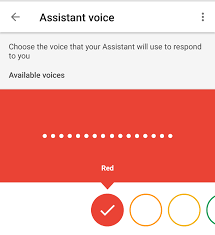
- Select a New Tone: Choose from various tones by tapping on the red or orange icons.
- Save Changes: Once you’ve selected your preferred tone, save your changes.
How to Change Voice Assistant Google on Ios
Changing the voice assistant Google on iOS devices is just as easy:
- Launch The Google App: Find the Google app on your home screen.
- Tap on Your Profile Picture: Tap on your profile picture in the top right corner of the screen.
- Select Voice Settings: In the menu that appears, select “Voice Settings.”
- Choose a New Voice Tone: Scroll down to the “Voice and sounds” section and tap on it.
- Select a New Tone: Choose from various tones by tapping on the red or orange icons.
- Save Changes: Once you’ve selected your preferred tone, save your changes.
How to Change Voice Assistant Google on Google Home
If you have a Google Home device, changing the voice assistant Google is just as simple:
- Launch The Google Home App: Find the Google Home app on your Android or iOS device.
- Tap on Settings: Tap on the three horizontal lines in the top left corner of the screen to access settings.
- Select Voice And Sounds: Scroll down to the “Voice and sounds” section.
- Choose a New Tone: Select from various tones by tapping on the red or orange icons.
How to Change Language in Google Maps
If you want to change the language in Google Maps, follow these steps:
- Launch Google Maps: Find the Google Maps app on your Android or iOS device.
- Tap on Settings: Tap on the three horizontal lines in the top left corner of the screen to access settings.
- Select Navigation Settings: Scroll down to the “Navigation” section and select it.
- Choose a New Language: Select from various languages by tapping on them.
How to Change Voice Google Translator
If you use Google Translate to translate words and phrases, you can also change the voice:
- Launch Google Translate: Find the Google Translate app on your Android or iOS device.
- Select Languages: Tap on the “Languages” section at the top of the screen.
- Choose a New Language: Select from various languages by tapping on them.
- Listen to Pronunciation: Tap on the speaker icon next to the translated term to listen to its pronunciation.
- Change Voice Tone: Tap on the name of the destination language and select another option from the list.
Conclusion
Changing your Google Assistant voice or language is a simple process that can enhance your user experience. Whether you’re looking for a fresh sound or simply want to experiment with new tones, this guide has got you covered!
Frequently Asked Questions (FAQs)
- Q: Can I Change The Tone of my Google Assistant on Multiple Devices?
A: Yes, you can change the tone of your Google Assistant on multiple devices using the same steps. - Q: Will Changing The Language Affect Any Other Google Services?
A: Changing the language in one service may not affect others, but it’s best to check with each individual service for confirmation. - Q: Can I Change The Voice Assistant Google on a Google Home Device Only?
A: No, you can change the voice assistant Google on both Android and iOS devices using the same steps.


