
How to Clean Blank Space on Your Computer: A Step-by-step Guide
Are you tired of feeling like your computer is cluttered with unnecessary files and blank space? Do you wish there was a way to easily free up some space without having to spend hours searching through your computer’s storage? Look no further! In this article, we will guide you through the process of cleaning blank space on your Windows or Mac computer.
Understanding Blank Space
Before we dive into the nitty-gritty of cleaning blank space, it’s essential to understand what exactly is taking up that precious space. Blank space refers to any unnecessary files or data that are consuming storage on your computer. This can include temporary internet files, cached data, and other types of files that you might not even realize are there.
Why Clean Blank Space?
Cleaning blank space on your computer is a simple yet effective way to:
- Free up valuable storage space
- Improve your computer’s performance and speed
- Reduce clutter and make it easier to find what you need
Using Integrated Tools (Windows)
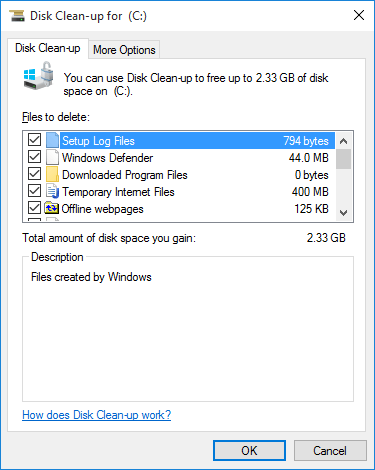
If you’re using Windows, there’s an integrated tool called “Cleaning disc” that can help you clean blank space on your computer. Here’s how to use it:
- Click on the Start button and type “cleaning disc” in the search bar.
- Select the first option from the list that appears.
- In the cleaning disc window, select the options for temporary internet files, browser cache, and other types of files you want to clean up.
- Click OK to initiate the process.
Using Integrated Tools (Mac)
If you’re using a Mac, you can use an integrated tool called “About This Mac” to check how much blank space is on your computer and take steps to clean it up. Here’s how:
- Click on the Apple logo in the top left corner of the screen.
- Select About This Mac from the drop-down menu.
- Click on the Storage tab.
- You’ll see a graph showing how much blank space is on your computer. Click on the Manage button to take steps to clean it up.
Using Third-party Programs
If you’re looking for more advanced cleaning options or want to use third-party programs, there are several great options available for both Windows and Mac users.
Bleachbit (Windows)
BleachBit is a free, open-source program that can help you clean blank space on your computer. Here’s how to use it:
- Download the program from the official website.
- Extract the files and run the program.
- Select the options for temporary internet files, browser cache, and other types of files you want to clean up.
- Click Clean to initiate the process.
Cleanmymac X (Mac)
CleanMyMac X is a popular cleaning tool specifically designed for Mac users. Here’s how to use it:
- Download and install the program from the official website.
- Open the program and select the Cleaning tab.
- Choose the types of files you want to clean up, such as temporary internet files or cached data.
- Click Clean to initiate the process.
Other Programs
There are several other great programs available for cleaning blank space on your computer, including:
- OnyX (Mac): A free program that can help you clean determined rows of the disc and delete cache.
- WinDirStat (Windows): A free program that can help you identify and delete unnecessary files from your hard drive or SSD.
- DaisyDisk (Mac): A free program that can help you analyze your hard drive and identify unnecessary files to delete.
Conclusion
Cleaning blank space on your computer is a simple yet effective way to improve its performance, reduce clutter, and free up valuable storage space. Whether you’re using integrated tools like Cleaning disc or third-party programs like BleachBit or CleanMyMac X, there’s a solution out there for you.
Frequently Asked Questions
Q: What is blank space on my computer?
A: Blank space refers to any unnecessary files or data that are consuming storage on your computer.
Q: Why should I clean blank space on my computer?
A: Cleaning blank space can help improve your computer’s performance, reduce clutter, and free up valuable storage space.
Q: How do I use the integrated tool “Cleaning disc” on Windows?
A: To use the integrated tool “Cleaning disc,” click on the Start button and type “cleaning disc” in the search bar. Select the first option from the list that appears.
Q: How do I clean blank space on my Mac?
A: You can use an integrated tool called “About This Mac” to check how much blank space is on your computer and take steps to clean it up.
Q: What are some other great programs for cleaning blank space?
A: Some other great programs for cleaning blank space include BleachBit (Windows), CleanMyMac X (Mac), OnyX (Mac), WinDirStat (Windows), and DaisyDisk (Mac).


