
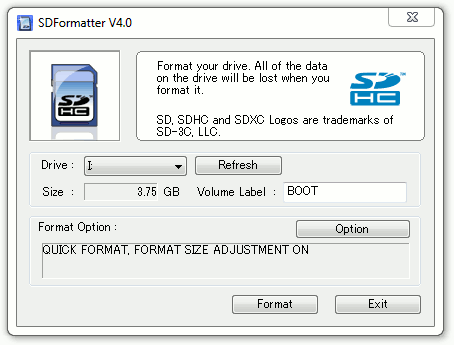
How to Format a SD Card: A Step-by-step Guide
Are you tired of dealing with formatted SD cards that just won’t format? Look no further! In this article, we will guide you through the process of formatting a SD card on your computer, smartphone, or tablet.
Understanding SD Cards
Before we dive into the formatting process, it’s essential to understand what a SD card is and how it works. A SD card is a type of flash memory that stores data, such as photos, videos, music, and applications. It’s commonly used in smartphones, tablets, cameras, and other portable devices.
Why Format a SD Card?
Formatting a SD card can resolve various issues, including:
- Corruption or damage to the card
- Inability to write new data due to full capacity
- Conflicts with existing files or programs
By formatting your SD card, you’ll be able to restore it to its original state and ensure smooth functionality.
Step 1: Gather Your Tools
To format a SD card on your computer:
- A computer with Windows or macOS operating system
- A SD card reader (if your computer doesn’t have a built-in SD card slot)
- The SD card you want to format
For smartphones and tablets:
- A smartphone or tablet with Android or iOS operating system
- A SD card adapter (for iOS devices)
Step 2: Choose The Right Software
There are several software options available for formatting a SD card. Some popular choices include:
- Windows built-in Disk Management tool
- MacOS built-in Disk Utility tool
- Third-party software like MiniTool Partition Wizard, Paragon Hard Disk Manager, and EaseUS Partition Master
Step 3: Format The SD Card on Your Computer
To format a SD card on your computer:
- Insert the SD card into the reader or adapter.
- Open the Disk Management or Disk Utility tool.
- Select the SD card as the target device.
- Choose the file system and formatting options (e.G., FAT32, exFAT, NTFS).
- Click “Format” to begin the process.
Step 4: Format The SD Card on Your Smartphone or Tablet
To format a SD card on your smartphone or tablet:
- Go to Settings > Storage.
- Select the SD card as the target device.
- Choose the formatting option (e.G., Quick Format, Overwrite Format).
- Confirm your selection.
Step 5: Verify The Formatting Process
After completing the formatting process, ensure that the SD card is correctly formatted by:
- Checking the file system and capacity on your computer or smartphone/tablet.
- Verifying that the card can store new data without any issues.
Tips And Variations
- If you’re using a Windows operating system, you can also use the built-in SD Memory Card Formatter tool.
- For macOS users, you can try using the Disk Utility tool or third-party software like Paragon Hard Disk Manager.
- When formatting a SD card on your smartphone or tablet, be aware that some devices may not support formatting with certain software.
Conclusion
Formatting a SD card is an essential step in maintaining its performance and resolving various issues. By following these steps and choosing the right software for your operating system, you’ll be able to format your SD card successfully.
Frequently Asked Questions (FAQs)
- What is The Difference Between Quick Format And Overwrite Format?
Quick Format simply erases all data on the SD card, while Overwrite Format securely deletes existing files. - Can I Format a SD Card on my Smartphone or Tablet Without a Computer?
Yes, you can use the built-in formatting options within your device’s settings. - What if my SD Card is Protected With Write Protection?
In such cases, refer to our guide on how to unblock a write-protected SD card. - How Often Should I Format my SD Card?
Format your SD card every 6-12 months or when you experience issues with data storage and transfer. - What Are The Benefits of Formatting a SD Card?
Formatting a SD card can resolve corruption, restore performance, and ensure compatibility with various devices.
I hope this article has provided you with the necessary information to format your SD card successfully. Happy formatting!


