
How to Download Emule Free: A Step-by-step Guide
Are you tired of searching for rare music files or old movies online? Do you want to explore the world of peer-to-peer file sharing with eMule? Look no further! In this article, we will guide you through the process of downloading and installing eMule on both Windows and macOS.
What is Emule?
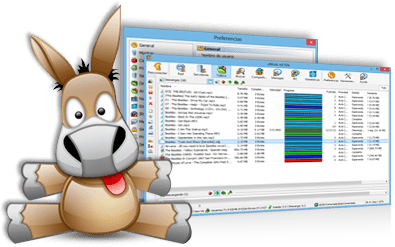
EMule is a free peer-to-peer (P2P) file-sharing client that allows users to share files over the internet. It was first released in 2002 and has since become one of the most popular P2P clients worldwide. EMule uses a hybrid network, combining the advantages of both the Kad network and the eD2K protocol.
Why Choose Emule?
EMule offers several benefits over other P2P clients:
- Large User Base: With millions of users worldwide, eMule’s user base is vast and diverse.
- High-speed Downloads: EMule’s advanced algorithms ensure fast and efficient file transfers.
- Secure Connections: EMule uses encryption to protect user data and maintain a secure connection.
Step-by-step Guide: Downloading Emule on Windows
To download eMule on Windows, follow these steps:
- Visit The Official Website: Go to the eMule official website (www.Emule-project.Net) and click on the “Download” button.
- Choose Your Version: Select the correct version of eMule (32-bit or 64-bit) that matches your Windows operating system.
- Save The Installer: Save the downloaded file to a location on your computer, such as the desktop or downloads folder.
- Run The Installer: Double-click on the saved file to run the installer.
- Follow The Installation Instructions: Follow the on-screen instructions to complete the installation.
Step-by-step Guide: Downloading Emule on Macos
To download eMule on macOS, follow these steps:
- Visit The Official Website: Go to the eMule official website (www.Emule-project.Net) and click on the “Download” button.
- Select Your Platform: Choose the macOS version of eMule from the dropdown menu.
- Save The Zip File: Save the downloaded file to a location on your computer, such as the desktop or downloads folder.
- Extract The Contents: Extract the contents of the zip file to a new folder on your computer.
- Run The Application: Double-click on the extracted eMule application to run it.
Configuring Emule
After installing eMule, follow these steps to configure it:
- Choose Your Nickname: Select a unique nickname for yourself in the “General” tab of the settings menu.
- Set up Tcp And Udp Ports: Configure the TCP and UDP ports used by eMule to communicate with external servers.
- Update Your Server List: Update your server list to ensure you have access to the latest and most secure servers.
Connecting to Kad Network
To connect to the Kad network, follow these steps:
- Download The Nodes.Dat File: Download the nodes.Dat file from a trusted source or update it using eMule’s built-in updater.
- Configure The Kad Settings: Configure the Kad settings in the “Kad” tab of the settings menu.
- Connect to The Kad Network: Click on the “Bootstrap” button to connect to the Kad network.
Optimizing Emule Settings
To optimize your eMule experience, follow these steps:
- Configure Tcp And Udp Ports: Configure the TCP and UDP ports used by eMule to communicate with external servers.
- Update Your Server List: Update your server list to ensure you have access to the latest and most secure servers.
- Adjust The Settings Menu: Adjust the settings menu to optimize your download speeds and connections.
Conclusion
Downloading and installing eMule is a straightforward process that can be completed in just a few steps. By following these guides, you’ll be able to enjoy fast and efficient file transfers with eMule’s vast user base.
Frequently Asked Questions (FAQs)
Q: What is eMule?
A: EMule is a free peer-to-peer (P2P) file-sharing client that allows users to share files over the internet.
Q: Why choose eMule?
A: EMule offers several benefits, including a large user base, high-speed downloads, and secure connections.
Q: How do I download eMule on Windows?
A: Visit the official website (www.Emule-project.Net) and follow the installation instructions.
Q: How do I download eMule on macOS?
A: Visit the official website (www.Emule-project.Net) and select the macOS version of eMule from the dropdown menu.
Q: How do I configure eMule?
A: Choose your nickname, set up TCP and UDP ports, update your server list, and connect to the Kad network.
Q: How do I optimize my eMule settings?
A: Configure TCP and UDP ports, update your server list, and adjust the settings menu to optimize your download speeds and connections.


