
How to Join Multiple Pdf Files on a Mac: A Step-by-step Guide
Are you tired of dealing with multiple PDF files that need to be combined into one? Look no further! In this article, we will guide you through the process of joining multiple PDF files on a Mac using various methods.
Why Join Multiple Pdf Files?
Joining multiple PDF files can save you time and effort when working with large documents. Whether it’s combining invoices, contracts, or academic papers, having all the relevant information in one file makes it easier to access and manage.
Method 1: Using Preview (Built-in Macos App)
The first method we’ll explore is using the built-in Preview app on your Mac. This is a quick and easy solution that requires no additional software downloads.
Step-by-step Instructions
- Open the PDF file you want to add pages to in Preview.
- Click on the “File” menu and select “Open” to open another PDF file.
- Drag the new PDF file into the Preview window, where it will be added as a page.
- Repeat steps 2-3 for each additional PDF file you want to add.
- To save the combined PDF file, go to “File” > “Save As” and choose a location on your Mac.
Method 2: Using Command Swifts (Built-in Macos App)
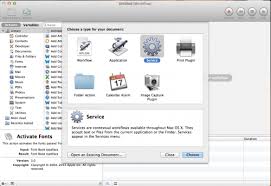
Another method is using Command Swifts, which allows you to create custom workflows and automate tasks on your Mac.
Step-by-step Instructions
- Open the Terminal app on your Mac.
- Type
swiftand press Enter to open Command Swifts. - Click on the “+” button to add a new command.
- Select “Merge PDF” from the list of available actions.
- Choose the PDF files you want to merge by clicking on them in the Finder window.
- Set the output file name and location, then click “Save” to save the combined PDF file.
Method 3: Using Third-party Apps
If the built-in methods don’t meet your needs, there are several third-party apps available that can help you join multiple PDF files on a Mac.
Recommended Apps
- Pdf Toolkit: A powerful and user-friendly app that allows you to merge, split, and compress PDF files.
- Pdfs Split & Merge: An easy-to-use app that can divide and combine PDF files with ease.
- Adobe Acrobat Pro DC: A professional-grade app for creating, editing, and managing PDF files.
Method 4: Using Online Services
If you don’t have access to a Mac or prefer not to download any software, there are online services available that can help you join multiple PDF files.
Recommended Online Services
- Ilovepdf: A free online service that allows you to merge, split, and compress PDF files.
- Pdf Candy: An online service that enables you to merge and modify PDF files with ease.
- Online2pdf: A free online service that allows you to merge, split, and export PDF files.
Conclusion
Joining multiple PDF files on a Mac is easier than ever! With these methods, you can quickly combine your documents into one file, saving time and effort. Whether you use the built-in Preview app or third-party software, there’s a solution for everyone. Don’t hesitate to reach out if you have any further questions or need additional assistance.
Frequently Asked Questions (FAQs)
- Can I Join Multiple Pdf Files on a Mac?
Yes, you can join multiple PDF files on a Mac using the built-in Preview app, Command Swifts, or third-party software. - How do I Combine Multiple Pdf Files Into One File?
To combine multiple PDF files into one file, follow the steps outlined in Method 1: Using Preview (Built-in macOS App) or Method 3: Using Third-Party Apps. - Can I Use an Online Service to Join Multiple Pdf Files?
Yes, you can use online services like iLovePDF, PDF Candy, or Online2PDF to join multiple PDF files into one file. - Are There Any Free Methods to Join Multiple Pdf Files on a Mac?
Yes, you can use the built-in Preview app or Command Swifts to combine multiple PDF files for free. - Can I Save The Combined Pdf File in a Specific Location?
Yes, you can choose where to save the combined PDF file when using the built-in Preview app or third-party software. - How do I Split a Large Pdf File Into Smaller Ones?
To split a large PDF file into smaller ones, use the “Split” feature available in the built-in Preview app or third-party software like PDFs Split & Merge. - Can I Use Multiple Methods to Join And Edit Pdf Files on my Mac?
Yes, you can use different methods to join and edit PDF files, depending on your specific needs and preferences.
I hope this article has provided you with the information you need to join multiple PDF files on a Mac. If you have any further questions or concerns, please don’t hesitate to reach out!


