
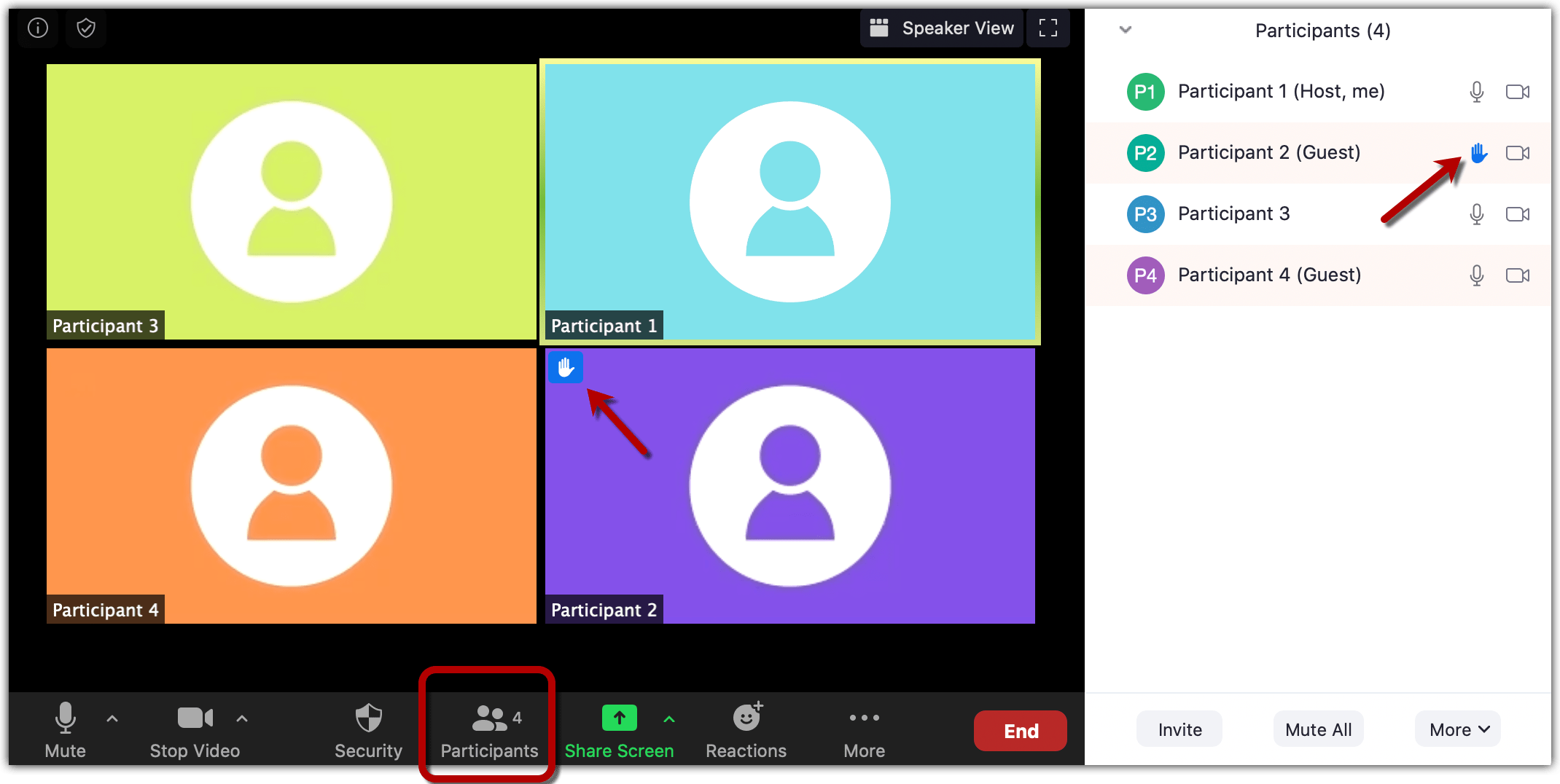
How to Raise Your Hand on Zoom: A Step-by-step Guide
Are you new to online learning or have just joined a virtual meeting on Zoom? If so, you might be wondering how to raise your hand to get the instructor’s attention or participate in discussions. Worry no more! In this article, we will guide you through the simple process of raising your hand on Zoom.
Benefits of Raising Your Hand on Zoom
Before we dive into the step-by-step instructions, let’s quickly highlight the benefits of raising your hand on Zoom:
- Get the instructor’s attention without interrupting others
- Participate in discussions and engage with the online community
- Show enthusiasm and interest in the topic being discussed
Step 1: Join a Zoom Meeting
To raise your hand on Zoom, you first need to join a meeting. You can do this by:
- Downloading the Zoom app on your mobile device or computer
- Creating an account on the Zoom website (if you don’t have one already)
- Logging in to your existing Zoom account
- Joining a meeting using the meeting ID and password provided by the host
Step 2: Open The Zoom App
Once you’re logged in, open the Zoom app on your device. If you’re using a mobile device, tap on the app icon to launch it.
Step 3: Initiate a Video Conference or Join an Existing Meeting
If you’re hosting a meeting, click on the “New Meeting” button to initiate a video conference. If you’re joining an existing meeting, simply click on the “Join” button and enter the meeting ID and password provided by the host.
Step 4: Find The Reactions Button
In the Zoom window, look for the reactions button represented by a smiling emoji with a star in front of it. This button might be located at the bottom or top right corner of the screen. If you don’t see it, move your cursor to the Zoom window and click on it to reveal the menu.
Step 5: Click on The Reactions Button
Click on the reactions button to open the menu. You’ll see a list of options, including “Raise Hand.” Click on this option to raise your hand.
How to Raise Your Hand on Mobile Devices
If you’re using a mobile device, follow these steps:
- Open the Zoom app and join a meeting
- Look for the reactions button represented by an emoji with a star in front of it
- Tap on the reactions button to open the menu
- Tap on “Raise Hand” to raise your hand
How to Raise Your Hand on PC
If you’re using a PC, follow these steps:
- Open the Zoom app and join a meeting
- Look for the reactions button represented by an emoji with a star in front of it
- Click on the reactions button to open the menu
- Click on “Raise Hand” to raise your hand
Step 6: Engage With The Online Community
Once you’ve raised your hand, wait for the host or instructor to acknowledge your participation. This is usually indicated by a visual cue on the screen.
Tips And Tricks
Here are some additional tips and tricks to help you make the most out of raising your hand on Zoom:
- Make sure you have a stable internet connection before joining a meeting
- Use headphones or earbuds to improve audio quality
- Keep your video camera turned on to engage with the online community
Conclusion
Raising your hand on Zoom is a simple process that can help you participate in virtual meetings and engage with online communities. By following these step-by-step instructions, you’ll be able to get the instructor’s attention, ask questions, and contribute to discussions without interrupting others.


