
How to Clean Blank Space on Disc C on Windows 7: A Step-by-step Guide
Are you tired of seeing blank space on your disc C on Windows 7? Do you want to free up some space without compromising your computer’s performance? Look no further! In this article, we will guide you through the process of cleaning blank space on disc C using built-in tools and third-party software.
What Causes Blank Space on Disc C?
Before we dive into the solutions, let’s understand what causes blank space on disc C. There are several reasons for this:
- Temporary Files: These are files that your computer creates temporarily while running applications or performing tasks.
- Cache And Browsing History: Your web browser stores cache and browsing history on your disc C, which can take up a significant amount of space.
- Programs And Apps: If you have installed programs and apps that you no longer use, they can still occupy space on your disc C.
Method 1: Using Built-in Tools
Windows 7 provides built-in tools to help you clean blank space on disc C. Here’s how:
Cleaning Disc
You can use the “Cleaner” tool to remove temporary files, cache, and browsing history from your disc C. To do this:
- Click on the Start button (Windows logo) and type “cleaner” in the search bar.
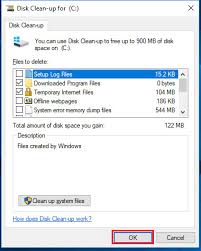
- Select the “Disk Cleanup” option from the results.
- Choose the disc C drive and click OK.
- Select the types of files you want to delete, such as temporary files, cache, and browsing history.
- Click OK to begin the cleaning process.
Disinstalling Programs
If you have installed programs that you no longer use, you can uninstall them to free up space on disc C. To do this:
- Go to the Control Panel and click on “Programs and Features.”
- Look for the program you want to uninstall and click on it.
- Click on the “Uninstall” button to begin the uninstallation process.
Method 2: Using Third-party Software
If you want to clean blank space on disc C more efficiently, you can use third-party software like CCleaner or WinDirStat.
Ccleaner
CCleaner is a popular tool that helps you remove temporary files, cache, and browsing history from your disc C. To download and install CCleaner:
- Go to the CCleaner website and click on the “Download” button.
- Select the version of CCleaner compatible with your Windows 7 system.
- Follow the installation instructions.
Once installed, launch CCleaner and follow these steps:
- Click on the “Cleaner” tab.
- Select the types of files you want to delete, such as temporary files, cache, and browsing history.
- Click OK to begin the cleaning process.
Windirstat
WinDirStat is another tool that helps you visualize the disk space usage on your disc C. To download and install WinDirStat:
- Go to the WinDirStat website and click on the “Download” button.
- Select the version of WinDirStat compatible with your Windows 7 system.
- Follow the installation instructions.
Once installed, launch WinDirStat and follow these steps:
- Click on the disc C drive.
- Wait for the analysis to complete.
- Look at the graph showing disk space usage by folder.
- Delete any unnecessary files or folders.
Method 3: Using The PC Decrapifier
The PC Decrapifier is a tool that helps you identify and remove unwanted programs, apps, and features from your Windows 7 system. To download and install The PC Decrapifier:
- Go to the The PC Decrapifier website and click on the “Download” button.
- Select the version of The PC Decrapifier compatible with your Windows 7 system.
- Follow the installation instructions.
Once installed, launch The PC Decrapifier and follow these steps:
- Click on the “Analyze” button to identify unwanted programs and features.
- Look at the list of recommended actions.
- Select any unnecessary programs or features you want to remove.
- Click on the “Remove Selected” button to begin the removal process.
Conclusion
Cleaning blank space on disc C on Windows 7 is a straightforward process that requires some effort, but it’s worth it in the end. By using built-in tools and third-party software like CCleaner, WinDirStat, or The PC Decrapifier, you can free up space on your disc C without compromising your computer’s performance.
Faqs
- What is Blank Space on Disc C?
Blank space on disc C refers to the empty space on your hard drive that is not being used by any files or programs. - How do I Clean Blank Space on Disc C?
You can use built-in tools like Disk Cleanup, CCleaner, WinDirStat, or The PC Decrapifier to clean blank space on disc C. - What Are Temporary Files?
Temporary files are files that your computer creates temporarily while running applications or performing tasks. - How do I Uninstall Programs?
You can uninstall programs by going to the Control Panel and clicking on “Programs and Features.” - Is Ccleaner Safe to Use?
CCleaner is a reputable tool that has been used for many years without any issues. However, it’s always recommended to exercise caution when using any third-party software. - Can I Use Windirstat to Clean Blank Space on Disc C?
Yes, you can use WinDirStat to visualize the disk space usage on your hard drive and delete unnecessary files or folders. - What is The PC Decrapifier?
The PC Decrapifier is a tool that helps you identify and remove unwanted programs, apps, and features from your Windows 7 system. - Can I Use Multiple Methods to Clean Blank Space on Disc C?
Yes, you can use multiple methods like Disk Cleanup, CCleaner, WinDirStat, or The PC Decrapifier to clean blank space on disc C.
I hope this article has been helpful in answering your questions and providing a step-by-step guide to cleaning blank space on disc C on Windows 7. If you have any further questions or concerns, please don’t hesitate to ask.


