
How to Add a Contact on The Home Screen of Android
Are you tired of searching through your contact list every time you need to call or text someone? Do you wish there was an easier way to access your most frequently contacted friends and family members? Look no further! In this article, we will explore three different ways to add a contact directly to your home screen on Android.
The Widget Solution
One of the simplest ways to add a contact to your home screen is by using a widget. This feature allows you to create a shortcut to any app or contact on your device, making it easily accessible from the home screen.
To do this, follow these steps:
- Hold And Tap: Hold down on an empty spot on your home screen until you see a menu pop up.
- Select Widget: From the menu, select “Widget.”
- Choose Contact: Scroll through the list of available widgets until you find the “Contact” widget. Select it to add it to your home screen.
- Select Contact: Choose the contact you want to add from your contact list.
The Contacts App Solution
Another way to add a contact directly to your home screen is by using the Contacts app. This method allows you to customize the look and feel of the shortcut, making it stand out on your home screen.
To do this, follow these steps:
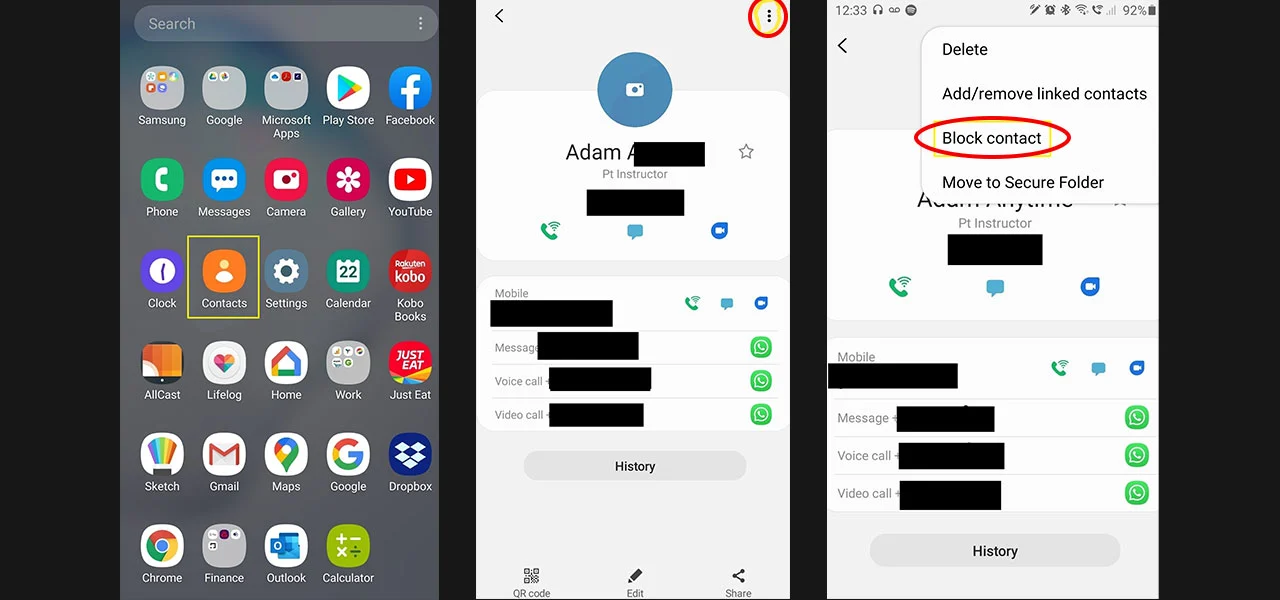
- Open Contacts: Open the Contacts app from your device.
- Select Contact: Choose the contact you want to add to your home screen.
- Add to Home Screen: From the menu, select “Add to Home Screen.”
- Customize Icon: Customize the icon for the shortcut by selecting a different image or renaming it.
The Whatsapp Solution
If you frequently use WhatsApp to communicate with friends and family members, you can add their contact directly to your home screen using the app’s built-in feature.
To do this, follow these steps:
- Open Whatsapp: Open WhatsApp from your device.
- Select Contact: Choose the contact you want to add to your home screen from your chat list or contacts.
- Add to Home Screen: From the menu, select “Add to Home Screen.”
- Customize Icon: Customize the icon for the shortcut by selecting a different image or renaming it.
Adding a Contact on Samsung Devices
If you have a Samsung device, you can add a contact directly to your home screen using the built-in “Called directed” widget.
To do this, follow these steps:
- Open Settings: Open the Settings app from your device.
- Select Widgets: From the menu, select “Widgets.”
- Choose Contact: Select the “Contact” widget from the list of available widgets.
- Select Contact: Choose the contact you want to add from your contact list.
Tips And Tricks
- To remove a shortcut from your home screen, simply hold down on it until you see a menu pop up, then select “Remove.”
- You can customize the look and feel of your shortcuts by selecting different images or renaming them.
- If you have a Samsung device, you may need to download the Contacts app from Google Play Store in order to use this feature.
Conclusion
Adding a contact directly to your home screen on Android is easier than ever! With these three simple methods, you can quickly access your most frequently contacted friends and family members without having to navigate through your contact list. Whether you prefer using widgets or the Contacts app, there’s an option for everyone. So go ahead and give it a try – your fingers will thank you!
Frequently Asked Questions
- Q: How do I Remove a Shortcut From my Home Screen?
A: To remove a shortcut from your home screen, simply hold down on it until you see a menu pop up, then select “Remove.” - Q: Can I Customize The Look And Feel of my Shortcuts?
A: Yes! You can customize the look and feel of your shortcuts by selecting different images or renaming them. - Q: Do I Need to Download Any Additional Apps to Use This Feature?
A: On Samsung devices, you may need to download the Contacts app from Google Play Store in order to use this feature. - Q: Is This Feature Available on All Android Devices?
A: Yes! This feature is available on most Android devices, but may vary depending on your device and version of Android installed. - Q: How do I Add a Contact to my Home Screen Using The Contacts App?
A: To add a contact to your home screen using the Contacts app, follow these steps: Open the Contacts app, select the contact you want to add, then from the menu, select “Add to Home Screen.”
I hope this article has been helpful in answering any questions you may have had about adding contacts directly to your Android device’s home screen. Happy tapping!


