
How to Cut a Video: A Step-by-step Guide
Are you tired of dealing with long videos that take up too much space on your device? Do you want to edit out the parts that are no longer useful or save them for later? Look no further! Cutting a video is easier than you think, and we’ve got a step-by-step guide to help you do it.
Why Cut a Video?
Before we dive into the tutorial, let’s talk about why cutting a video is important. With the rise of online content, videos have become an essential part of our daily lives. However, they can take up a lot of space on your device, making them difficult to store and share. By cutting out unnecessary parts, you can:
- Save storage space
- Reduce file size
- Make it easier to share videos with others
Cutting a Video: A Step-by-step Guide
Now that we’ve covered the importance of cutting a video, let’s move on to the tutorial!
Cutting a Video on Pc
If you’re using a Windows computer, you can cut a video using various software programs. Here are some popular options:
Avidemux
Avidemux is a free and open-source video editor that supports multiple file formats, including MP4. To cut a video with Avidemux, follow these steps:
- Download and install Avidemux from the official website.
- Open Avidemux and select “Open” to import your video file.
- Use the timeline to find the beginning and end points of the part you want to cut out.
- Click on the “Cut” button and select the desired format for the output video.
- Save the edited video by clicking on the “Save” button.
Vlc
If you’re using a Windows computer, VLC is another great option for cutting videos. Here’s how to do it:
- Download and install VLC from the official website.
- Open VLC and select “Media” > “Open File” to import your video file.
- Use the playhead to find the beginning and end points of the part you want to cut out.
- Click on the “Record” button to start recording the selected part.
- Stop the recording by clicking on the “Stop” button.
- Save the edited video by clicking on the “Save” button.
Cutting a Video on Mac
If you’re using a Mac computer, you can cut a video using various software programs. Here are some popular options:
Avidemux
Yes, Avidemux is also available for Mac! To cut a video with Avidemux on your Mac, follow these steps:
- Download and install Avidemux from the official website.
- Open Avidemux and select “Open” to import your video file.
- Use the timeline to find the beginning and end points of the part you want to cut out.
- Click on the “Cut” button and select the desired format for the output video.
- Save the edited video by clicking on the “Save” button.
Vlc
You can also use VLC to cut videos on your Mac. Here’s how to do it:
- Download and install VLC from the official website.
- Open VLC and select “Media” > “Open File” to import your video file.
- Use the playhead to find the beginning and end points of the part you want to cut out.
- Click on the “Record” button to start recording the selected part.
- Stop the recording by clicking on the “Stop” button.
- Save the edited video by clicking on the “Save” button.
Cutting a Video Online
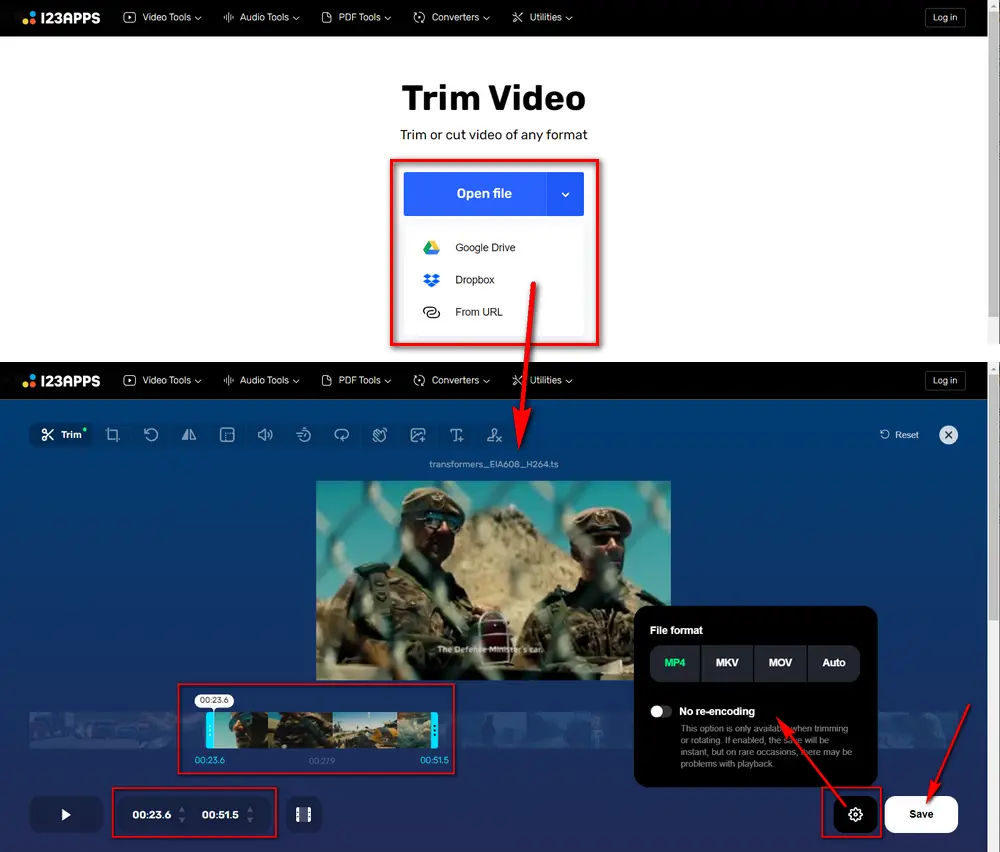
If you don’t have access to a computer or prefer not to download software, you can cut videos online using various web-based tools. Here are some popular options:
Cut Video
Cut Video is a free online tool that allows you to cut videos without downloading any software. To use it, follow these steps:
- Go to the Cut Video website.
- Select “Choose File” to import your video file.
- Use the timeline to find the beginning and end points of the part you want to cut out.
- Click on the “Cut” button to start cutting the video.
- Save the edited video by clicking on the “Save” button.
Cutting a Video on Android
If you’re using an Android device, you can cut videos using various apps. Here are some popular options:
Google Photos
You can use Google Photos to cut videos on your Android device. To do it, follow these steps:
- Open the Google Photos app.
- Select the video you want to cut.
- Use the timeline to find the beginning and end points of the part you want to cut out.
- Click on the “Trim” button to start cutting the video.
- Save the edited video by clicking on the “Save” button.
Cutting a Video on Iphone And Ipad
If you’re using an iPhone or iPad, you can cut videos using various apps. Here are some popular options:
Photos
You can use Photos to cut videos on your iOS device. To do it, follow these steps:
- Open the Photos app.
- Select the video you want to cut.
- Use the timeline to find the beginning and end points of the part you want to cut out.
- Click on the “Trim” button to start cutting the video.
- Save the edited video by clicking on the “Save” button.
Conclusion
Cutting a video is easier than you think! With these step-by-step guides, you can learn how to cut videos on your PC, Mac, Android device, and iPhone or iPad using various software programs and web-based tools. Whether you’re looking to save storage space, reduce file size, or make it easier to share videos with others, cutting a video is an essential skill that every content creator should have.
Frequently Asked Questions
- Q: What is The Best Software For Cutting Videos?
A: The best software for cutting videos depends on your operating system and personal preferences. Avidemux and VLC are popular options for PC and Mac, while Google Photos and Photos are great alternatives for Android and iOS devices. - Q: How do I Cut a Video Online?
A: You can cut videos online using web-based tools like Cut Video or Clipchamp. - Q: Can I Cut a Video on my Smartphone?
A: Yes, you can cut videos on your smartphone using various apps like Google Photos (Android) or Photos (iOS). - Q: How do I Save The Edited Video?
A: To save the edited video, click on the “Save” button in the software program or app you’re using. - Q: Can I Cut a Video With Multiple Parts?
A: Yes, most video editing software programs and apps allow you to cut videos with multiple parts. - Q: How do I Export The Edited Video?
A: To export the edited video, click on the “Export” button in the software program or app you’re using.
We hope this guide has been helpful! If you have any further questions or need more assistance, don’t hesitate to ask.


