
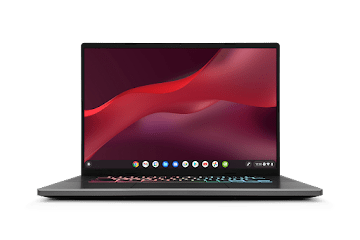
Working in Cloud on Acer Chromebook: A Comprehensive Guide
Are you considering switching to a cloud-based operating system like Google’s Chrome OS on your Acer Chromebook? Do you want to know how to work efficiently in the cloud, manage your files, boost productivity, communicate effectively, and explore multimedia and creativity options?
Look no further! This article will guide you through the world of working in the cloud on your Acer Chromebook, highlighting the advantages, features, and tips to get you started.
Advantages of Working in Cloud
Working in the cloud offers numerous benefits, including:
- Automatic File Synchronization: Your files are automatically saved online, ensuring they’re always accessible across all devices.
- Enhanced Collaboration: Multiple users can work on the same document simultaneously, making it easier to collaborate and meet deadlines.
- Access From Anywhere: With an internet connection, you can access your files, applications, and settings from any device, at any time.
Getting Started With Chrome OS
To start working in the cloud on your Acer Chromebook, follow these steps:
- Set up Your Google Account: If you don’t already have a Google account, create one to access Google Drive, Docs, Sheets, and other productivity apps.
- Configure Your Chromebook: Set up your Chromebook by connecting to Wi-Fi, agreeing to the terms of use, and configuring your user account.
- Explore The Interface: Familiarize yourself with the Chrome OS interface, which is intuitive and similar to Windows or macOS.
Managing Files in The Cloud
Google Drive is an integral part of Chrome OS, offering:
- Automatic File Synchronization: Your files are automatically saved online, ensuring they’re always accessible across all devices.
- Access From Anywhere: With an internet connection, you can access your files from any device, at any time.
Boosting Productivity
Chrome OS offers a range of productivity apps, including:
- Google Docs, Sheets, And Slides: Collaborate on documents, spreadsheets, and presentations with others in real-time.
- Gmail: Access your email inbox and compose new messages from anywhere.
- Google Calendar: Manage your schedule and set reminders across all devices.
Effective Communication
Stay connected with colleagues, friends, or family using:
- Meet, Teams, Skype, Zoom, And Whatsapp: Video conference and communicate in real-time across devices.
- Gmail: Send emails and messages from anywhere, ensuring you never miss an important update.
Exploring Multimedia And Creativity Options
Unleash your creativity with:
- Google Photo: Edit and manage your photos across all devices.
- Adobe Lightroom, Photopea, Pixlr, Clipchamp, And Kinemaster: Access a range of photo editing and video creation tools directly from the Chrome Web Store or Play Store.
Additional Resources
For more information on Chrome OS and its applications, visit:
- Google’s Official Page For Chromebooks
- Acer’s Official Website For Chromebook Information
- Amazon’s Webpage on Chromebooks And Chrome OS
- My Tutorial on Installing Apps on Acer Chromebooks
By following this comprehensive guide, you’ll be well-equipped to work efficiently in the cloud on your Acer Chromebook. Take advantage of the benefits, features, and tips provided to enhance your productivity, communication, and creativity.
Frequently Asked Questions (FAQs)
- Q: What Are The Advantages of Working in The Cloud?
A: Automatic file synchronization, enhanced collaboration, and access from anywhere are some of the key benefits. - Q: How do I Set up my Google Account on Chrome Os?
A: Create a new Google account or link your existing one to access Google Drive, Docs, Sheets, and other productivity apps. - Q: What File Management Options Are Available in Chrome Os?
A: Google Drive is the default file manager, offering automatic file synchronization and access from anywhere. - Q: Which Productivity Apps Are Available on Chrome Os?
A: Google Docs, Sheets, Slides, Gmail, and Google Calendar are some of the key productivity apps. - Q: Can I Use Video Conferencing Apps on Chrome Os?
A: Yes, you can access Meet, Teams, Skype, Zoom, and WhatsApp for seamless communication across devices. - Q: How do I Install Multimedia And Creativity Apps on my Acer Chromebook?
A: Visit the Chrome Web Store or Play Store to download and install photo editing and video creation tools directly. - Q: What Are Some Additional Resources For Learning More About Chrome Os?
A: Check out Google’s official page, Acer’s website, Amazon’s webpage, and my tutorial on installing apps on Acer Chromebooks.
Hope this comprehensive guide helps you navigate the world of working in the cloud on your Acer Chromebook.


