
Unlocking The Full Potential of Google Home: A Comprehensive Guide to Linking Spotify
Are you tired of juggling multiple devices to listen to your favorite music on Spotify? Look no further! In this article, we’ll delve into the world of Google Home and explore the seamless way to connect your Spotify account for an unparalleled listening experience.
Introduction
Google Home has revolutionized the way we interact with our homes, making it easy to control various devices with just a few voice commands. But did you know that it can also be integrated with popular music streaming services like Spotify? In this article, we’ll guide you through the step-by-step process of linking your Spotify account to Google Home, enabling you to enjoy your favorite tunes with unparalleled convenience.
Why Link Spotify to Google Home?
Before we dive into the nitty-gritty details, let’s explore the benefits of linking Spotify to Google Home:
- Convenience: With Google Home, you can control various devices and services using voice commands. By linking Spotify, you’ll be able to access your favorite music without having to physically interact with your device.
- Ease of Use: The integration process is straightforward and user-friendly, making it accessible to anyone who wants to enjoy their music without the hassle.
- Seamless Playback: With Google Home and Spotify connected, you can easily switch between songs, playlists, and albums using voice commands.
How to Link Spotify to Google Home
Now that we’ve explored the benefits of linking Spotify to Google Home, let’s get started with the step-by-step process:
Step 1: Open The Google Home App
Open the Google Home app on your smartphone or tablet. If you haven’t already, download and install the app from the Google Play Store (for Android devices) or the Apple App Store (for iOS devices).
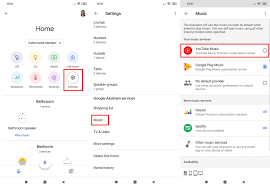
Step 2: Access The Settings Menu
Tap on the icon of the cogwheel in the top-right corner to access the settings menu.
Step 3: Select Music Services
Scroll down and select “Music services” from the list. Then, tap on Spotify.
Step 4: Authenticate Your Account
Enter your Spotify login credentials to authenticate your account. You’ll be redirected to the Spotify website to complete the authentication process.
Step 5: Authorize Google Home Access
Once authenticated, you’ll be prompted to authorize Google Home access to your Spotify account. Tap “Authorize” to grant permission.
Linking Spotify to Google Home Via Bluetooth
If you prefer to use Bluetooth instead of Wi-Fi for a seamless audio connection, follow these steps:
Step 1: Activate Bluetooth on Your Device
Enable Bluetooth on your smartphone or tablet by going to Settings > Devices > Bluetooth.
Step 2: Search For Nearby Devices
Search for nearby devices and select Google Home from the list.
Step 3: Pair Your Devices
Follow the on-screen instructions to pair your device with Google Home. This process may take a few seconds, depending on your internet connection speed.
Tips And Tricks
To get the most out of your Spotify-Google Home integration:
- Use voice commands like “Hey Google, play [song title] on Spotify” or “OK Google, play my favorite playlist on Spotify.”
- Explore Spotify’s web version for a seamless listening experience on your computer.
- Refer to our in-depth guide on how to function Spotify for more tips and tricks.
Conclusion
Linking Spotify to Google Home is an easy and convenient way to enjoy your favorite music without the hassle of multiple devices. By following these simple steps, you’ll be able to access your Spotify library with voice commands, making it a breeze to control your home entertainment system. Give it a try today and discover a whole new world of music possibilities!
Frequently Asked Questions (FAQs)
Here are some frequently asked questions to help you better understand the process:
Q: Do I need a premium Spotify account for this integration?
A: Yes, a premium Spotify account is required for seamless playback.
Q: Can I link multiple devices to Google Home and Spotify?
A: Yes, you can link multiple devices to Google Home and Spotify. Just follow the same steps for each device.
Q: Will linking Spotify to Google Home affect my internet speed?
A: No, linking Spotify to Google Home will not affect your internet speed. The integration process uses Wi-Fi or Bluetooth for a seamless connection.
Q: Can I access my Spotify library on multiple devices at once?
A: Yes, you can access your Spotify library on multiple devices at once using the same voice commands.
Q: How do I troubleshoot issues with the integration?
A: Refer to our troubleshooting guide for step-by-step solutions to common issues.


