
How to Move Everything on Your Smartphone’s SD Card
Are you tired of running out of storage space on your smartphone? Do you want to free up some space by moving everything from the internal memory to the external SD card? Well, you’re in luck! In this article, we’ll show you how to move everything on your smartphone’s SD card, including photos, apps, and files.
What is an SD Card?
Before we dive into the process, let’s quickly explain what an SD card is. An SD card (short for Secure Digital) is a type of removable storage device that can be used to expand the memory of your smartphone or tablet. It’s a great way to add more storage space without having to replace your device.
Why Move Everything to The SD Card?
Moving everything from the internal memory to the external SD card has several benefits, including:
- Freeing up space on your internal memory
- Reducing the risk of data loss due to hardware failure
- Making it easier to transfer data between devices
How to Move Photos to The SD Card With Android
If you have an Android device, moving photos from the internal memory to the external SD card is a straightforward process. Here’s how:
- Insert The SD Card: First, insert the SD card into your smartphone or tablet.
- Open The Camera App: Open the camera app and go to the settings menu.
- Select Storage Location: Select “SD Card” as the storage location for new photos.
- Move Existing Photos: To move existing photos from the internal memory to the SD card, go to the gallery app and select the photos you want to move. Tap on the three dots at the top-right corner of the screen and select “Move to SD Card”.
How to Move Files And Apps With Android
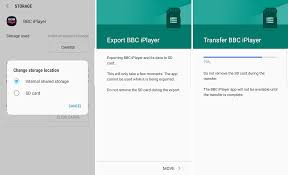
In addition to moving photos, you can also move files and apps from the internal memory to the external SD card using the following steps:
- Open The Settings App: Open the settings app and go to “Storage” or “Internal Storage”.
- Select The File Type: Select the type of file you want to move (e.G., Documents, videos, etc.).
- Choose The Destination: Choose the SD card as the destination for the files.
- Move Files: Tap on the files you want to move and select “Move” or “Copy”.
How to Move Everything to The SD Card With Windows 10
If you’re using a Windows 10 device, moving everything from the internal memory to the external SD card is also possible. Here’s how:
- Insert The SD Card: Insert the SD card into your computer.
- Open File Explorer: Open File Explorer and navigate to the folder containing the files you want to move.
- Select The Files: Select the files you want to move by pressing Ctrl+A (or Command+A on Mac).
- Drag And Drop: Drag the selected files to the SD card icon in the navigation pane.
How to Move Everything to The SD Card With Ios
If you’re using an iPhone or iPad, moving everything from the internal memory to the external SD card is a bit more complicated. However, there are some third-party apps that can help you achieve this goal.
- Acquire an Adapter: Acquire an adapter that connects your device to the SD card.
- Open The Files App: Open the files app and navigate to the folder containing the files you want to move.
- Select The Files: Select the files you want to move by tapping on them.
- Share The Files: Tap on the “Share” icon and select the SD card as the destination for the files.
Conclusion
Moving everything from your smartphone’s internal memory to the external SD card is a great way to free up space, reduce data loss risk, and make it easier to transfer data between devices. With these steps, you should be able to move photos, apps, and files to the SD card with ease, regardless of whether you’re using an Android or iOS device.
Frequently Asked Questions (FAQs)
- What is The Capacity of an Average Smartphone’s Internal Memory?
An average smartphone has around 16-32 GB of internal memory.
- Can I Use an External SD Card With my Iphone or Ipad?
Yes, you can use an external SD card with your iPhone or iPad using a third-party adapter.
- How Long Does it Take to Move Files From The Internal Memory to The SD Card?
The time taken to move files depends on the size of the files and the speed of your device’s processor.
- Will Moving Everything to The SD Card Affect my Phone’s Performance?
No, moving everything to the SD card should not affect your phone’s performance.
- Can I Use an External SD Card as a Backup For my Internal Memory?
Yes, you can use an external SD card as a backup for your internal memory.
- How do I Format my External SD Card?
To format your external SD card, go to the settings app and select “Storage” or “Internal Storage”. Then, select the SD card and tap on the three dots at the top-right corner of the screen.
- Can I Move Everything From my Internal Memory to a Cloud Storage Service Like Google Drive or Icloud?
Yes, you can move everything from your internal memory to a cloud storage service like Google Drive or iCloud.
- How do I Access Files Stored on my External SD Card From Another Device?
To access files stored on your external SD card from another device, insert the SD card into the other device and navigate to the folder containing the files.


