
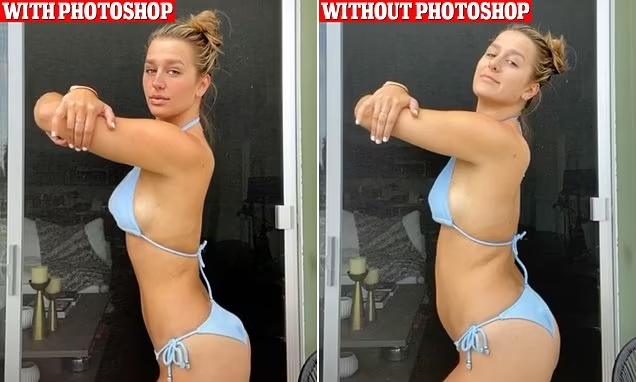
How to Slim Down a Photo With Photoshop: A Step-by-step Guide
Are you looking for ways to slim down a photo without losing its original charm? Look no further than Adobe Photoshop, the industry-standard software for photo editing. In this article, we’ll take you through the process of slimming down a photo using Photoshop on your PC, online, and even on your smartphone or tablet.
Understanding The Basics
Before we dive into the nitty-gritty, let’s cover the basics. To slim down a photo with Photoshop, you need to have the software installed on your computer or access it through their website. If you haven’t already, download the free trial version of Photoshop and get familiar with its interface.
Getting Started
Once you’ve got Photoshop up and running, follow these steps:
- Open The Image: Click on “File” > “Open” to select the image you want to slim down.
- Access The Filter Menu: Go to “Filter” > “Fluidify” to access the tool that will help us slim down the photo.
Slimming Down a Photo With Photoshop (PC)
Now, let’s dive into the process of slimming down a photo using Photoshop on your PC:
- Select The Image: Choose the image you want to modify and click “Open.”
- Access The Fluidify Filter: Go to “Filter” > “Fluidify.”
- Zoom in on The Area: Press Ctrl + Zoom (or Command + Zoom on Mac) to zoom in on the area you want to slim down.
- Use The Brush Tool: Click on the brush tool icon and select a suitable brush size for the area you’re working on.
- Drag The Brush: Drag the brush over the area you want to slim down, applying gentle pressure.
- Adjust The Dimensions: Adjust the dimensions of the brush as needed to refine your selection.
Slimming Down a Photo With Photoshop (Online)
Unfortunately, the Fluidify filter is not available in the online version of Photoshop. However, you can still use other filters and tools to achieve a similar effect:
- Access Online Filters: Go to “Filter” > “Other” to access online filters.
- Choose a Filter: Select a filter that suits your needs, such as “Redefine.”
- Adjust Parameters: Adjust the parameters of the filter as needed.
Slimming Down a Photo With Photoshop (Smartphone or Tablet)
If you’re using a smartphone or tablet, you can still access Photoshop through their app:
- Download And Install: Download and install the Photoshop app on your device.
- Open The Image: Select the image you want to modify and click “Start.”
- Access The Filter Menu: Go to “Filter” > “Redefine” to access the tool that will help us slim down the photo.
- Use The Brush Tool: Use the brush tool to drag over the area you want to slim down.
Tips And Variations
Here are some additional tips and variations to keep in mind:
- Choose a Neutral Background: Select an image with a neutral background to make it easier to slim down the subject.
- Select The Right Brush Size: Choose a brush size that suits the area you’re working on to avoid over-smoothing or under-smoothing the image.
- Experiment With Different Filters: Experiment with different filters and tools to achieve the desired effect.
Conclusion
Slimming down a photo with Photoshop is a straightforward process that requires some practice to master. By following these steps, you can create stunning images that showcase your subject in a more flattering light. Remember to choose the right brush size, adjust dimensions as needed, and experiment with different filters to achieve the desired effect.
Frequently Asked Questions
- Q: What is The Fluidify Filter?
A: The Fluidify filter is a tool in Photoshop that helps you slim down an image by adjusting its shape and proportions. - Q: Can I Use The Fluidify Filter on Online Versions of Photoshop?
A: Unfortunately, the Fluidify filter is not available in online versions of Photoshop. - Q: How do I Access Other Filters in Photoshop?
A: To access other filters in Photoshop, go to “Filter” > “Other.” - Q: Can I Use Photoshop on my Smartphone or Tablet?
A: Yes, you can access Photoshop through their app on your smartphone or tablet.
I hope this guide has been helpful!


