
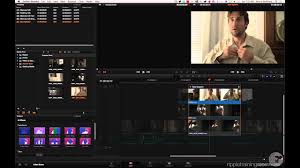
Mastering Davinci Resolve: A Comprehensive Guide
Are you ready to take your video editing skills to the next level? Look no further than DaVinci Resolve, a professional-grade video editing software that’s available on both Windows and macOS platforms. In this article, we’ll explore the features of DaVinci Resolve, its system requirements, and provide a step-by-step guide on how to use it.
Why Choose Davinci Resolve?
DaVinci Resolve is a powerful video editing software that offers a wide range of tools and features, making it an ideal choice for professionals and hobbyists alike. With its intuitive interface and comprehensive set of tools, you can create stunning videos with ease.
System Requirements
Before diving into the world of DaVinci Resolve, make sure your computer meets the minimum system requirements:
- Operating System: Windows 10 or macOS High Sierra
- Processor: Intel Core i7 (or similar)
- RAM: 16 GB (at least) – 32 GB recommended
- Graphics Card: NVIDIA GeForce GTX 1050 Ti (or similar)
- Storage: 500 GB minimum (depending on video quality and quantity)
Downloading And Installing Davinci Resolve
To download and install DaVinci Resolve, follow these steps:
- Visit the official website of Blackmagic Design (the creator of DaVinci Resolve) and click on the “Download” button.
- Choose the correct version for your operating system (Windows or macOS).
- Follow the installation instructions to complete the process.
Creating a New Project
Once you’ve installed DaVinci Resolve, it’s time to create a new project:
- Launch DaVinci Resolve and click on the “Projects” button.
- Select “Create a New Project.”
- Choose the desired resolution, frame rate, and other settings for your video.
Editing Your Video
Now that you’ve created a new project, it’s time to start editing your video:
- Import your video footage into DaVinci Resolve using the “Media” tab.
- Use the “Cut” tool to split your video into individual clips.
- Add transitions and effects to enhance your video.
Exporting Your Video
Once you’ve edited your video, it’s time to export it:
- Click on the “Deliver” button to access the export settings.
- Choose the desired format (e.G., YouTube, Vimeo) or custom settings.
- Save your video to a specified location and enjoy!
Mastering Davinci Resolve: Tips And Tricks
To get the most out of DaVinci Resolve, here are some tips and tricks:
- Experiment with different effects and transitions to enhance your video.
- Use the “Inspector” tool to modify individual clips.
- Take advantage of the comprehensive tutorials available on the Blackmagic Design website.
Conclusion
DaVinci Resolve is a powerful video editing software that’s perfect for professionals and hobbyists alike. With its intuitive interface and comprehensive set of tools, you can create stunning videos with ease. Remember to meet the minimum system requirements, download and install the software correctly, and follow the step-by-step guide on how to use it.
Frequently Asked Questions
Q: What are the system requirements for DaVinci Resolve?
A: The minimum system requirements include Windows 10 or macOS High Sierra, Intel Core i7 (or similar), 16 GB RAM (at least) – 32 GB recommended, NVIDIA GeForce GTX 1050 Ti (or similar), and 500 GB storage.
Q: How do I download and install DaVinci Resolve?
A: Visit the official website of Blackmagic Design, choose the correct version for your operating system, and follow the installation instructions.
Q: Can I use DaVinci Resolve on my iPad?
A: Yes! DaVinci Resolve is available on iPad, and you can download it from the App Store. To unblock all functions, you’ll need to purchase the Studio version (around 115 euros).
Q: What are some tips and tricks for mastering DaVinci Resolve?
A: Experiment with different effects and transitions, use the “Inspector” tool to modify individual clips, and take advantage of the comprehensive tutorials available on the Blackmagic Design website.
Q: Can I export my video in various formats?
A: Yes! DaVinci Resolve allows you to export your video in various formats (e.G., YouTube, Vimeo) or custom settings.


