
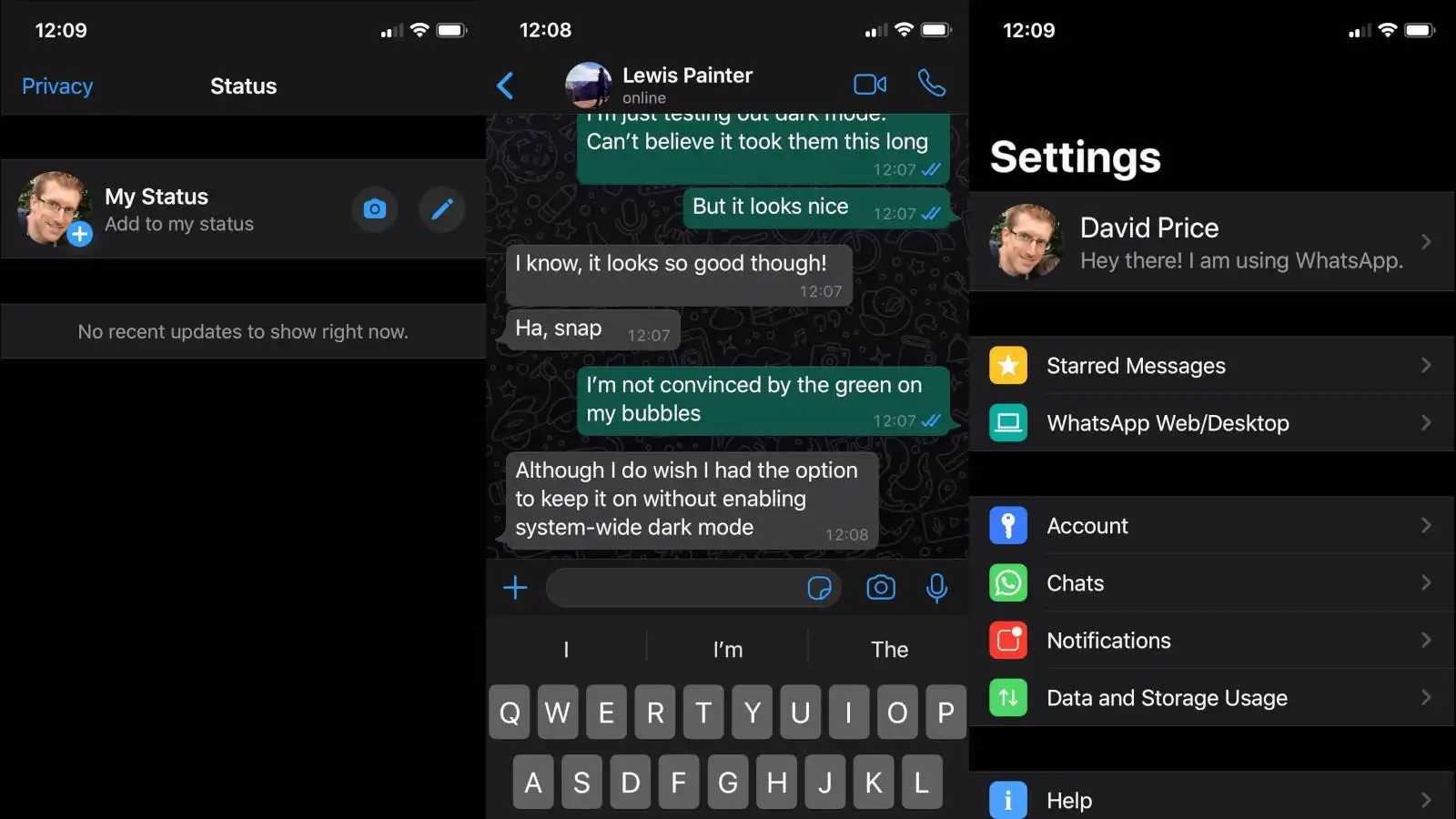
How to Change Whatsapp Background on Iphone
Are you tired of the same old WhatsApp background on your iPhone? Do you want to personalize your chat experience? Look no further! In this tutorial, we will guide you through the simple steps to change your WhatsApp background on iPhone.
Before You Begin
Before we dive into the tutorial, there are a few things you should know. Changing the WhatsApp background is a straightforward process that can be done without any technical expertise. However, it’s essential to note that this feature may not work if you’re using the WhatsApp client for Windows or macOS, or the web version of the service.
Step 1: Open Whatsapp
To change your WhatsApp background, start by opening the app on your iPhone. Tap on the icon to launch it.
Step 2: Access Settings
Once the app is open, tap on the settings icon (represented by a gear) located in the bottom right corner of the screen.
Step 3: Select Chat Settings
From the settings menu, select “Chat” and then choose “Background” from the list of options.
Step 4: Choose a New Background
In the chat background section, you can select from various pre-defined backgrounds or upload your own image. To do this, tap on “Choose a new background” and select one of the available options.
- Pre-defined Backgrounds: You can choose from different landscape patterns, color schemes, or wallpapers.
- Photo Gallery: Select an image from your iPhone’s photo gallery to use as your WhatsApp background.
Step 5: Customize Your Background
If you’ve selected a pre-defined background or uploaded your own image, you can customize it further by adjusting the size and position. To do this, simply tap on the image and drag it around to reposition it.
Step 6: Apply Changes
Once you’re satisfied with your new background, tap on “Save” to apply the changes.
Changing Background For Specific Chats
If you want to change the background for a specific chat, follow these steps:
- Open WhatsApp and initiate a conversation with the user.
- Tap on their name in the top right corner of the screen.
- Select “Background and sound” from the menu.
- Choose a new background from the available options.
Why Change Whatsapp Background?
Changing your WhatsApp background can be a great way to personalize your chat experience. You can choose a background that reflects your personality, mood, or preferences. Additionally, using a dark mode can help reduce eye strain and save battery life on your iPhone.
Conclusion
Changing your WhatsApp background is a simple process that can be completed in just a few steps. By following this tutorial, you can personalize your chat experience and make it more enjoyable. Remember to experiment with different backgrounds and styles to find the one that suits you best!
Faqs
- How do I Change my Whatsapp Background on Iphone?
To change your WhatsApp background on iPhone, open the app, tap on settings, select “Chat,” and then choose “Background” from the list of options. - Can I Use a Custom Image as my Whatsapp Background?
Yes, you can upload your own image from your iPhone’s photo gallery to use as your WhatsApp background. - Will Changing my Whatsapp Background Affect Other Chats?
No, changing the background for one chat will not affect other conversations. - How do I Change The Background For a Specific Chat?
To change the background for a specific chat, initiate a conversation with the user, tap on their name in the top right corner of the screen, select “Background and sound,” and choose a new background from the available options. - Can I Use Dark Mode in Whatsapp?
Yes, you can enable dark mode in WhatsApp by going to settings, selecting “Monitor and luminosity,” and tapping on the Dark option. - How do I Automate Using Dark Mode in Whatsapp?
To automate using dark mode in WhatsApp, go to settings, select “Monitor and luminosity,” tap on the Automatic voice, and then select the option “From sunset to sunrise” or “Customized.”


