
How to Capsize ID Apple on a Device: A Step-by-step Guide
Are you tired of carrying around an old iPhone or Mac with your ID Apple still logged in? Do you want to know how to capsize your ID Apple on a device, modify its details, and start fresh? Look no further! In this article, we’ll guide you through the process of capsizing your ID Apple on a device, including iPhones, Macs, and even Apple Music.
What is Capsizing ID Apple?
Capsizing ID Apple refers to the process of logging out of your current ID Apple account and switching to a new one. This can be useful if you’ve sold or given away an old device and want to start fresh with a new ID Apple account.
Why Capsize ID Apple on a Device?
There are several reasons why you might want to capsize your ID Apple on a device:
- You’ve sold or given away an old iPhone, Mac, or other Apple device
- You want to switch to a new ID Apple account for personal or professional reasons
- You’re experiencing issues with your current ID Apple account and need to troubleshoot
How to Capsize ID Apple on a Device
Capising ID Apple on an Iphone
To capsize ID Apple on an iPhone, follow these steps:
- Open the Settings app and tap on your name at the top of the screen
- Scroll down and tap on the “Sign Out” button
- Enter your current password to confirm you want to sign out
- Wait for the process to complete
Capising ID Apple on a Mac
To capsize ID Apple on a Mac, follow these steps:
- Open the System Preferences app and click on your name at the top of the screen
- Click on the “Sign Out” button
- Enter your current password to confirm you want to sign out
- Wait for the process to complete
Capising ID Apple on Apple Music
To capsize ID Apple on Apple Music, follow these steps:
- Open the Apple Music app and click on your name at the top of the screen
- Click on the “Sign Out” button
- Enter your current password to confirm you want to sign out
- Wait for the process to complete
How to Modify ID Apple Information
In addition to capsizing your ID Apple, you may also need to modify certain information associated with your account. This can include:
- Changing your password or recovery questions
- Updating your name and surname
- Modifying your date of birth or contact information
To make these changes, follow these steps:
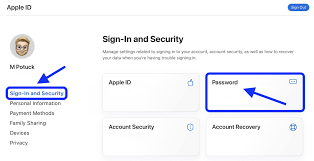
- Log in to your ID Apple account on the Apple website
- Click on the “Edit Profile” button
- Make any necessary changes to your information
- Click on the “Save Changes” button
Conclusion
Capsizing your ID Apple on a device is a straightforward process that can be completed in just a few steps. Whether you’re switching to a new ID Apple account or simply want to start fresh, following these steps will help you log out of your current account and switch to a new one.
Frequently Asked Questions (FAQs)
Q: What happens when I capsize my ID Apple?
A: When you capsize your ID Apple, you’ll be logged out of your current account and switched to a new one. This will delete any saved data or information associated with your old account.
Q: Do I need to capsize my ID Apple if I’ve sold an old device?
A: Yes, it’s recommended that you capsize your ID Apple when selling an old device to ensure your personal data is protected and you’re not leaving any sensitive information behind.
Q: How do I modify my ID Apple information?
A: To modify your ID Apple information, log in to your account on the Apple website and click on the “Edit Profile” button. Make any necessary changes and save them.
Q: Can I capsize my ID Apple on multiple devices at once?
A: Yes, you can capsize your ID Apple on multiple devices simultaneously by following the steps outlined above for each device.
Q: What happens to my data when I capsize my ID Apple?
A: Any saved data or information associated with your old account will be deleted. Make sure you back up any important files or data before capsizing your ID Apple.
Q: Can I still use an old device after I’ve capsized my ID Apple?
A: Yes, you can continue to use the device as normal, but make sure you’re logged out of any apps or services that may still be connected to your old account.


