
How to Make a Video Call With Whatsapp Web on PC
Are you tired of using your smartphone for video calls? Do you want to make video calls from the comfort of your PC? Look no further! In this article, we will guide you through the process of making a video call with WhatsApp Web on PC.
Video Calling: A Game Changer in Communication
In today’s fast-paced world, communication is key. Video calling has become an essential tool for staying in touch with friends and family who are far away. With the rise of messaging apps like WhatsApp, it’s now possible to make video calls from your PC. But how do you do it? In this article, we’ll show you step-by-step.
Preliminary Information
Before we dive into the tutorial, let’s cover some preliminary information. As of now, WhatsApp Web does not support video calling. However, there are alternative solutions that we will explore in this article.
Method 1: Using The Desktop Client
To make a video call with WhatsApp on PC, you need to use the desktop client version. You can download it from the Microsoft Store or Mac App Store.
Step-by-step Guide to Making a Video Call With Whatsapp Web
Here’s how you can make a video call using the desktop client:
- Download And Install The Desktop Client: Download the WhatsApp desktop client from the Microsoft Store (for Windows) or Mac App Store (for macOS).
- Launch The Desktop Client: Launch the app, and log in with your phone number.
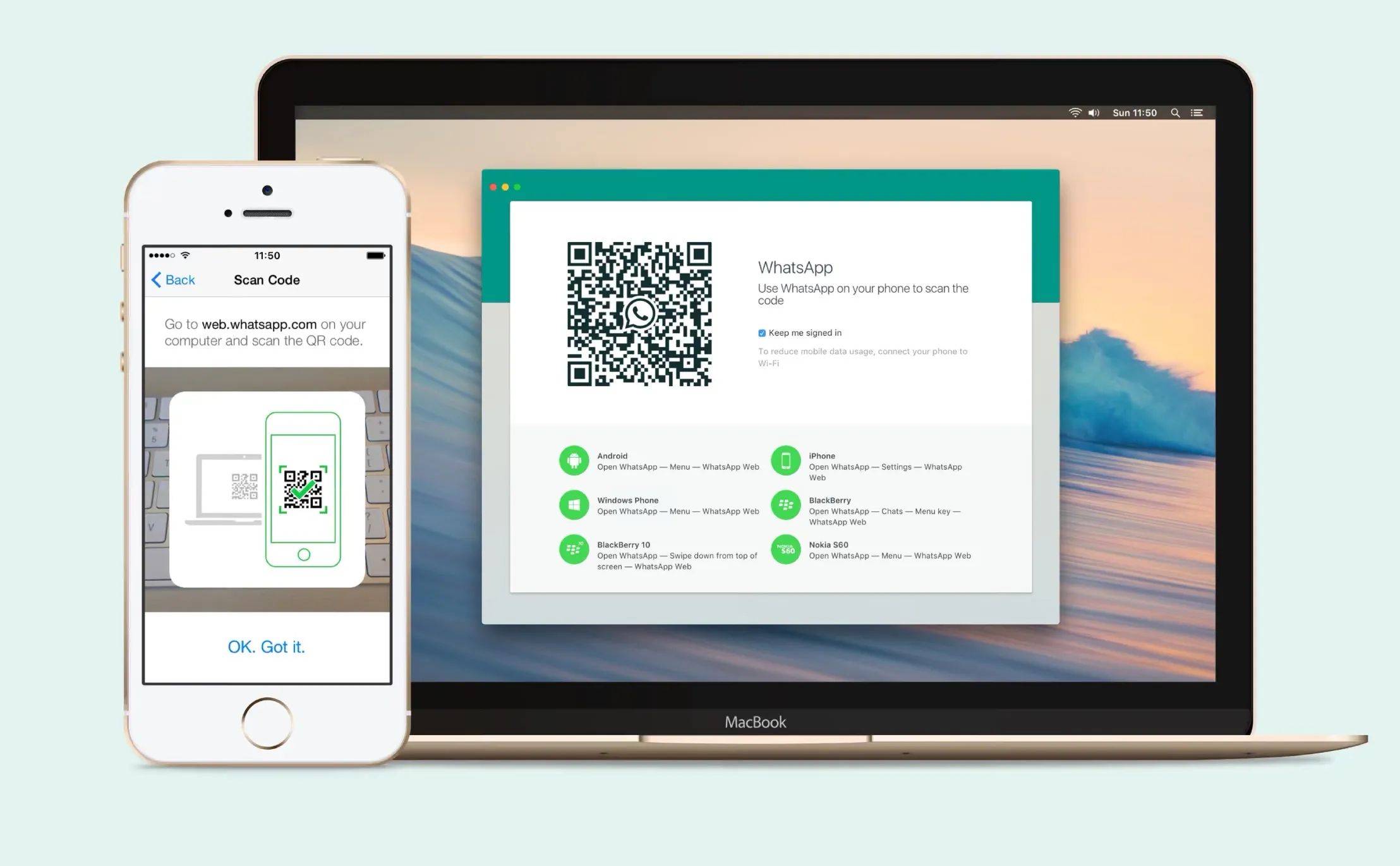
- Scan The QR Code: Scan the QR code displayed on the screen using your smartphone’s camera.
- Add Participants: Click on the “Camera” icon to start a video call. To add more participants, click on the “+” icon.
Alternative Methods
If you don’t want to use the desktop client, there are alternative methods to make a video call with WhatsApp:
- Using Messenger Rooms: You can use Facebook’s Messenger Rooms feature, which is integrated with WhatsApp.
- Installing The Classic Version of Whatsapp For Android: You can install the classic version of WhatsApp on your PC using an emulator.
How to Use Bluestacks
If you decide to use an emulator like BlueStacks, here’s how:
- Download And Install Bluestacks: Download and install BlueStacks from their official website.
- Launch Bluestacks: Launch the app, and log in with your Google account.
- Access The Play Store: Open the Play Store within BlueStacks.
- Install Whatsapp: Search for WhatsApp, and download it.
- Configure Whatsapp: Configure your WhatsApp account by entering your phone number and verifying your identity via SMS.
Making a Video Call on PC
Now that you have WhatsApp installed on your PC using an emulator or the desktop client, here’s how to make a video call:
- Launch Whatsapp: Launch WhatsApp from the app icon.
- Click on The Camera Icon: Click on the camera icon to start a video call.
- Add Participants: To add more participants, click on the “+” icon.
Tips And Tricks
Here are some tips and tricks to keep in mind:
- Backup Your Chat History: Before making any changes, backup your chat history by following our guide on how to backup WhatsApp.
- Be Aware of Device Compatibility Issues: Be aware that using an emulator may cause device compatibility issues with your smartphone.
Conclusion
Making a video call with WhatsApp Web on PC is now possible. With the desktop client or an emulator like BlueStacks, you can enjoy seamless video calling from the comfort of your PC. Just remember to follow our step-by-step guide and be aware of potential device compatibility issues.
Faqs
Here are some frequently asked questions:
- Q: Can I Make a Video Call With Whatsapp Web on Pc?
A: Unfortunately, WhatsApp Web does not support video calling. - Q: How do I Make a Video Call Using The Desktop Client?
A: Follow our step-by-step guide to make a video call using the desktop client. - Q: Can I Use Messenger Rooms Instead of The Desktop Client?
A: Yes, you can use Messenger Rooms as an alternative method. - Q: What’s The Difference Between The Classic Version And The Desktop Client?
A: The classic version is an older version of WhatsApp that uses an emulator to run on PC. -
Q: Can I Backup my Chat History Before Making Changes?
A: Yes, follow our guide to backup your chat history. -
Q: Be Aware of Potential Device Compatibility Issues When Using an Emulator Like Bluestacks.
-
Q: Make Sure to Scan The QR Code Correctly And Configure Whatsapp Properly For a Smooth Video Calling Experience.


