
How to Format a Mac Without a Cd: A Step-by-step Guide
Are you tired of dealing with pesky formatting issues on your Mac? Do you want to learn how to format your Mac without using a CD or external drive? Look no further! In this article, we will guide you through the process of formatting your Mac without a CD, using the built-in Recovery mode and USB installation.
Operations Preliminary: Backup Your Data
Before proceeding with the formatting process, it’s essential to back up your data. You can use Time Machine or manually copy your files to an external hard drive. This will ensure that all your important documents, photos, and videos are safe and can be easily recovered later.
Formattare Mac Without CD Using Recovery Mode
Starting from version 10.7, OS X includes a built-in recovery mode that allows you to format the disk and reinstall the operating system with ease. Here’s how:
- Restart Your Mac: Shut down your Mac completely.
- Press The Power Button: Hold down the Command (⌘) + R keys while powering on your Mac. This will boot up the Recovery mode.
- Select a Language And Country or Region: Choose your preferred language and country or region from the menu.
- From The Utilities Menu, Select Disk Utility.
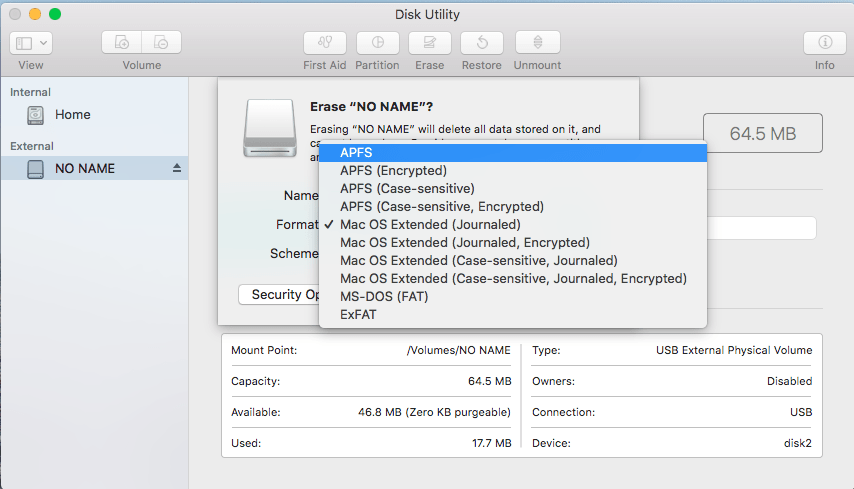
- Select The Disk You Want to Format: Choose the disk you want to format (usually labeled as “Macintosh HD”) from the list on the left side of the window.
- Click Erase And Then Erase Again: Confirm that you want to erase the selected disk by clicking the “Erase” button twice.
- Quit Disk Utility: Go back to the Utilities menu and select Quit Disk Utility.
- Select Reinstall Macos From The Utilities Menu.
- Follow The On-screen Instructions: Click through the installation process, selecting your language, country or region, and Wi-Fi network.
Formattare Mac Without CD Using Usb Installation
Alternatively, you can create a USB drive with the OS X installer and use it to format your Mac without a CD.
- Download The OS X Installer: Go to the App Store on your Mac and download the latest version of macOS.
- Create a Bootable Usb Drive: Download and install DiskMaker X, which will guide you through the process of creating a bootable USB drive with the OS X installer.
- Insert The Usb Drive Into Your Mac: Once the USB drive is created, insert it into your Mac and restart the computer while holding down the Option (⌥) key.
Procedure of Initial Configuration of OS X
After formatting your Mac using Recovery mode or a USB drive, you will need to configure your operating system. This includes:
- Selecting Your Country or Region: Choose your preferred country or region from the menu.
- Setting up Wi-fi: Connect to your Wi-Fi network by selecting it from the list of available networks.
- Choosing Your Language And Keyboard Layout: Select your preferred language and keyboard layout from the menu.
- Creating a New User Account: Create a new user account with a password, which will be used to access your Mac.
- Configuring Icloud: Set up your iCloud account and configure it as desired.
Troubleshooting Tips
If you encounter any issues during the formatting process, here are some troubleshooting tips:
- Make sure your USB drive is properly formatted and contains the correct installation files.
- Restart your Mac in Safe Mode by holding down the Shift (⇧) key while powering on. This will disable all startup items and allow you to troubleshoot any issues.
Conclusion
Formating a Mac without a CD can be a daunting task, but with these step-by-step instructions, you should be able to do it easily. Remember to back up your data before proceeding and follow the on-screen instructions carefully to ensure that everything goes smoothly.
Frequently Asked Questions (FAQs)
- Q: What Happens if I Lose my Data During Formatting?
A: Don’t worry! Your data is safe as long as you have backed it up using Time Machine or manually copied your files to an external hard drive. - Q: Can I Use a Usb Drive With an Older Version of OS X?
A: Yes, but make sure the USB drive contains the correct installation files for that specific version of OS X. - Q: How Long Does it Take to Format my Mac Using Recovery Mode or Usb Installation?
A: The entire process should take around 30-40 minutes to complete, excluding the time it takes for your Mac to download and install the operating system. - Q: Can I Use a Windows PC to Create a Bootable Usb Drive For my Mac?
A: Yes, but you will need to follow specific instructions to ensure that the USB drive is properly formatted and contains the correct installation files. - Q: How do I Troubleshoot Any Issues During Formatting?
A: Refer to our troubleshooting tips section or consult the official Apple support documentation for assistance. - Q: Can I Use Recovery Mode to Format my Mac if It’s Running an Older Version of OS X?
A: No, you will need to update your Mac to a newer version of OS X before using Recovery mode to format it. - Q: How do I Configure my Icloud Account During The Initial Configuration Process?
A: Follow the on-screen instructions and select your preferred options for setting up your iCloud account. - Q: Can I Use a Different Usb Drive as a Bootable Drive For Formatting?
A: Yes, but make sure it’s properly formatted and contains the correct installation files for your Mac.
We hope this article has been helpful in guiding you through the process of formatting your Mac without using a CD or external drive.


