
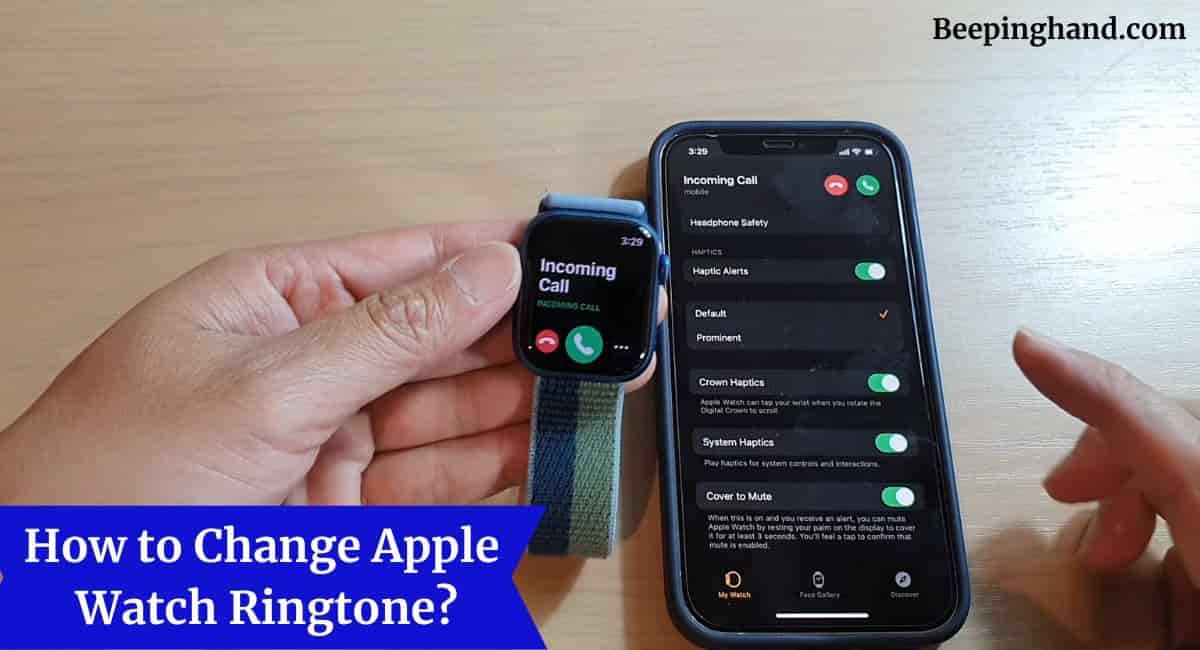
How to Personalize Your Apple Watch: A Step-by-step Guide
Are you looking to make your Apple Watch truly yours? Look no further! In this article, we’ll show you how to personalize your Apple Watch, from changing the sound of your wake-up alarm to customizing the notifications that pop up on your screen.
Why Personalize Your Apple Watch?
Personalizing your Apple Watch can enhance your overall experience with the device. By tailoring it to your needs and preferences, you’ll be able to use it more efficiently and effectively. Plus, it’s a great way to express your personality and style!
Changing The Wake-up Alarm Sound
The first thing we’ll tackle is changing the sound of your wake-up alarm. This can be done by going into the Sleep app on your Apple Watch.
- To access the Sleep app, press the Digital Crown until you reach the Home screen.
- Scroll down and tap on the Sleep icon.
- Select “Add Schedule” and choose a schedule that works for you.
- Tap on “Sounds and Feedback” to select a new wake-up sound.
- Choose from one of eight pre-set sounds or add your own audio file.
Changing The Called Sound
The called sound is another important aspect of personalizing your Apple Watch. This sound will alert you when someone is trying to reach you via FaceTime or an incoming call on your phone.
- To change the called sound, go into the Settings app on your Apple Watch.
- Scroll down and tap on “Sounds and Feedback.”
- Select the called sound option and choose from one of eight pre-set sounds.
Changing The Notification Sound
Notifications are a crucial part of using an Apple Watch. They allow you to stay connected with friends, family, and work without having to constantly check your phone.
- To change the notification sound, go into the Settings app on your Apple Watch.
- Scroll down and tap on “Sounds and Feedback.”
- Select the notification sound option and choose from one of eight pre-set sounds.
Other Personalization Options
In addition to changing the wake-up alarm sound, called sound, and notification sound, there are several other personalization options available for your Apple Watch. These include:
- Changing the volume level of notifications
- Customizing the layout of your watch face
- Adding or removing complications
Conclusion
Personalizing your Apple Watch is a great way to enhance your overall experience with the device. By tailoring it to your needs and preferences, you’ll be able to use it more efficiently and effectively.
Frequently Asked Questions (FAQs)
Here are some frequently asked questions about personalizing your Apple Watch:
- Q: How do I Change The Wake-up Alarm Sound on my Apple Watch?
A: To change the wake-up alarm sound, go into the Sleep app on your Apple Watch and select “Sounds and Feedback.” - Q: Can I Customize The Layout of my Watch Face?
A: Yes, you can customize the layout of your watch face by adding or removing complications. - Q: How do I Change The Notification Sound on my Apple Watch?
A: To change the notification sound, go into the Settings app on your Apple Watch and select “Sounds and Feedback.” - Q: Can I Add my Own Audio File to The Wake-up Alarm Sound or Called Sound?
A: Yes, you can add your own audio file to either the wake-up alarm sound or the called sound. - Q: How do I Customize The Volume Level of Notifications on my Apple Watch?
A: To change the volume level of notifications, go into the Settings app on your Apple Watch and select “Sounds and Feedback.” - Q: Can I Change The Look of my Watch Face to Make it More Personalized?
A: Yes, you can customize the look of your watch face by adding or removing complications. - Q: How do I Add a New Complication to my Watch Face?
A: To add a new complication to your watch face, press the Digital Crown until you reach the Home screen and scroll down to select “Complications.” - Q: Can I Remove an Existing Complication From my Watch Face?
A: Yes, you can remove an existing complication from your watch face by selecting it and tapping on the minus sign.


