
How to Connect Your Iphone to a Pc: A Step-by-step Guide
Are you tired of struggling to connect your iPhone to your computer? Look no further! In this article, we will walk you through the process of connecting your iPhone to a PC, step by step.
Why Connect My Iphone to My Computer?
Before we dive into the nitty-gritty of connecting your iPhone to your PC, let’s talk about why you might want to do so in the first place. Here are some reasons:
- Synchronize Data: By connecting your iPhone to your computer, you can synchronize your data, including contacts, photos, and music.
- Transfer Files: You can transfer files from your iPhone to your computer or vice versa.
- Charge Your Phone: If your phone is running low on battery, you can charge it using your computer.
Hardware Requirements
Before we begin, make sure you have the following hardware:
- Usb Cable: A USB cable to connect your iPhone to your computer. Make sure it’s a Lightning-to-USB cable for your iPhone.
- Iphone: Your iPhone device with at least iOS 12 installed.
- Computer: A PC with Windows 10 or later installed.
Software Requirements
In addition to the hardware, you’ll also need:
- Itunes: ITunes installed on your computer. You can download it from Apple’s official website.
- Usb Driver: The USB driver for your iPhone, which is usually included in iTunes.
Step 1: Connect Your Iphone to Your Computer
To connect your iPhone to your computer, follow these steps:
- Connect The Usb Cable: Connect one end of the USB cable to your iPhone and the other end to your computer.
- Unlock Your Phone: Unlock your iPhone by entering the passcode or using Face ID/Touch ID.
- Trust The Computer: Trust the computer on your iPhone by going to Settings > General > About.
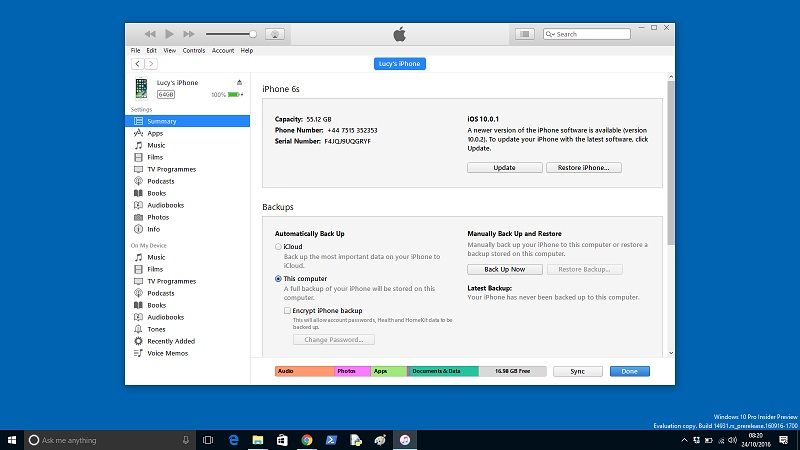
Step 2: Launch Itunes
Launch iTunes on your computer and follow these steps:
- Select Your Iphone: Select your iPhone from the list of devices in iTunes.
- Choose The Type of Sync: Choose the type of sync you want to perform, such as syncing contacts or photos.
Alternative Methods
If the above method doesn’t work for you, don’t worry! There are alternative methods to connect your iPhone to your computer:
- Wi-fi: You can also connect your iPhone to your computer using Wi-Fi. This method is useful if you don’t have a USB cable handy.
- Bluetooth: You can also use Bluetooth to transfer files between your iPhone and computer.
Troubleshooting Tips
If you encounter any issues while trying to connect your iPhone to your computer, here are some troubleshooting tips:
- Check The Usb Driver: Make sure the USB driver for your iPhone is installed and updated.
- Restart Your Phone And Computer: Restart both your phone and computer to see if that resolves the issue.
By following these steps and troubleshooting tips, you should be able to successfully connect your iPhone to your computer. Happy syncing!
Conclusion
Connecting your iPhone to a PC can seem daunting at first, but with this step-by-step guide, you’ll have it up and running in no time! You’ve learned how to synchronize data, transfer files, charge your phone, and more using the USB cable method, Wi-Fi, or Bluetooth.


