
How to Cut a Video With Vlc: A Step-by-step Guide
Are you tired of watching videos that are too long or have irrelevant content? Do you want to know how to cut a video with VLC, the popular media player software? Look no further! In this article, we will guide you through the process of cutting a video with VLC on your computer, smartphone, and tablet.
What is Vlc?
VLC (VideoLAN Client) is a free and open-source media player that can play almost any type of video file. It’s available for Windows, macOS, Android, and iOS devices. VLC not only plays videos but also has features like video editing, recording, and streaming.
Cutting a Video With Vlc on Computer
If you want to cut a video with VLC on your computer, follow these steps:
Step 1: Open Vlc And Select The Video
- Initiate VLC media player on your computer.
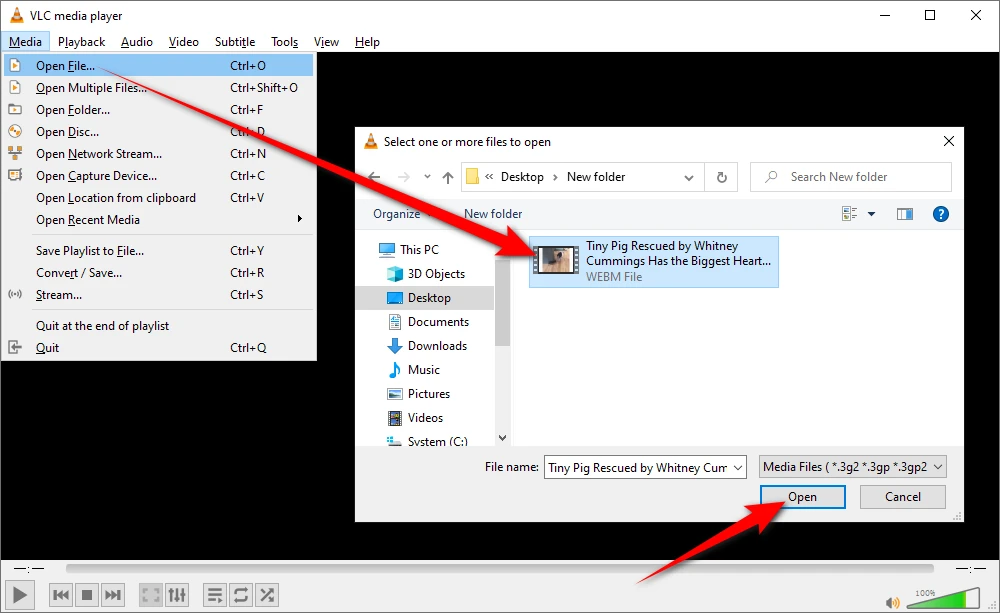
- Select the video file you want to cut from the menu bar or drag it directly into the VLC window.
Step 2: Pause The Video And Go to Advanced Controls
- Press the pause button in the bottom right corner of the VLC window.
- Click on the “Visualize” tab in the top menu bar, then select “Control advanced”.
Step 3: Record a New File
- In the control panel, click on the red ring-shaped “Record” button.
- Drag the playback indicator to the starting point of the clip you want to record.
- Click on the “Play” button and wait for the scene to end.
- Press the “Stop” button to discontinue recording.
Step 4: Save The Cut Video
- Open the “Video” folder in your computer’s file explorer.
- Find the new file with the name “vlc-record_date_time.Ext”, where “ext” is the video format (e.G., .Mp4).
- You can now play or share this cut video as desired.
Cutting a Video With Vlc on Smartphone And Tablet
VLC media player is available for Android, iOS, and iPadOS devices. Follow these steps to cut a video on your mobile device:
Step 1: Open Vlc And Select The Video
- Launch the VLC app from your home screen or drawer.
- Choose the video file you want to cut from the “Video” section.
Step 2: Pause The Video And Access Advanced Controls
- Press the pause button in the bottom right corner of the VLC window.
- Tap on the monitor to display the control bar at the top.
- Select the icon with two arrows pointing outward (in iOS/iPadOS) or tap on the “Edit” option (in Android).
Step 3: Record a New File
- On iOS/iPadOS, tap on the square and arrow icon to access advanced controls.
- Tap on the red ring-shaped “Record” button, then start the recording by playing the video.
- Press the pause button when you want to stop recording.
Step 4: Save The Cut Video
- On Android, tap on the menu bar at the top and select “Share”.
- Choose a location to save your cut video.
- Name your file and save it in the desired format (e.G., .Mp4).
Tips And Variations
- To modify the aspect ratio of a video while cutting, follow steps similar to those outlined above for computers.
- If you prefer using keyboard shortcuts, note that on VLC media player, pressing
Shift+Rcan initiate or pause recording.
In this article, we’ve walked you through how to cut a video with VLC on your computer and mobile devices. Whether you need to shorten a lengthy video or trim unwanted parts, this powerful tool provides the necessary functionality for efficient editing processes without requiring any additional software purchases


