
The Ultimate Guide to Compressing Files on Mac
Are you tired of dealing with large files on your Mac? Do you struggle to find the right software to compress and extract files in various formats? Look no further! In this article, we will explore the best programs for zipping files on Mac, making it easy for you to manage your digital content.
Introduction
Compressing files is an essential task when working with large documents, images, or videos. With so many file formats available, it can be challenging to find a program that suits your needs. In this guide, we will cover the top programs for zipping and extracting files on Mac, including free and paid options.
Programs For Zipping Files on Mac
Utility Compression
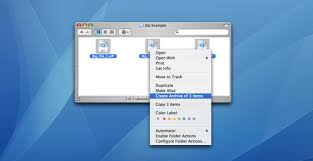
The first option is built-in to macOS itself. You can compress and extract files in various formats using the Utility Compression tool. To access this feature:
- Go to Finder and select the file or folder you want to compress.
- Right-click (or Ctrl+Click) on the selected item.
- Choose “Compress [filename]” from the context menu.
This will create a compressed .Zip file in the same location as the original file.
Keka
Another excellent option is Keka, a free and open-source utility that can compress and extract files in various formats. To use Keka:
- Download and install Keka from the official website.
- Launch Keka and select the file or folder you want to compress.
- Choose the desired format (e.G., .Zip, .7Z, etc.) And set any additional options as needed.
Keka also supports encryption and password protection for added security.
Betterzip
For a more feature-rich experience, consider BetterZip, a paid program that offers advanced compression and extraction capabilities. To use BetterZip:
- Download and install the trial version from the official website.
- Launch BetterZip and select the file or folder you want to compress.
- Choose the desired format (e.G., .Zip, .Dmg, etc.) And set any additional options as needed.
BetterZip also supports encryption, password protection, and advanced compression algorithms.
Izip Archiver
Last but not least, iZip Archiver is another popular option for zipping and extracting files on Mac. To use iZip:
- Download and install the free version from the App Store.
- Launch iZip and select the file or folder you want to compress.
- Choose the desired format (e.G., .Zip, .Rar, etc.) And set any additional options as needed.
IZip also supports encryption and password protection for added security.
Conclusion
In conclusion, zipping files on Mac has never been easier with these top programs. Whether you’re looking for a free or paid solution, there’s an option to suit your needs. Remember to always use the built-in Utility Compression tool when possible, and consider Keka, BetterZip, or iZip Archiver for more advanced features.
Frequently Asked Questions
-
What is The Best Program For Zipping Files on Mac?
The best program for you will depend on your specific needs. If you’re looking for a free option, Keka or iZip Archiver might be the way to go. For more advanced features, consider BetterZip. -
Can I Compress And Extract Files in Various Formats?
Yes! Each of these programs supports multiple file formats, including .Zip, .7Z, .Rar, and many more. -
How do I Compress a File on Mac Using The Built-in Utility Compression Tool?
To compress a file using the built-in Utility Compression tool: -
Go to Finder and select the file or folder you want to compress.
- Right-click (or Ctrl+Click) on the selected item.
-
Choose “Compress [filename]” from the context menu.
-
Can I Encrypt my Compressed Files For Added Security?
Yes! Many of these programs, including Keka, BetterZip, and iZip Archiver, support encryption and password protection for added security. -
Do I Need to Pay For These Programs or Are They Free?
Some of these programs, like Keka and iZip Archiver, are completely free. Others, like BetterZip, require a payment for the full version. -
Can I Use These Programs to Extract Files as Well?
Yes! Each of these programs can be used to compress and extract files in various formats. -
How do I Install And Update These Programs on my Mac?
To install or update any of these programs, simply download and run the installer from their official websites. -
Are There Any System Requirements For Running These Programs on my Mac?
Each program has its own system requirements. Be sure to check the official website for details before downloading and installing.
The Ultimate Guide to Compressing Files on Mac: Summary
In this article, we explored the best programs for zipping files on Mac, including free and paid options. We covered the built-in Utility Compression tool, Keka, BetterZip, and iZip Archiver, highlighting their features and capabilities. Whether you’re a beginner or an advanced user, this guide will help you navigate the world of file compression on your Mac.


