
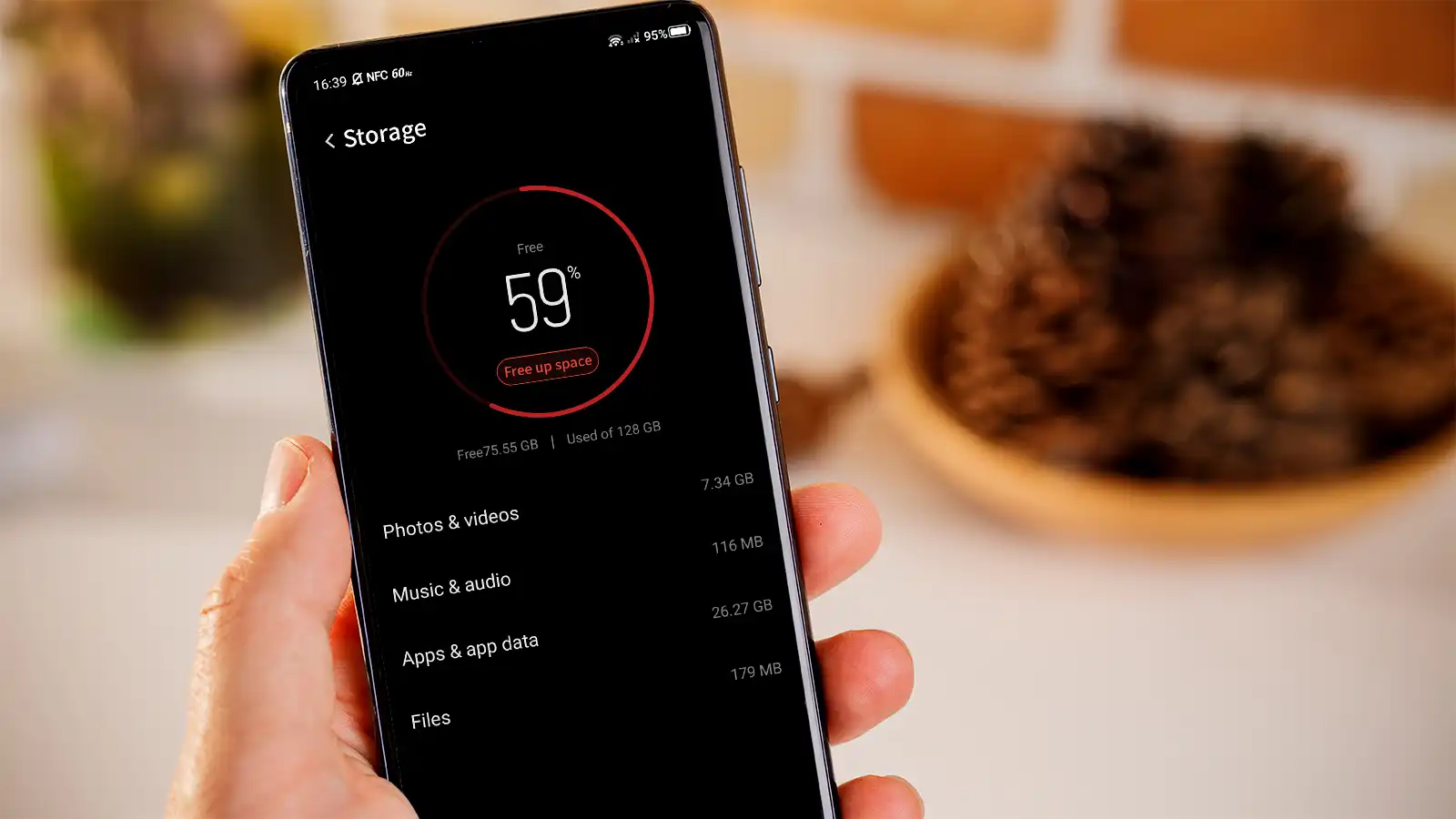
How to Free Up Space on Your Android Device
Are you tired of receiving notifications that your device is running low on storage space? Do you find yourself unable to download new apps or games due to insufficient memory? Look no further! In this article, we will guide you through the process of freeing up space on your Android device using various practical tricks.
Understanding The Problem
Before we dive into the solutions, let’s understand why we need to free up space on our devices. As we download new apps, games, and files, they take up storage space on our device. If we don’t regularly clean out these unused files, they can accumulate and cause problems. So, it’s essential to know how to identify and delete unnecessary data.
Discharging Blank Space: The First Step
The first step in freeing up space on your Android device is to discharge blank space by uninstalling unwanted applications. Follow these simple steps:
- Go to the Settings app on your device.
- Select Storage & USB options.
- Choose the option for viewing storage usage by apps.
- Look for apps that are taking up a significant amount of space and select them.
- Tap the “Uninstall” button.
By following these steps, you can quickly identify and remove unwanted apps from your device.
Displacing Applications And Data to SD
If you have a device with expandable memory, such as a microSD card slot, you can transfer applications and data to the external storage. This will help free up space on your device’s internal memory.
To do this:
- Insert a microSD card into your device.
- Go to Settings > Storage & USB options > SDCard (or similar).
- Select the option to use the SD as internal storage.
- Follow the prompts to erase and format the SD.
- Once completed, you can transfer applications and data to the SD.
Erase Cache And Temporary Files
Temporary files and cache can take up a significant amount of space on your device. You can manually delete these files or use an app specifically designed for cleaning temporary files.
To manually delete cache:
- Go to Settings > Storage & USB options.
- Select the option to erase cached data.
Or, you can download a third-party app like CCleaner to automate this process.
Organizing Photos, Videos, Music, And Downloads
Now that we’ve cleaned out unwanted apps and temporary files, it’s time to organize your media files. You can use the built-in Files app or Google Photos to manage your photos and videos.
To free up space on your device by deleting unnecessary media files:
- Open the Files app.
- Select Storage & USB options.
- Choose the storage location (internal memory or SD).
- Look for files that are taking up a significant amount of space.
- Delete any unnecessary files.
Other Tips to Keep Your Android Device Running Smoothly
In addition to freeing up space on your device, here are some other tips to keep it running smoothly:
- Update Your OS: Regularly update your operating system to ensure you have the latest security patches and features.
- Use a Antivirus App: Install an antivirus app to protect your device from malware.
- Monitor Battery Usage: Keep an eye on battery usage by checking which apps are consuming the most power.
Conclusion
Freeing up space on your Android device is easier than you think! By following these practical tricks, you can quickly identify and delete unnecessary files, transfer applications and data to external storage, and keep your device running smoothly. Remember to regularly clean out temporary files and cache to prevent future storage issues.
Frequently Asked Questions (FAQs)
- What is The Best Way to Free up Space on my Android Device?
- The best way to free up space on your Android device is to uninstall unwanted apps, transfer applications and data to external storage, and regularly clean out temporary files and cache.
- How Can I Increase my Device’s Internal Memory?
- Unfortunately, you cannot increase your device’s internal memory. However, you can use a microSD card to expand your storage capacity.
- What is The Difference Between SD And Internal Storage?
- SD storage refers to external storage on a microSD card, while internal storage refers to the device’s built-in memory.
- Can I Delete Cache Manually or do I Need an App?
- You can manually delete cache by going to Settings > Storage & USB options. Alternatively, you can download a third-party app like CCleaner to automate this process.
- How Often Should I Clean Out Temporary Files And Cache?
- It’s recommended to clean out temporary files and cache regularly, ideally every week or two, depending on your usage habits.
I hope this article has been helpful in explaining how to free up space on your Android device! If you have any further questions or concerns, please don’t hesitate to ask.


