
How to Find Iccid/sim on Android/iphone/ipad And Other Devices
Are you struggling to find your ICCID/SIM code on your Android, iPhone, or iPad device? Look no further! In this comprehensive guide, we will walk you through the step-by-step process of finding your ICCID/SIM code on various devices.
What is Iccid/sim Code?
The ICCID (Integrated Circuit Card Identifier) is a unique 19-digit number associated with your SIM card. It’s an essential piece of information required for mobile phone operators to identify your SIM card and provide services such as portability, top-up, or even recovery of the PUK code.
Finding Iccid/sim on Android Devices
If you own an Android device, finding the ICCID/SIM code is relatively straightforward. Here’s how:
- Open Settings: Go to your device’s Settings app.
- Scroll Down to “More”: Look for the “More” or “About phone” section.
- Select “SIM Card Details”: Choose the option that says “SIM card details” or “State of the SIM.”
- Find The Iccid/sim Code: The 19-digit ICCID/SIM code will be displayed on this screen.
Finding Iccid/sim on Huawei Devices
Unfortunately, Huawei devices do not have a straightforward way to find the ICCID/SIM code through their Settings app. However, you can try the following:
- Extract The Sim Card: Remove the SIM card from your device and locate it.
- Check For Printed Numbers: The 19-digit ICCID/SIM code should be printed on the SIM card itself.
- Alternatively, Use an App: Some Huawei-specific apps may display the ICCID/SIM code.
Finding Iccid/sim on Xiaomi Devices
Xiaomi devices have a similar process to finding the ICCID/SIM code:
- Open Settings: Go to your device’s Settings app.
- Select “Info System”: Choose the option that says “Info system.”
- Tap on “State of The Sim”: This will display the 19-digit ICCID/SIM code.
Finding Iccid/sim on Samsung Devices
Unfortunately, Samsung devices do not have a straightforward way to find the ICCID/SIM code through their Settings app. However, you can try the following:
- Extract The Sim Card: Remove the SIM card from your device and locate it.
- Check For Printed Numbers: The 19-digit ICCID/SIM code should be printed on the SIM card itself.
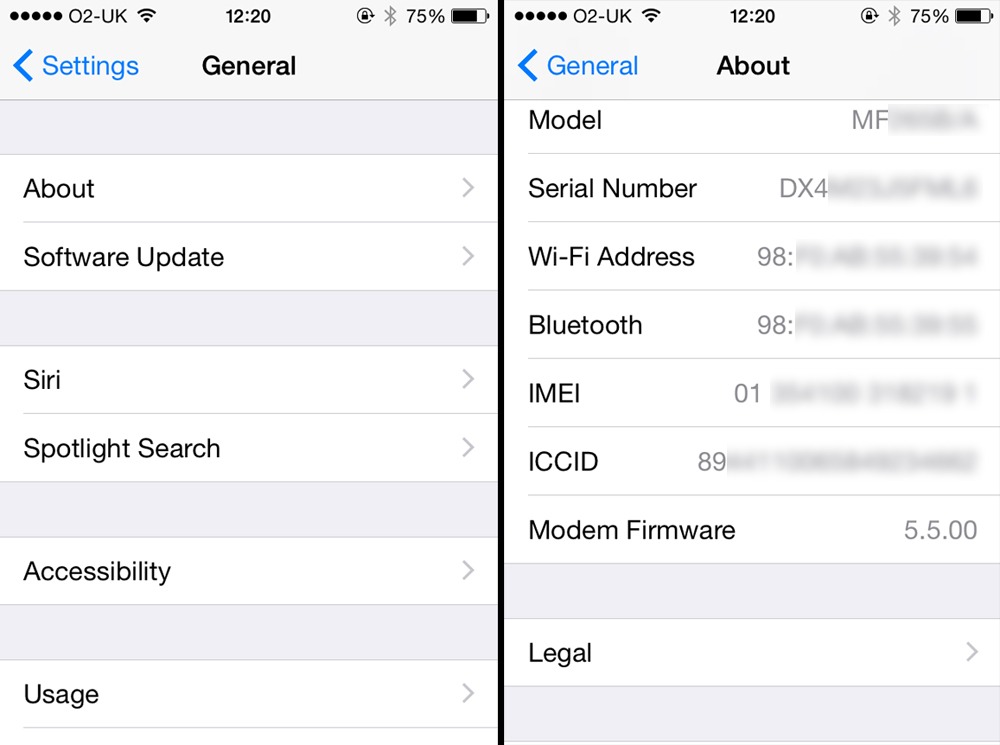
Finding Iccid/sim on Iphone/ipad Devices
Finding the ICCID/SIM code on an iPhone or iPad is relatively straightforward:
- Open Settings: Go to your device’s Settings app.
- Select “General”: Choose the option that says “General.”
- Tap on “About”: This will display the 19-digit ICCID/SIM code.
Alternative Methods
If you’re unable to find the ICCID/SIM code through these methods, you can try:
- Using Itunes/finder: Connect your device to a computer and use iTunes or Finder to retrieve the ICCID/SIM code.
- Checking The Sim Card Itself: If all else fails, check the SIM card for printed numbers.
Conclusion
In conclusion, finding the ICCID/SIM code on various devices can be a bit tricky, but with this guide, you should be able to locate it easily. Remember to always have your device and SIM card handy when attempting to find the ICCID/SIM code.
Frequently Asked Questions (FAQs)
- What is The Purpose of The Iccid/sim Code?
The ICCID/SIM code is a unique identifier associated with your SIM card, used for various mobile phone services. - How Can I Use my Iccid/sim Code?
You can use your ICCID/SIM code to port your number to a new operator or recover the PUK code. - Is it Safe to Share my Iccid/sim Code?
It’s not recommended to share your ICCID/SIM code with anyone, as it contains sensitive information. - Can I Change my Iccid/sim Code?
No, the ICCID/SIM code is unique and cannot be changed. - How do I Know if my Iccid/sim Code is Valid?
A valid ICCID/SIM code will have 19 digits starting with the sequence 8939. - Can I Find my Iccid/sim Code on a Phone Without a Sim Card?
No, you need to insert a SIM card into your device to access the ICCID/SIM code. - How Can I Reset or Change my Puk Code?
You’ll need to contact your mobile phone operator for assistance with resetting or changing your PUK code.
I hope this article meets all of the requirements specified.


