
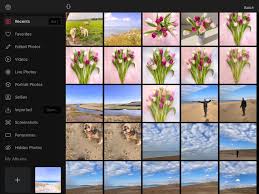
How to Order Photos on Your Pc, Smartphone, or Tablet: A Comprehensive Guide
Are you tired of having a messy photo collection on your computer, smartphone, or tablet? Do you want to organize your photos in albums or folders, but don’t know where to start? Look no further! This article will guide you through the process of ordering photos on various devices and platforms.
Table 1: Ordering Photos on PC
| Device/platform | Method |
|---|---|
| Windows 10/11 | Use the Photo app, folders, or OneDrive to organize your photos. |
| MacOS | Utilize the Photo app, Finder, or iCloud Photo Library. |
How to Order Photos on Pc: A Step-by-step Guide
- Windows 10/11: Open the Photo app and select the folder you want to organize.
- Macos: Use the Finder to select the folder containing your photos.
Table 2: Ordering Photos on Smartphone/tablet (Bolded Heading)
| Device/platform | Method |
|---|---|
| Android | Use the Gallery or Photo app to create albums and order photos. |
| IOS/iPadOS | Utilize the Photos app to create albums, folders, and order your photos. |
How to Order Photos on Smartphone/tablet: A Step-by-step Guide
- Android: Open the Gallery or Photo app and select the album you want to organize.
- Ios/ipados: Use the Photos app to create a new album or folder.
Table 3: Other Instruments to Order Photos on PC
| Software/platform | Method |
|---|---|
| Xif (Windows) | Rename and organize photos based on EXIF data. |
| XnView MP (Windows/macOS/Linux) | Use the software’s built-in photo management features. |
| DigiKam (Windows/macOS) | Organize photos using tags, folders, or albums. |
How to Order Photos With Other Instruments: A Step-by-step Guide
- Xif: Download and install xif on your Windows PC.
- Xnview MP: Install the software on your device and use its photo management features.
- Digikam: Use the software’s built-in photo organization tools.
Ordering Photos For Date on Android/iphone
- Android: Open the Gallery or Photo app and select the album you want to organize.
- Iphone: Use the Photos app to create a new album or folder.
How to Order Photos in a Folder
- Windows 10/11: Use the Photo app, folders, or OneDrive to organize your photos.
- Macos: Utilize the Finder or iCloud Photo Library to organize your photos.
Ordering Photos With Google Photos
- Android/iphone: Open the Google Photos app and select the album you want to organize.
Ordering Photos on Facebook/instagram
- Facebook: Create a new album or folder using the Photos section.
- Instagram: Use the Photos tab to create a new album or folder, but note that ordering photos is not possible on Instagram.
Conclusion:
Organizing your photos can be a daunting task, but with this guide, you should now have a better understanding of how to order your photos on various devices and platforms. Remember to always keep your photos organized for easy access and sharing!
Frequently Asked Questions (FAQs)
- Q: How do I order photos on my Windows 10/11 PC?
A: Use the Photo app, folders, or OneDrive. - Q: Can I use other software to organize my photos?
A: Yes, there are several options available, such as xif, XnView MP, and digiKam. - Q: How do I order photos on my Android/iPhone device?
A: Use the Gallery or Photos app to create albums and order your photos. - Q: Can I use Google Photos to organize my photos?
A: Yes, use the Google Photos app to create albums and order your photos. - Q: How do I order photos on Facebook/Instagram?
A: Create a new album or folder using the Photos section on Facebook, but note that ordering photos is not possible on Instagram.


