
Removing Assistivetouch on Iphone: A Step-by-step Guide
Are you tired of having AssistiveTouch on your iPhone but can’t figure out how to turn it off? Look no further! In this article, we’ll guide you through the process of removing AssistiveTouch from your iPhone, both manually and using Siri.
Why Remove Assistivetouch?
AssistiveTouch is a feature designed for individuals with disabilities or difficulties in navigating their iPhone. While it’s an excellent accessibility tool, some users may find it unnecessary or want to disable it for personal reasons. Perhaps you’re looking to troubleshoot issues or simply prefer not having this feature enabled.
Removing Assistivetouch Manually
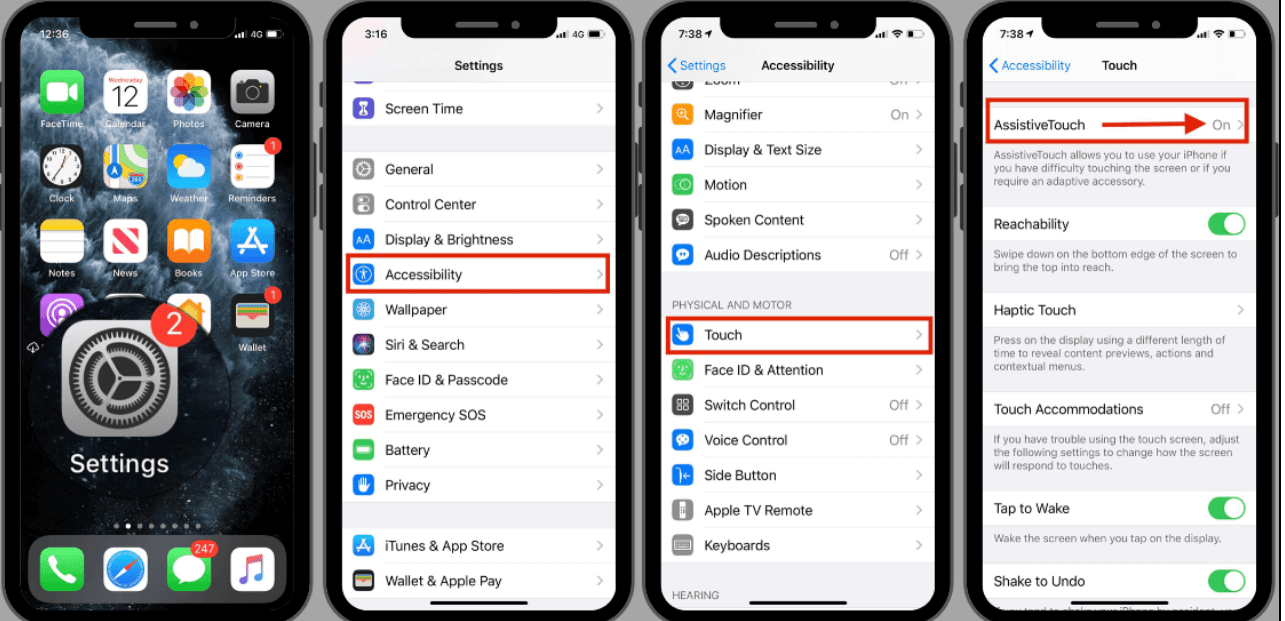
To remove AssistiveTouch from your iPhone manually, follow these steps:
- Access The Settings App: Tap on the icon of the gear (Settings) on your home screen.
- Select Accessibility: Scroll down and tap on “Accessibility” to access this feature’s settings.
- Choose Touch: In the Accessibility menu, select “Touch.”
- Disable Assistivetouch: Look for the option “AssistiveTouch” and toggle it off (green switch should turn grey).
Removing Assistivetouch Using Siri
If you’re more comfortable using voice commands, you can disable AssistiveTouch by asking Siri:
- Access Siri: Press and hold the side button on your iPhone (or say “Hey Siri”) to activate Siri.
- Say The Command: Tell Siri to disable AssistiveTouch by saying “Hey Siri, turn off AssistiveTouch.”
Additional Steps For Full Disabling
If you’ve previously enabled AssistiveTouch as a command in the Abbreviations menu, follow these additional steps:
- Access Settings: Go back to the iPhone’s settings app.
- Select Accessibility: Tap on “Accessibility” and then “General.”
- Edit Abbreviations: Scroll down to the “Abbreviations” section and tap on it.
- Remove Assistivetouch: Look for the option “AssistiveTouch” and remove the checkmark (or red dot) next to it.
Troubleshooting Tips
If you’re having trouble disabling AssistiveTouch, try these troubleshooting tips:
- Restart your iPhone: Sometimes, a simple reboot can resolve any issues.
- Check for software updates: Ensure your iPhone is running the latest version of iOS.
Removing Assistivetouch With Older Iphones (No Face Id)
For those without Face ID, disable AssistiveTouch by following these steps:
- Press And Hold Home Button: Press and hold the Home button on your iPhone.
- Say The Command: Tell Siri to turn off AssistiveTouch using the same command as before.
Removing Assistivetouch From The Abbreviations Menu
If you’ve enabled AssistiveTouch in the Abbreviations menu, follow these steps:
- Access Settings: Go back to the iPhone’s settings app.
- Select Accessibility: Tap on “Accessibility” and then “General.”
- Edit Abbreviations: Scroll down to the “Abbreviations” section and tap on it.
- Remove Assistivetouch: Look for the option “AssistiveTouch” and remove the checkmark (or red dot) next to it.
Conclusion
Removing AssistiveTouch from your iPhone is a straightforward process, whether you choose to do it manually or using Siri. We hope this guide has been helpful in resolving any issues related to this feature. If you have any further questions or concerns, feel free to ask!


