
How to Configure Email on Iphone
As a user of Free Mail, you may have acquired an iPhone and want to understand how to configure the use of your email on the device. Given the circumstances, I’m happy to provide you with this guide, which explains how to set up email on iPhone.
Table 1: Steps to Configure Email on Iphone
| Step | Description |
|---|---|
| 1 | Download and install the Free Mail app from the App Store. |
| 2 | Launch the app and accept the terms of use, follow the initial tutorial, and choose whether to access with Free or another email account. |
Table 2: Setting Up Email Accounts on Iphone
| Step | Description |
|---|---|
| 1 | Tap on the icon to add a new account. |
| 2 | Choose “Add Account” and select the type of email account (e.G., Gmail, Outlook). |
| 3 | Enter your email address and password associated with the account. |
| 4 | Save the changes by tapping on the “Save” button. |
Step-by-step Guide: Configuring Email on Iphone Using Free Mail
- Download And Install The Free Mail App: Go to the App Store, search for “Free Mail,” and download the app.
- Launch The App: Open the Free Mail app and accept the terms of use by tapping on “Accept.”
- Follow The Initial Tutorial: Complete the initial tutorial by following the prompts to set up your email account.
- Choose Email Account Type: Select whether you want to access with your Free email account or another email account.
- Add New Email Account: Tap on the icon to add a new email account.
- Select Account Type: Choose the type of email account (e.G., Gmail, Outlook).
- Enter Email Address And Password: Enter your email address and password associated with the account.
Configuring Imap or Pop3
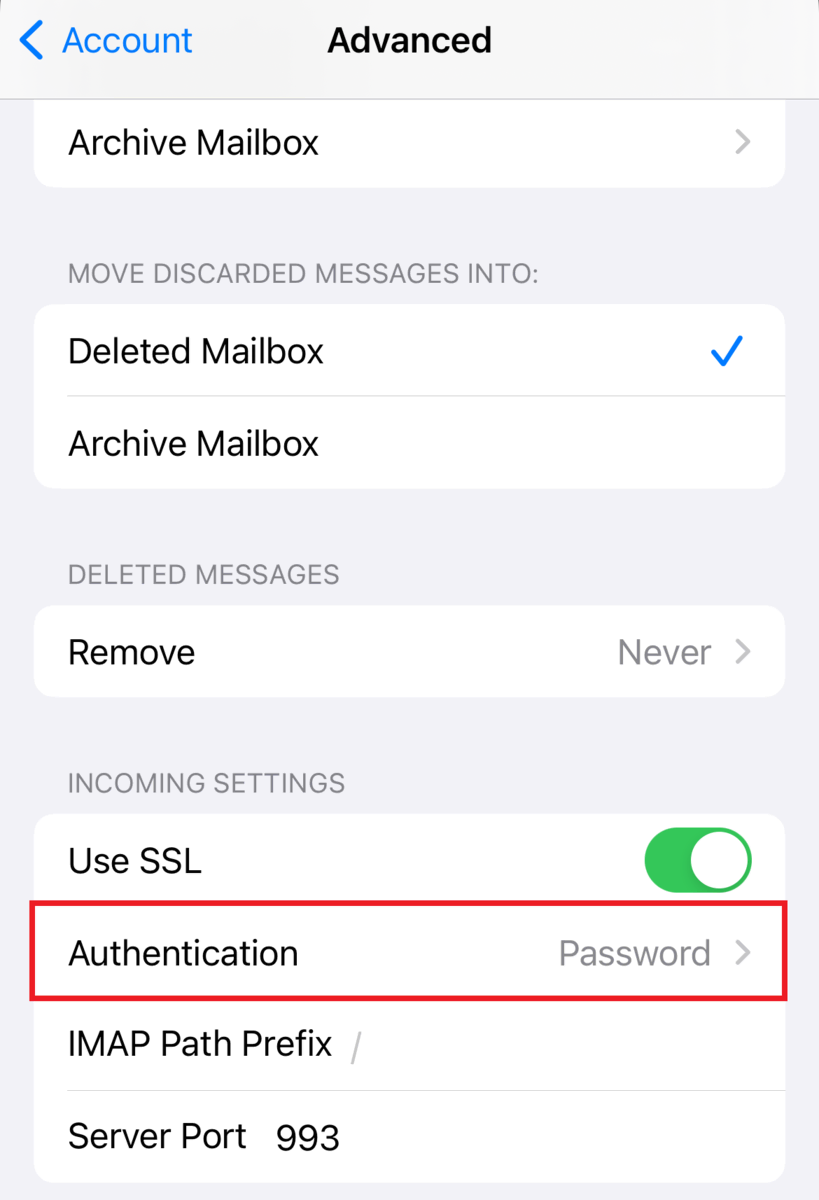
To configure IMAP or POP3 on your iPhone:
- Go to the Settings app and select “Mail.”
- Tap on “Accounts” and then tap on “Add Account.”
- Choose “Other” as the email provider.
- Select either IMAP or POP3.
- Enter your email address, password, and other required details.
Managing Email Accounts on Iphone
To manage your email accounts on your iPhone:
- Go to the Settings app and select “Mail.”
- Tap on “Accounts” to view a list of added accounts.
- Select an account to access its settings or delete it.
Alternative Methods For Configuring Email on Iphone
If you prefer to use another email client, such as Spark, Outlook, or Gmail, follow these steps:
- Download and install the chosen app from the App Store.
- Launch the app and add a new account by tapping on the icon to add a new account.
- Choose the type of email account (e.G., Gmail, Outlook).
- Enter your email address and password associated with the account.
Conclusion
Configuring email on iPhone is a straightforward process that can be completed using the Free Mail app or alternative email clients. By following these steps, you can set up your email accounts and start managing your emails efficiently on your device.
Frequently Asked Questions (FAQs)
-
What Are Imap And Pop3?
- IMAP (Internet Message Access Protocol) is a protocol used for accessing and retrieving emails from an email server.
- POP3 (Post Office Protocol version 3) is a protocol used to retrieve emails from an email server.
-
How do I Configure Imap or Pop3 on my Iphone?
- To configure IMAP or POP3, go to the Settings app and select “Mail.”
- Tap on “Accounts” and then tap on “Add Account.”
- Choose “Other” as the email provider.
- Select either IMAP or POP3.
-
Can I Use Another Email Client on my Iphone?
- Yes, you can use alternative email clients such as Spark, Outlook, or Gmail.
-
How do I Add a New Email Account to The Free Mail App?
- To add a new email account, tap on the icon to add a new account.
- Choose the type of email account (e.G., Gmail, Outlook).
- Enter your email address and password associated with the account.
-
How do I Manage my Email Accounts on Iphone?
- To manage your email accounts, go to the Settings app and select “Mail.”
- Tap on “Accounts” to view a list of added accounts.
- Select an account to access its settings or delete it.
-
What Are The Benefits of Using Imap Instead of Pop3?
- Using IMAP allows for two-way communication between your device and the email server, enabling you to read and send emails on multiple devices without having to re-download attachments.
- With POP3, emails are downloaded from the email server to your device, and changes made to emails on one device may not be reflected on other devices.
-
Can I Use my Iphone to Access my Work Email?
- Yes, you can set up your work email account on your iPhone by following similar steps as setting up a personal email account.
- Make sure to enter the correct email address and password associated with your work email account.


