
Deleting a Contact Blocked on Whatsapp: A Step-by-step Guide
Are you tired of seeing a contact’s name pop up in your WhatsApp contacts list, even after blocking them? Look no further! In this article, we will guide you through the process of deleting a contact blocked on WhatsApp.
Understanding Blocking Vs. Deleting
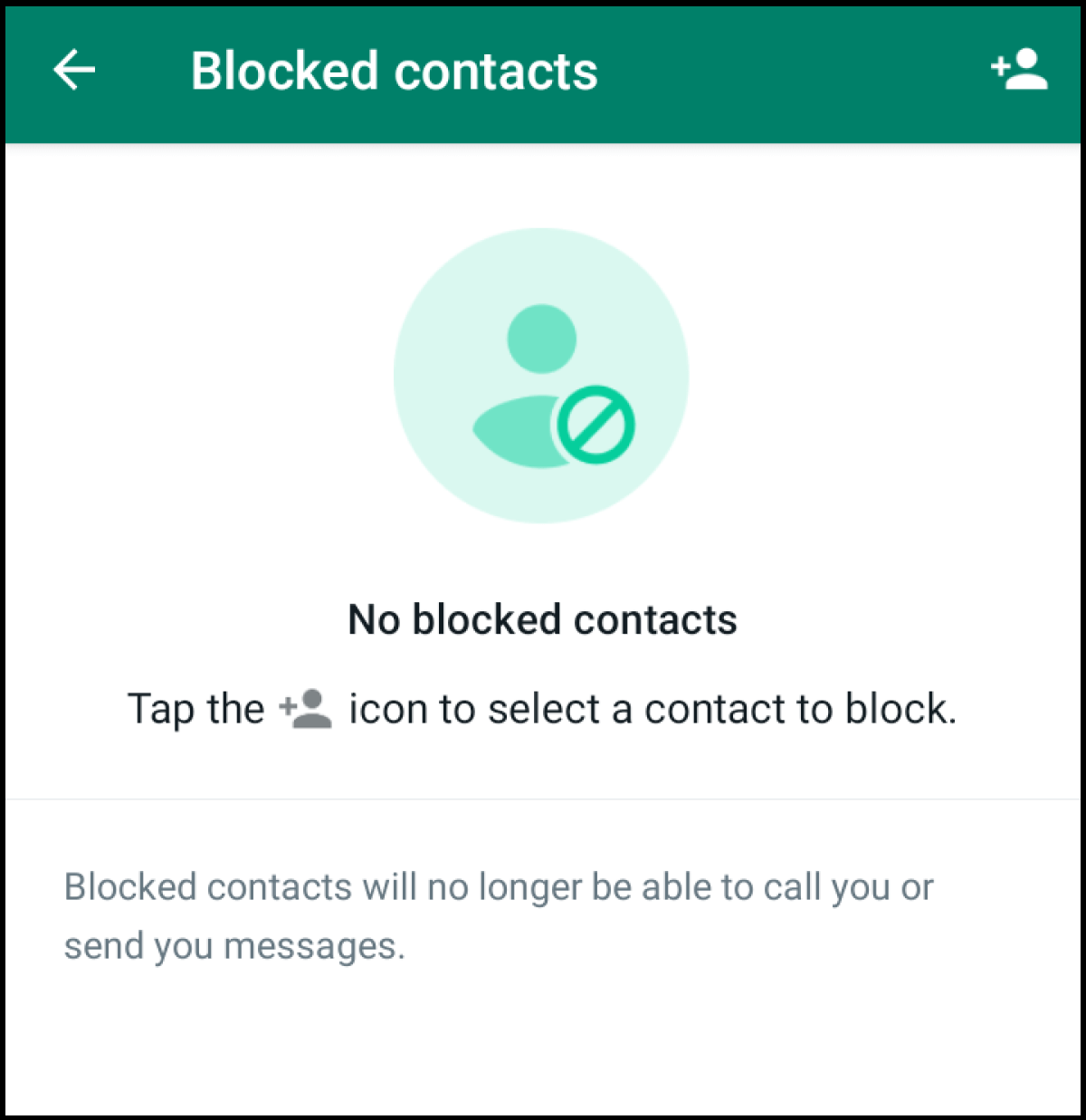
Before we dive into the steps, it’s essential to understand the difference between blocking and deleting a contact on WhatsApp. When you block someone, they won’t be able to see your online status, and their messages will not be delivered to you. However, the contact will still remain in your contacts list.
Deleting a contact, on the other hand, removes them from your contacts list entirely. This means that you’ll no longer receive any notifications or updates from this person.
Step-by-step Instructions
Here’s how to delete a contact blocked on WhatsApp:
On Android
- Open Whatsapp: Launch the WhatsApp app on your Android device.
- Tap on The Chats Screen: Go to the Chats screen, where you’ll see all your conversations.
- Find The Conversation With The Blocked Contact: Search for the conversation with the contact you want to delete.
- Long Press on The Conversation: Long press (hold) on the conversation with the blocked contact until it shows a menu.
- Tap on ‘More’: Tap on ‘More’ from the menu, which will open up additional options.
- Select ‘Delete Contact’: Choose ‘Delete Contact’ to remove this person from your contacts list.
On Iphone
- Open Whatsapp: Launch the WhatsApp app on your iPhone device.
- Tap on The Chats Screen: Go to the Chats screen, where you’ll see all your conversations.
- Find The Conversation With The Blocked Contact: Search for the conversation with the contact you want to delete.
- Long Press on The Conversation: Long press (hold) on the conversation with the blocked contact until it shows a menu.
- Tap on ‘Edit’: Tap on ‘Edit’ from the menu, which will allow you to modify the conversation.
- Select ‘Delete Contact’: Choose ‘Delete Contact’ to remove this person from your contacts list.
On Computer
Unfortunately, deleting a contact blocked on WhatsApp is not directly possible on computer. However, there are alternative methods:
- Sync Your Phone’s Contacts: Sync your phone’s contacts with Google or iCloud.
- Go to The Whatsapp Web Version: Open WhatsApp Web on your computer and access the ‘Contacts’ section.
- Find The Blocked Contact: Find the blocked contact in the list of synced contacts.
- Click on The Three Dots: Click on the three dots next to the contact’s name, which will open up additional options.
- Select ‘Delete Contact’: Choose ‘Delete Contact’ to remove this person from your contacts list.
Unblocking a Contact
If you want to unblock a contact instead of deleting them, follow these steps:
On Android
- Open Whatsapp: Launch the WhatsApp app on your Android device.
- Tap on The Chats Screen: Go to the Chats screen, where you’ll see all your conversations.
- Find The Conversation With The Blocked Contact: Search for the conversation with the contact you want to unblock.
- Long Press on The Conversation: Long press (hold) on the conversation until it shows a menu.
- Tap on ‘More’: Tap on ‘More’ from the menu, which will open up additional options.
- Select ‘Unblock Contact’: Choose ‘Unblock Contact’ to remove this person from your blocked contacts list.
On Iphone
- Open Whatsapp: Launch the WhatsApp app on your iPhone device.
- Tap on The Chats Screen: Go to the Chats screen, where you’ll see all your conversations.
- Find The Conversation With The Blocked Contact: Search for the conversation with the contact you want to unblock.
- Long Press on The Conversation: Long press (hold) on the conversation until it shows a menu.
- Tap on ‘Edit’: Tap on ‘Edit’ from the menu, which will allow you to modify the conversation.
- Select ‘Unblock Contact’: Choose ‘Unblock Contact’ to remove this person from your blocked contacts list.
On Computer
- Open Whatsapp Web: Open WhatsApp Web on your computer and access the ‘Contacts’ section.
- Find The Blocked Contact: Find the blocked contact in the list of synced contacts.
- Click on The Three Dots: Click on the three dots next to the contact’s name, which will open up additional options.
- Select ‘Unblock Contact’: Choose ‘Unblock Contact’ to remove this person from your blocked contacts list.
Conclusion
Deleting a contact blocked on WhatsApp is a straightforward process that can be completed in just a few steps. Remember to always sync your phone’s contacts with Google or iCloud if you want to access them on computer.
Frequently Asked Questions (FAQs)
- Q: Can I Delete All Contacts Blocked on Whatsapp at Once?
A: Unfortunately, no. You’ll need to go through each contact individually and choose ‘Delete Contact’ to remove them from your list. - Q: How do I Unblock a Contact Instead of Deleting Them?
A: To unblock a contact, follow the same steps as above but choose ‘Unblock Contact’ instead of ‘Delete Contact’. - Q: Can I Delete Contacts Blocked on Whatsapp Using Computer?
A: No, direct deletion is not possible on computer. However, you can sync your phone’s contacts with Google or iCloud and access them through WhatsApp Web. - Q: What Happens When I Block Someone on Whatsapp?
A: When you block someone, they won’t be able to see your online status, and their messages will not be delivered to you. The contact will still remain in your contacts list. - Q: How do I Unblock a Contact on Computer?
A: To unblock a contact using computer, access the WhatsApp Web version, find the blocked contact, click on the three dots next to their name, and choose ‘Unblock Contact’. - Q: Can I Delete Contacts on Whatsapp Without Blocking Them First?
A: Yes, if you want to remove someone from your contacts list entirely (not just block them), follow the steps above. - Q: What’s The Difference Between Deleting a Contact And Unblocking Them on Whatsapp?
A: Deleting a contact removes them from your contacts list altogether, while unblocking a contact allows them to send you messages again.
By following these steps and understanding how blocking and deleting works on WhatsApp, you’ll be able to manage your contacts with ease!


