
Protecting Your Microsoft Word Files: A Step-by-step Guide
Are you tired of worrying about others accessing your sensitive documents without permission? Do you want to add an extra layer of security to your Microsoft Word files? Look no further! In this article, we will guide you through the process of protecting your Word documents with a password.
Why Protect Your Word Files?
Before we dive into the step-by-step guide, let’s talk about why protecting your Word files is essential. With so many people accessing and sharing digital content, it’s easy for sensitive information to fall into the wrong hands. By adding a password to your Word documents, you can prevent unauthorized access and ensure that only those with permission can view or edit your files.
Protecting Your Word Files on Windows
To protect your Word files on Windows, follow these steps:
- Open Your Document: First, open the Microsoft Word document you want to protect.
- Click on The “File” Tab: Click on the “File” tab in the top left corner of the screen.
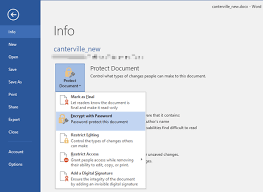
- Select “Protect Document”: From the dropdown menu, select “Protect Document”.
- Choose “Encrypt With Password”: In the “Protect Document” window, choose “Encrypt with Password”.
- Enter Your Password: Enter a strong password to encrypt your document.
- Confirm Your Password: Re-enter your password to confirm.
Protecting Your Word Files on Mac
If you’re using a Mac, follow these steps:
- Open Your Document: Open the Microsoft Word document you want to protect.
- Click on The “Tools” Tab: Click on the “Tools” tab in the top right corner of the screen.
- Select “Protect Document”: From the dropdown menu, select “Protect Document”.
- Choose “Encrypt With Password”: In the “Protect Document” window, choose “Encrypt with Password”.
- Enter Your Password: Enter a strong password to encrypt your document.
- Confirm Your Password: Re-enter your password to confirm.
Protecting Your Word Files With Libreoffice
If you’re using LibreOffice instead of Microsoft Word, follow these steps:
- Open Your Document: Open the LibreOffice Writer document you want to protect.
- Click on The “File” Tab: Click on the “File” tab in the top left corner of the screen.
- Select “Save As”: From the dropdown menu, select “Save As”.
- Choose a Password: In the “Save As” window, choose a password to encrypt your document.
- Confirm Your Password: Re-enter your password to confirm.
Protecting Your Word Files on Smartphone And Tablet
If you’re using a smartphone or tablet, follow these steps:
For Android:
- Open Wps Office: Open the WPS Office app on your Android device.
- Create a New Document: Create a new document or open an existing one.
- Click on The “Lock” Icon: Click on the lock icon in the top right corner of the screen.
- Enter Your Password: Enter a strong password to encrypt your document.
For iOS:
- Open Pages: Open the Pages app on your iOS device.
- Create a New Document: Create a new document or open an existing one.
- Click on The “Share” Icon: Click on the share icon in the top right corner of the screen.
- Choose “Enforce Password”: Choose “Enforce Password” to encrypt your document.
Conclusion
Protecting your Microsoft Word files with a password is a simple and effective way to add an extra layer of security to your sensitive documents. By following these step-by-step guides, you can ensure that only those with permission can access or edit your files.
Frequently Asked Questions
- Q: What Happens if Someone Tries to Open my Protected Word File Without The Password?
A: If someone tries to open your protected Word file without the password, they will be prompted to enter the correct password. - Q: Can I Remove The Password From a Protected Word File?
A: Yes, you can remove the password from a protected Word file by following the same steps as above and entering an empty password. - Q: Is it Possible to Protect a Word File With Multiple Passwords?
A: No, it is not possible to protect a Word file with multiple passwords. However, you can use different levels of protection, such as encrypting the document and setting restrictions on editing and printing. - Q: Can I Protect a Word File on a Cloud Storage Service Like Google Drive or Dropbox?
A: Yes, you can protect a Word file on a cloud storage service by uploading it to your account and protecting it with a password using the steps above. - Q: Is There an Alternative Way to Protect my Word Files Besides Using a Password?
A: Yes, there are alternative ways to protect your Word files, such as using encryption software or setting permissions on shared documents. - Q: Can I Use This Method to Protect Other Types of Microsoft Office Files, Like Excel or Powerpoint?
A: No, this method is specifically for protecting Microsoft Word files. However, you can use similar methods to protect other types of Microsoft Office files, such as using encryption software or setting permissions on shared documents. - Q: Is it Possible to Protect a Word File That Was Created in an Older Version of Microsoft Office?
A: Yes, it is possible to protect a Word file that was created in an older version of Microsoft Office by opening the document in the latest version of Microsoft Office and following the steps above.
Bonus Tip
Remember to always use strong passwords to protect your sensitive documents. A good password should be at least 12 characters long and include a mix of uppercase and lowercase letters, numbers, and special characters.


